Hands-On Practice
3 Press the button on pen tray to launch the On-Screen Keyboard
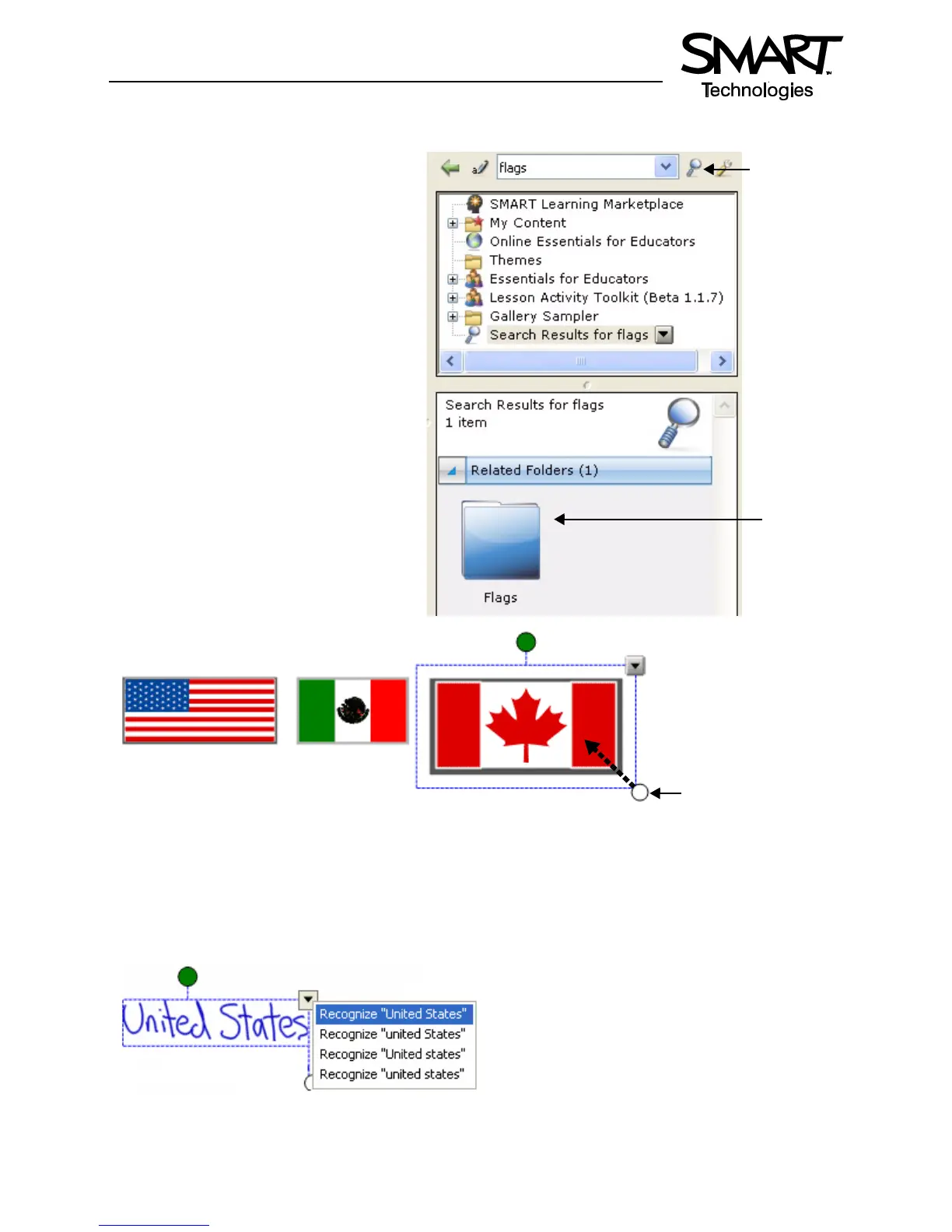
4 Type the keyword flags and press the
Search button to initiate your search
5 Notebook software displays your search
result(s) as a thumbnail image matching
your search criteria. In this example, a
folder named Flags will appear.Double-
press the folder thumbnail to view its
contents
6 Scroll through the Gallery collection to
find flags for the United States, Mexico
and Canada. Drag each flag to the work
area of your Notebook file.
TIP: You can double-press the flag’s
thumbnail image to quickly add it to your
work area.
7 Resize each flag by diagonally dragging
the resize handle. Ensure the flags are
approximately the same size.
8 Align the flags horizontally
9 Write the name of each country in a different color
10 Select United States, for example, and choose the appropriate typed text from the object’s drop-down
menu. Convert Mexico and Canada from handwritten to typed text also.
Double-press
the folder
thumbnail to
view its
contents
Click to initiate
search
Drag an object’s resize
handle to change its
dimensions


 To Next Page