Searching for content
The SMART Learning Marketplace includes an easy-to-use search tool to help you locate the exact type of content you
need. You can search by keyword and filter search results by content type and subject.
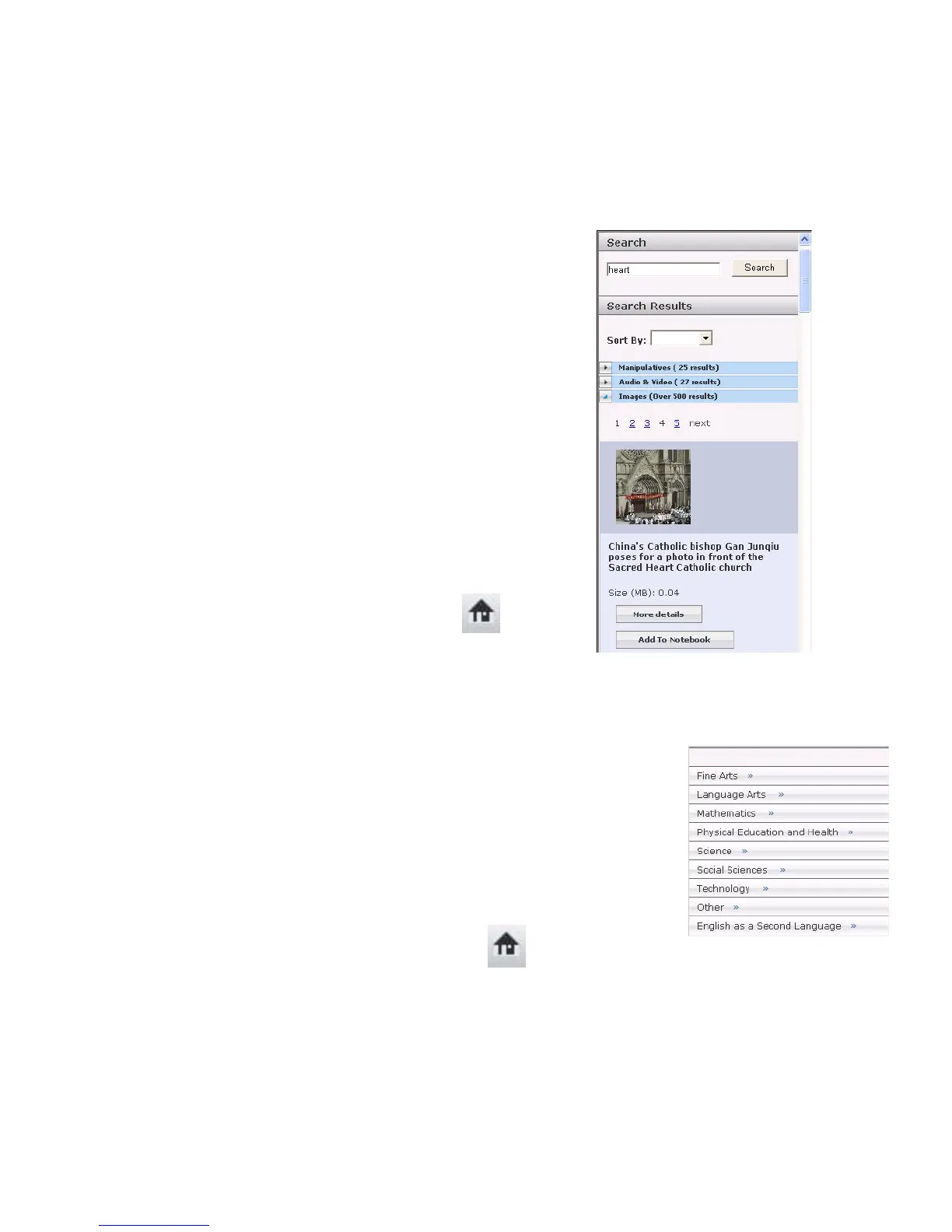
1 Type heart into the Search field
2 Click the Search button. The search results appear in the
Gallery frame.
T
IP: If a search returns too many results, try adding
additional keywords to return a smaller and more relevant
set of results. In this example, try adding the word human to
the search.
3 Click the arrow on the Images header to see the images
4 Using the scroll bar, scroll to the bottom of the pane to see
additional images
5 Scroll back up to the top of the pane
6 Click the 2 found below the Images header to see the next
page of images. Explore as many pages as you would like.
7 Click the arrow on the Images header to collapse the
category
8 Explore the content in the other categories – Audio and
Video, and Manipulatives – by repeating the above steps
for each content type
9 When you have finished viewing the results, click the
Home icon
Searching by subject, curriculum standards or content type
You can also search for content by navigating through the subject, curriculum standards and content type categories defined
in the SMART Learning Marketplace.
1 Click the Browse by Subject link. A list of education subjects appears.
2 Click Science. A list of science sub categories appears.
3 Click the Life Science link. Search results for Life Science appear.
4 Click the arrow on the Images header to see the images
5 Using the scroll bar, scroll to the bottom of the pane to see additional images
6 Click the Back to Sub Categories link found above the Search Results header
7 Click the Back to Subjects link
8 Repeat the steps above to explore any additional subjects you are interested in
9 When you finish viewing the results, click the Home icon
Learning objects are categorized by
subject, making it easy to find content
for your lessons.


 To Next Page