Hands-on Practice
Finding and Downloading Content with the SMART Learning
Marketplace and SMART Notebook Software
Before you begin, ensure that your computer is turned on and SMART Notebook software is installed on it. This Hands-on
Practice assumes you have a basic understanding of SMART Notebook software and the Microsoft
®
Windows
®
operating
system. For more information on how to get started with SMART Notebook software, refer to the Quick Reference guides
available at www.smarttech.com/trainingcenter/windows/trainingmaterials.asp
.
What is the SMART Learning Marketplace?
The SMART Learning Marketplace is a content subscription service that enables you to quickly find and integrate
copyright-cleared digital learning objects, including images, manipulatives, multimedia files and extra resources into your
interactive lesson. You can use these learning objects when preparing your lesson in advance, or you can access the
SMART Learning Marketplace during your lesson to locate high quality resources as you and your students need them.
In this Hands-on Practice you will search for, download and manipulate content relevant to an anatomy lesson. You can also
use the concepts outlined in this document to locate and work with content appropriate for other subject areas.
Accessing the SMART Learning
Marketplace
The easiest way to access the SMART Learning
Marketplace is through the SMART Notebook
software Gallery. Accessing the Marketplace in this
way enables you to search for content through the
same familiar interface you use to create interactive
lessons.
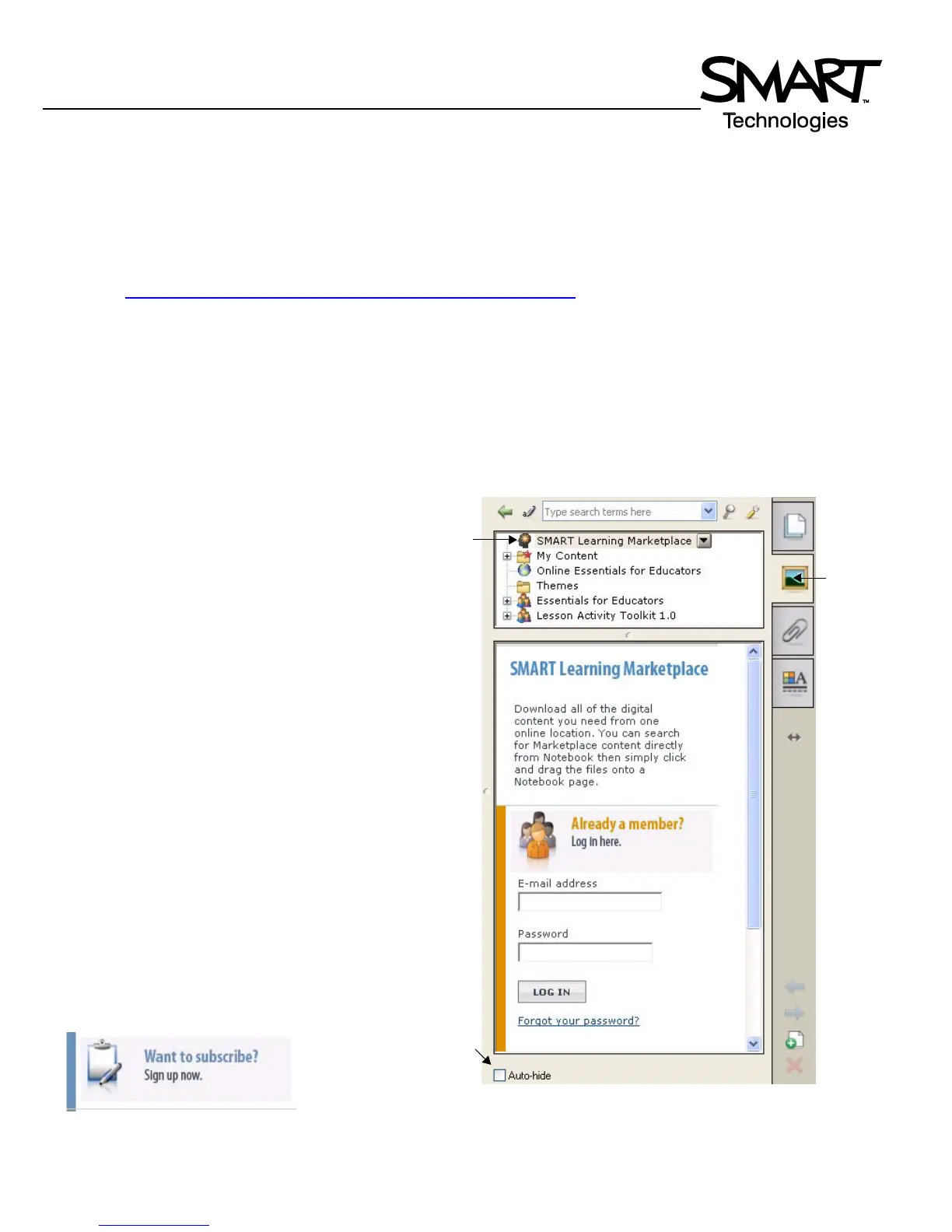
1 Open a blank SMART Notebook file
2 Click the Gallery tab on the side of the
SMART Notebook interface
T
IP: Deselect the Auto-hide check box to keep
the Gallery tab visible. This action will provide
you with easy access to the SMART Learning
Marketplace while you locate and download
content for your lesson.
3 Select SMART Learning Marketplace. The
Gallery tab will display the SMART Learning
Marketplace log in screen in the lower frame.
4 Type your e-mail address and password into
the appropriate fields
5 Click the Log In button
6 If you do not have an account, scroll down and
click the Sign up now button to create an
account before proceeding with this Hands-on
Practice
Open the
Gallery
tab.
Select the
SMART
Learning
Marketplace
in the
Gallery.
Deselect this
check-box to
keep the side
tabs visible.


 To Next Page