The smart-MAIC D103 is an energy monitor designed for continuous measurement of electrical network parameters and electricity consumption. It allows users to measure and record changes in electricity consumption and power grid parameters across three phases or three lines in a single-phase network.
Function Description
The device measures various parameters, including:
- Voltage (V)
- Current strength (A)
- Active power (W)
- Reverse active power (rW)
- Active energy (Wh)
- Reverse active energy (rWh)
- Power factor
Some of these parameters, specifically those marked with an asterisk, are available in the extended version of the device.
Communication with the smart-MAIC D103 is established via the IEEE 802.11 Wi-Fi 2.4 GHz wireless communication protocol. The device transfers accumulated data to a "cloud" server for further analysis and visualization. Current data is also accessible on the device's built-in web interface.
The smart-MAIC D103 is equipped with a controlled dry contact output, intended for load control automation. This output can manage power solid-state relays connected to electrical appliances or be used for building automation in low-current networks. The output can be controlled remotely via the device's web page or from the server, and it can also be configured to operate based on predefined conditions and/or schedules. The controlled output is designed for switching power loads of no more than 50W.
The device also supports data transmission and dry contact output control using the Message Queue Telemetry Transport (MQTT) service. The MQTT service can be activated on the device's web interface in the "MQTT Server" section. If the "Username" and "Password" fields are left blank, login to the server will proceed without authorization. Only non-encrypted connections to the MQTT server are supported. The device periodically publishes data in the format <device number>.<Topic name> to various topics, including voltage, amperage, active power, stored energy, power factor, temperature, and output state.
To control the "dry contact" output via MQTT, this feature must be activated in the "MQTT Server" section of the device's web interface. The output state is changed by publishing a control phrase to the <device number>.SETOUT topic. The service supports two control phrases for enabling and disabling the output, which can be up to 15 characters long and changed on the device's web interface. By default, "1" turns on the output and "0" turns it off. Relay control topics should be sent with the RETAIN flag.
The device includes a function for checking data compliance with specified conditions, allowing for automation of the controlled output or reception of notifications. Up to 6 conditions can be configured. Conditions are checked from top to bottom, and the relay adopts the state of the last fulfilled condition. To prevent false alarms, a "Filter up to [sec]" setting ensures a condition is met only if the value remains in the specified range for a certain duration. Condition checks can also be time-limited. A "Delay after [sec]" setting prevents the relay from switching for a minimum of 60 seconds, regardless of conditions.
The event notification function allows users to activate the sending of e-mail messages about selected events, such as low battery, power failure, or power recovery.
Important Technical Specifications
- Measurement Error: Less than 1%
- Single Phase Current Measurement: Up to 100A/300A/600A/1000A/1500A/2000A (depending on the current transformers used)
- Load on Controlled Relay: Up to 50 Wt
- Power Consumption: Up to 1.2 Wt
- Wireless Communication Protocol: 2.4 GHz / IEEE 802.11 (b, g, n)
- Data Refresh Interval: 5 seconds
- Data Collection Interval: 1 minute
- Data Accumulation in Absence of Wi-Fi: 17 days
- Working Temperature Range: From -40 °C to 70 °C
- Dimensions (LxHxW): 90 x 67 x 52 mm
- Scope of Delivery: 1 Energy monitor smart-MAIC 103, 3 Current transformers
Usage Features
The device is housed for installation on a DIN rail with an IP20 protection level. For installation at the monitoring object, a plastic mounting box with IP54 (indoor) or IP65 (outdoor) dust and moisture protection is required. Direct sunlight should be avoided for outdoor installations.
Installation and Connection:
- Mount the device on a DIN rail and secure it by sliding the latch up.
- Connection to the mains must be performed by trained personnel with at least a group III permit for electrical safety when working on installations up to 1000 V.
- Connect the leads of the current transformers to the device according to the wiring diagram. If transformers have quick plugs, do not connect them to a running device, as this may cause damage.
- Slide the numbered current transformers (1-2-3) over the wires of the 1st, 2nd, and 3rd phases. Transformers have a power direction indicator; installing them in the direction from the electricity meter to consumers ensures optimal measurement accuracy.
- Connect three phases and a neutral wire to the device as per the connection diagram.
For single-phase network connections, the smart-MAIC D103 can monitor lines to different consumers (e.g., boiler, air conditioner). Power should be connected to one input, and jumpers set for the remaining power inputs (L1, L2, L3). Current transformers are placed on the corresponding lines leading to consumers.
Network Configuration:
- For normal operation, a good wireless network signal with Internet access is required at the installation location.
- Upon first startup or a short press of the Reset button, the device enters wireless access point mode.
- Connect to the "smart-MAIC" + device number network from your computer or phone. If not visible, briefly press the Reset button. The default connection password is none.
- After connecting, access the device's built-in web interface by entering
http://192.168.4.1 in your browser.
- In the "WiFi and Network" section, select your network name, click "Connect," and enter your password. If your network isn't listed, click "Refresh."
- Wait a minute, reconnect to the device's access point, reload the settings page, and verify successful connection and the device's internal IP address in the status bar.
- Disconnect from the device's hotspot and connect to your WiFi network. Access the device's web interface using the obtained IP address to continue configuration.
- For stable WiFi operation, the signal level should be greater than -80dB (preferably better than -70dB). If issues persist, try changing the WiFi type to "G (up to 54Mbs)" in device settings, changing the channel on your router, or connecting to a different router.
- In the "Configuration" section, select the desired language for the web interface and change the password for accessing it. The default password "0000" will not allow connection to the "cloud server." The new password must be numeric and no more than 10 characters long.
- In the "Data Server" section, verify the connection to the "cloud" server.
- In the "Status" section, copy the device ID, which is needed to connect the device to the "cloud server."
Data Checking:
- On the device page, in the "Data" section, check the readings. A correctly connected device should show a Power Factor [PF] parameter close to 1.00. Check for "Revers" indications, which may suggest incorrect connection logic.
- To synchronize the accumulated energy meters ([Wh] Energy and [rWh] Rev.Energy) with your electricity meter, set the initial values in the "Data" section of the device settings. Note that the device measures in watts, so kilowatt readings from your meter should be multiplied by 1000 to get watts. If your meter shows total consumption for three phases, divide this value by three for initial setup.
Access to Data and Visualization:
- Data obtained during measurements can be stored on a cloud server. Access to current and historical data is available through your personal account in the smart-MAIC Dashboard web application.
- Create an account on the cloud server at
https://dash.smart-maic.com/.
- From the "Devices" menu, select "Add Device" and enter the device name, device ID (found in the device's web interface "Status" tab), and the password set on your device.
- After connecting, two pre-configured whiteboards will automatically be created to display data on your PC and mobile device.
Maintenance Features
The smart-MAIC D103 does not require periodic maintenance. It uses a built-in CR 2032 3V battery to power the device clock. This battery has a long service life (more than 10 years), though its lifespan is affected by temperature conditions. If the battery fails completely, the device will continue to operate with limited functionality.
Battery Replacement Procedure:
- Disconnect the device from the power supply.
- Unscrew the 4 screws connecting the device body and remove the upper case.
- Remove the old battery from its holder.
- Insert a new battery into the holder, observing polarity.
- Reattach the upper part of the case and tighten the 4 screws.
Reset and Restore Factory Settings:
The Reset button, located near the top group of contacts, has two functions:
- Reboot: A brief press of the Reset button reboots the device and enters wireless access point mode.
- Restore Factory Settings: Press and hold the Reset button for more than 5 seconds. After restoring settings, the device reboots and enters wireless access point mode. You will then need to reconnect to your wireless network and reconfigure the device.
Factory reset does not affect energy storage meters. The wireless access point mode automatically turns off 15 minutes after the last interaction with the device's web interface.

 Need help?
 General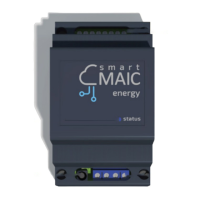

 To Next Page