10 | Page
Moving Files in to Folders: Tap and hold a file until the background
becomes black. Drag the file in to the folder you have created.
Moving Files out of Folders: Open the folder then tap and hold the file
you want to move out of the folder. To move the tiles into the parent
folder, drag the tiles over the parent folder’s name in the breadcrumb
at the top of the screen. To move the tiles into a sibling folder, drag the
tiles to between the parent and child folders to select from a list of
sibling folders.
Apps
Tap this icon to browse the currently installed apps and also to
search for new apps in the app store. At this time the app store
is not populated with any apps. In the near future SMART will be
adding apps to the store. You will be able to browse for and
install them here.
Care and Maintenance
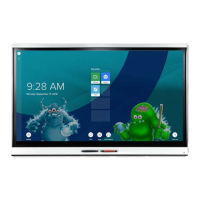
Cleaning the Screen: Follow these instructions to clean the screen
without damaging its anti-glare coating or other product components.
CAUTION
• Do not use permanent or dry-erase markers on the screen. If dry-
erase markers are used on the screen, remove the ink as soon as
possible with a lint-free, non-abrasive cloth.
• Do not rub the screen with dense or rough material.
• Do not apply pressure to the screen.
• Do not use cleaning solutions or glass cleaners on the screen,
because they can deteriorate or discolor the screen.








 To Next Page