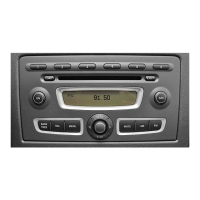
Overview
Example: radio display
:
Status bar
;
To switch radio mode off
=
Display/selection window
?
Radio menu bar
A
Icon bar showing the activated functions for fast switching
Status bar : shows the time and the current settings for radio operation.
You can switch the radio mode off using close box ;.
Display/selection window = shows:
R
the station name and the station frequency (line 1)
R
the radio text as scrolling text (line 2)
R
the waveband (line 3)
R
the assignment of the first four presets (line 4)
i
The radio text is switched off in the standard setting. Switching radio text on/off
(Y page 86).
Radio menu bar ? allows you to operate the different radio functions.
Icon bar A shows which other functions are currently activated. In the example, these
are navigation and music mode. Pressing one of the symbols switches to the corresponding
mode.
12
Audio system navigation/multimedia operating system
>> At a glance.


 To Next Page