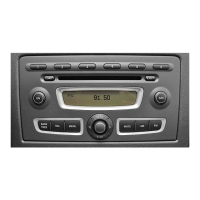
Volume settings
Calling up the volume settings menu
X
Press Extras in the main menu
(Y page 10).
X
Press Options in the extras menu.
The general settings menu appears.
X
Press Volume settings.
i
If you then want to adjust one of the vol-
umes, you will hear the volume currently
selected.
You cannot adjust the volume settings
during a navigation announcement.
Adjusting the volume for traffic
announcements
You can increase or decrease the volume for
subsequent traffic announcements.
X
Call up the volume settings menu.
The entry on the right beside Traffic
announcement shows the current setting.
X
Press Traffic announcement in the
menu.
A settings menu appears.
X
Press the = or Ì button to adjust
the volume. You can select values between
0 (switched off) and 50 (loud).
or
X
Turn cVd the control knob.
X
To confirm the setting: press OK.
The volume settings menu appears.
Adjusting the volume for phone calls
You can adjust the volume for hands-free
mode.
X
Call up the volume settings menu
(Y page 22).
The entry on the right beside Mobile
phone shows the current setting.
X
Press Mobile phone in the menu.
A settings menu appears.
X
Press the = or Ì button to adjust
the volume. You can select values between
0 (switched off) and 50 (loud).
or
X
Turn cVd the control knob.
X
To confirm the setting: press OK.
The volume settings menu appears.
Audio fadeout during a navigation
announcement
The volume of an audio source can be low-
ered during a navigation announcement.
22
Volume settings
>> General settings.


 To Next Page