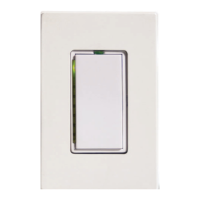
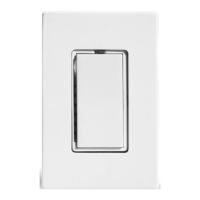
Scene Address Programming (continued)
SwitchLinc 2-Way is compatible with these other scene-enabled Smarthome products:
• ToggleLinc
TM
2-Way and Plus Dimmers • SwitchLinc RX Plus Dimmers
• LampLinc
TM
2-Way & Plus Modules • SwitchLinc Timer
• ApplianceLinc
TM
2-Way Modules • SwitchLinc Relay 2-Way
• KeypadLinc
TM
Wall Mounted Controllers with Integrated Dimmer
The scenes for all these modules can be setup simultaneously using the same program-
ming sequence. Signals sent by transmit-enabled Smarthome products, like those
above, will be received and understood by the SwitchLinc 2-Way!
Transmitters that can set up scenes
Scenes can be programmed with a ControLinc
TM
, a Maxi-Controller or any transmitter
capable of sending Housecode and Unit Code address without an ON or OFF command.
Transmitters in which one button is pressed to turn a load on or off WILL NOT WORK.
When using one of these equivalent transmitters, be careful when pressing the buttons.
Programming will be ignored if some commands are not sent in the proper sequence.
"Fat-Fingering" or accidentally pressing the same button twice may prevent the program-
ming from being accepted.
If KeypadLinc controllers are installed in the house and one of their buttons is pro-
grammed to transmit to Smarthome scene-enabled receivers, it can be used to quickly
set up scenes (see the KeypadLinc manual for more information).
Smarthome TouchLinc
TM
Touchscreens have a built-in wizard to help automate the
scene setting process. Many computer programs like Smarthome Manager, Indigo for
Macintosh, HCA, and HomeSeer have tools to aid in setting up scenes and many other
features. Please check with your automation software supplier for availability.
Programming Scene Membership and On-Levels:
1. Transmit the “clear” sequence:
2. Activate the SwitchLinc (manually or remotely) by turning it on and adjusting the
brightness to the desired brightness level for the scene. (Hint: a scene can trigger
a module to go off by setting the dim level to 0%.)
3. Send the following command sequence:
4. Transmit the desired scene address (house and unit code) to lock-in new scene.
The light(s) will blink and come to 100% brightness to indicate that it has set the new scene.
Programming Scene Fade-on Rates (optional):
The fade-on rate of each in each scene is individually adjustable from .1 to 540 seconds
(9 minutes). If this setting is not adjusted, the SwitchLinc will use the fade rate of the
primary address for the scene.
1. Transmit the “clear” sequence:
2. Using an PLC Controller, send the primary address of the SwitchLinc and adjust the
dim level corresponding to the fade-on rate time using the table on page 7
(brighter=faster).
3. Send the following command sequence:
4. Transmit the scene address (house and unit code).
The light(s) will blink indicating that the new fade-on rate has been set.
8
O16 N16 M16 P16 M16
M16 N16 O16 P16
O16 N16 M16 P16 M16
N16 O16 P16 M16


 To Next Page
 Loading...