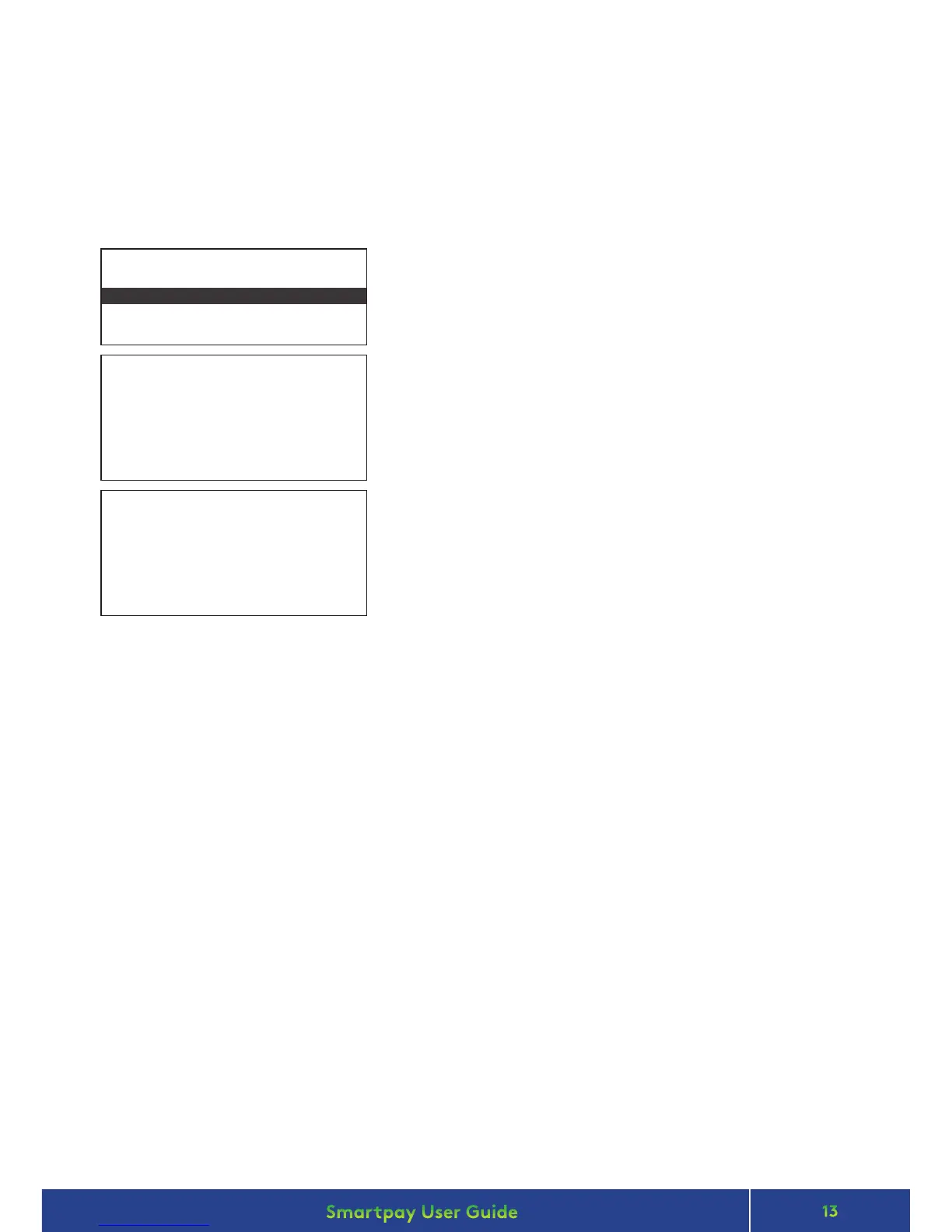
MERCHANT & COMMUNICATION SETTINGS
Wi-Fi SETTING:
SSID : Networkname1234
Sec mode: WPA2PSK
SCAN FOR AVAILABLE
Wi-Fi ACCESS POINTS?
ENTER = OK CLEAR = CHANGE
ENTER: SCAN
CLEAR: MANUAL ENTRY
CHANGING NETWORK
To change from currently connected Wi-Fi network
• Press MENU > QUICK ACCESS MENU > COMMS
Continue Wi-Fi set-up as per corresponding steps in NEW NETWORK ON START-UP instructions
TERMINAL COMMS
WIFI
BLUETOOTH
Select WIFI
Bluetooth option is not available at this time
Screen displays Wi-Fi network settings
• Press CLEAR to change
• Press ENTER to start automatic scan
or
• Press CLEAR if you want to congure manually
Wait while terminal scans for available Wi-Fi networks
NETWORK SETTINGS DETAILS
Smartlink Lite uses the terminal’s IP address to “pair” with the POS. If that IP address changes, then the
connection will be lost and you must recongure the new terminal IP address in the POS settings. When in
Smartlink Lite mode you can press 1 to view terminal current IP address.
When using the EFTPOS terminal paired with your POS using Smartlink Lite it is recommended that you
congure the terminal with a Static IP address.
Smartlink Lite does not work over a dial-up or GPRS connection.
Here’s a tip:
Connect your terminal to the network using a standard automatically assigned DHCP IP address and
perform a PRINT CONFIG rst so that you have all your network information. You will need this to
congure a Static IP address for Smartlink Lite pairing.
From idle screen
• Press MENU > QUICK ACCESS MENU > PRINT CONFIG
- see LOCAL IP SETTINGS section on receipt print-out for details


 To Next Page