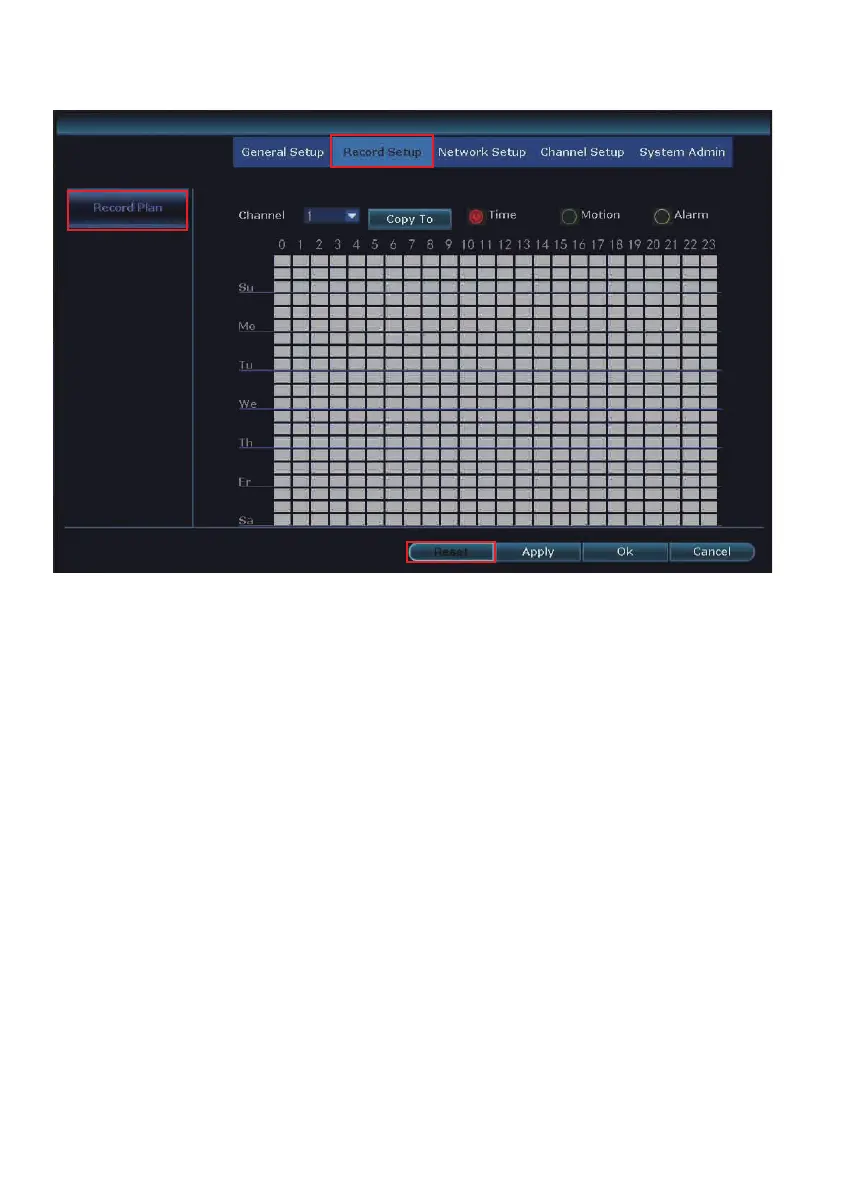
If device user like to change, please ‘Reset’ first. Then, setup your own schedule.
How:
Repeat the following steps for each camera channel:
Step1: Select the channel you wish to schedule.
Step2: Highlight the Time button. The “Motion” and “Alarm” buttons will be discussed
ads part of Type 2: Motion Recording in the next section.
Step3: The period can be set to an individual day of the week (7 day available from
Monday to Sunday)
Step4: Specific time intervals can be set for recording during a 24-hour period (from
0am to 23pm)
Step5: If you wish to set the same period and time periods for all camera channels,
simply click “Copy to.”
NOTE: You do not have to repeat this process for each channel if you select “Copy
to”
12


 To Next Page