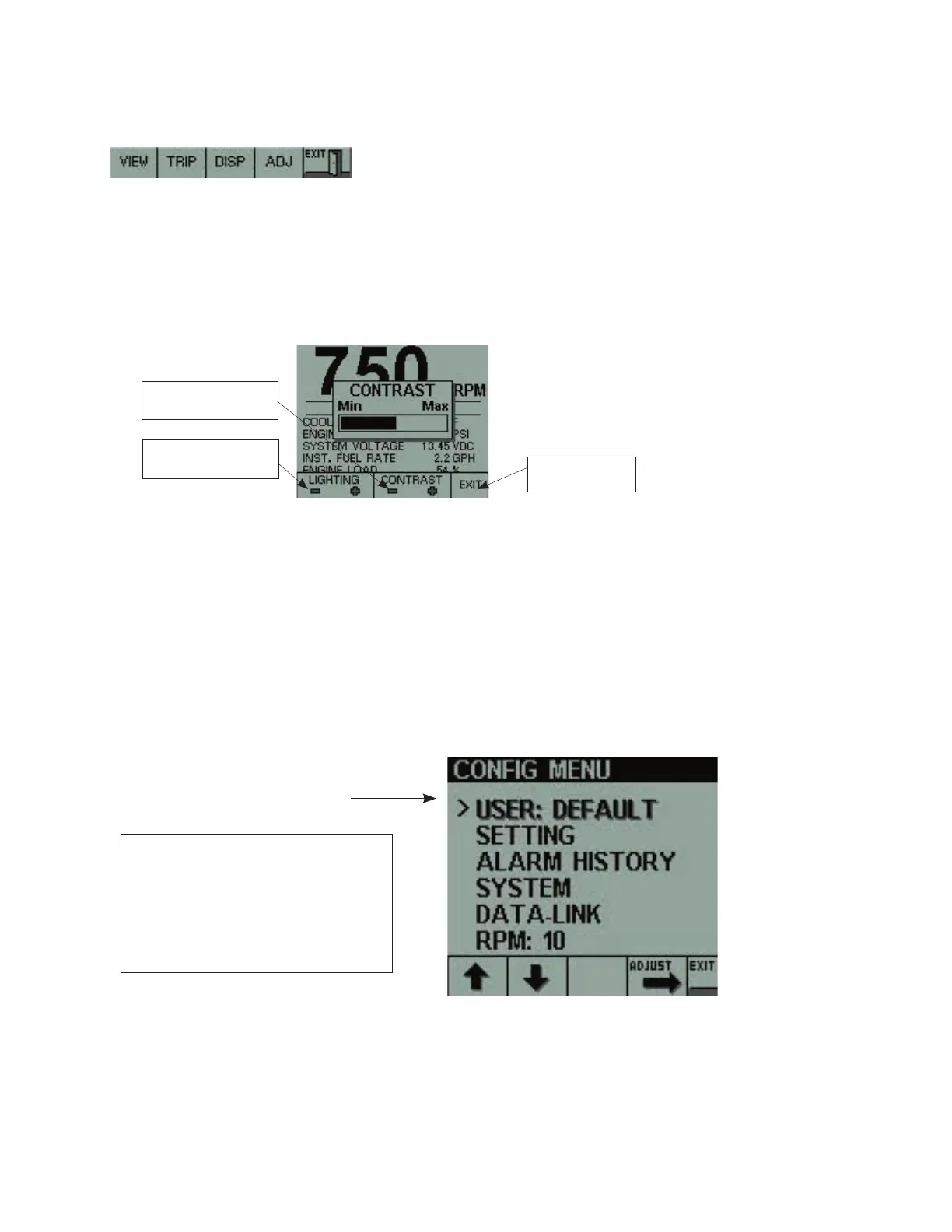
Menu Exit (MENU EXIT – Key 5)
When no active faults are present, this key allows clearing of the menu bar from the screen
as well as adjusting display contrast and backlighting.
Under normal conditions, the menu bar will remain present at the bottom of the display for 5
seconds and then will slowly slide to the bottom until it disappears. Pressing Key 5 will im
-
mediately hide the menu bar. Pressing any key except Key 5 will then restore the menu bar.
Lighting and Contrast
Pressing Key 5 while the menu bar is hidden will display the lighting and contrast controls.
Contrast Reset
If the display contrast has been set so that the display is unreadable and can not be ad
justed back, press the first four keys together. This will reset the contrast to a central value
and reset the lighting to maximum.
Note: The key press bleep will also be turned on.
Press Key 5 to exit
when done
Decrease/Increase the
lighting brightness
Decrease/Increase
the contrast
Configuration Menu
Pressing and holding down Key 5 for 3 seconds will display the configuration menu.
Press Up or Down arrow key to select the
display configuration to be charged. This
will place a “>” next to the selected item.
Press the ADJUST key (Key 4) to enter the
SETTING MENU screen to make the desired
changes.
Press the EXIT key when done.
PRESS and HOLD
KEY 5 then
User Menu
Six user setups can be stored in this menu with an associated user name. The user can
configure the screens with the desired parameters then store the setup here. The selected
user’s name will be shown on the startup screen when the unit is first turned on.


 To Next Page
 Loading...