CHAPTER 5: SETUP FOR WINDOWS PC 55
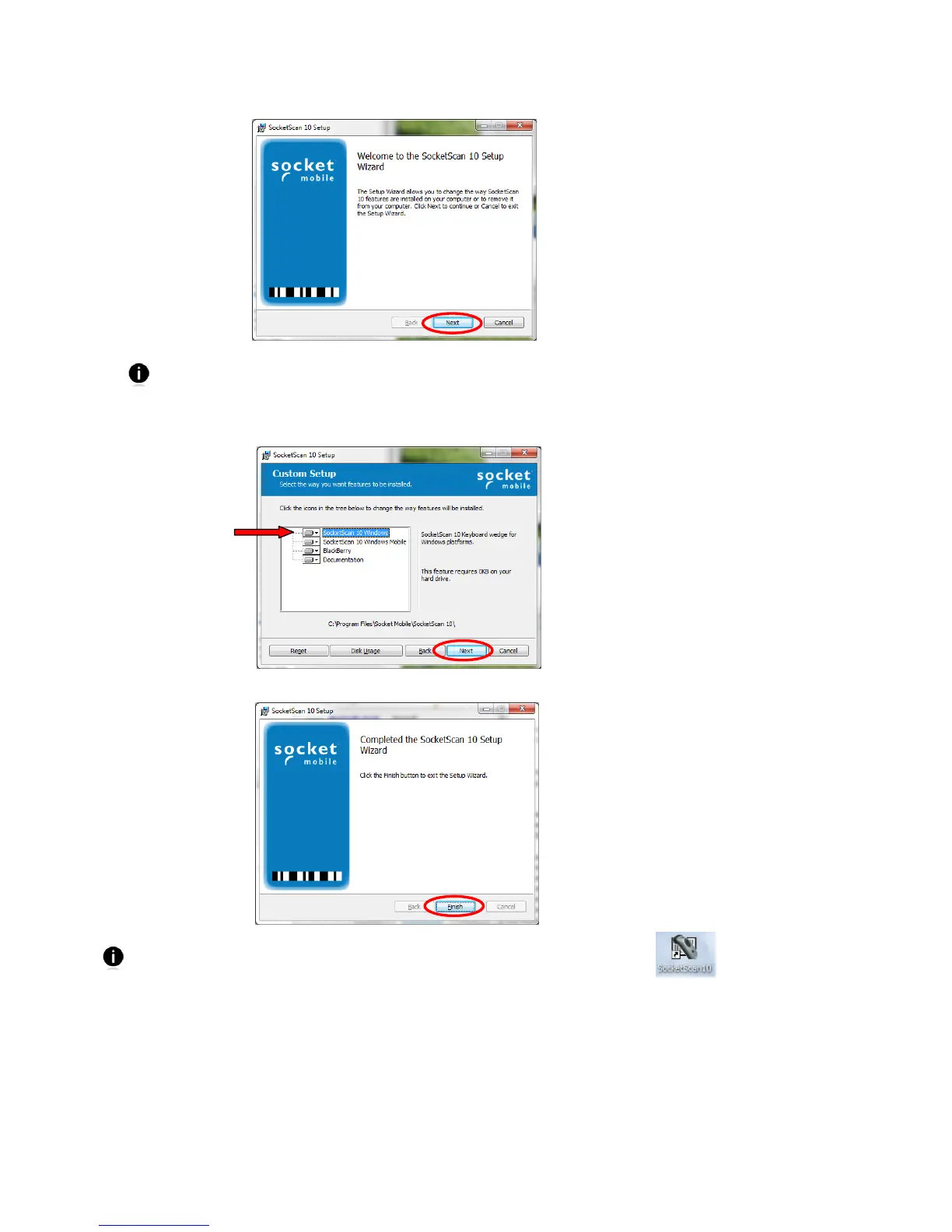
5. The SocketScan 10 Setup Wizard will launch. Follow it to install the software.
If you are running an older version of SocketScan 10, uninstall it before proceeding with
the newer installation. Make sure SocketScan 10 is not running before you start the
uninstall process, and when prompted, restart your PC to complete the uninstallation.
6. In the Custom Setup screen, make sure SocketScan 10 Windows is selected. Click the drop-down
menu next to each option to choose where to install, or to opt not to install. Click Next.
7. Complete the remaining screens until installation is complete. In the last screen, click Finish.
After installation, a SocketScan 10 shortcut will appear on your desktop. Click it to
quickly launch SocketScan 10.













 To Next Page