CHAPTER 5: SETUP FOR WINDOWS PC 57
To pair the CHS with your computer:
You only need to pair the CHS with your computer the first time you try to connect.
The following instructions are based on Socket EZ Pair, a feature of SocketScan 10
software. For instructions on how to connect by generating and scanning a special
barcode, please see Appendix G
.
1. Power on the CHS. Press and hold the small power button until the LED turns blue and the CHS
beeps twice (low-high).
The LED blinks blue once per second to show that the Bluetooth radio is on but not
connected.
2. Turn on Bluetooth on your computer. Refer to your computer’s documentation for instructions.
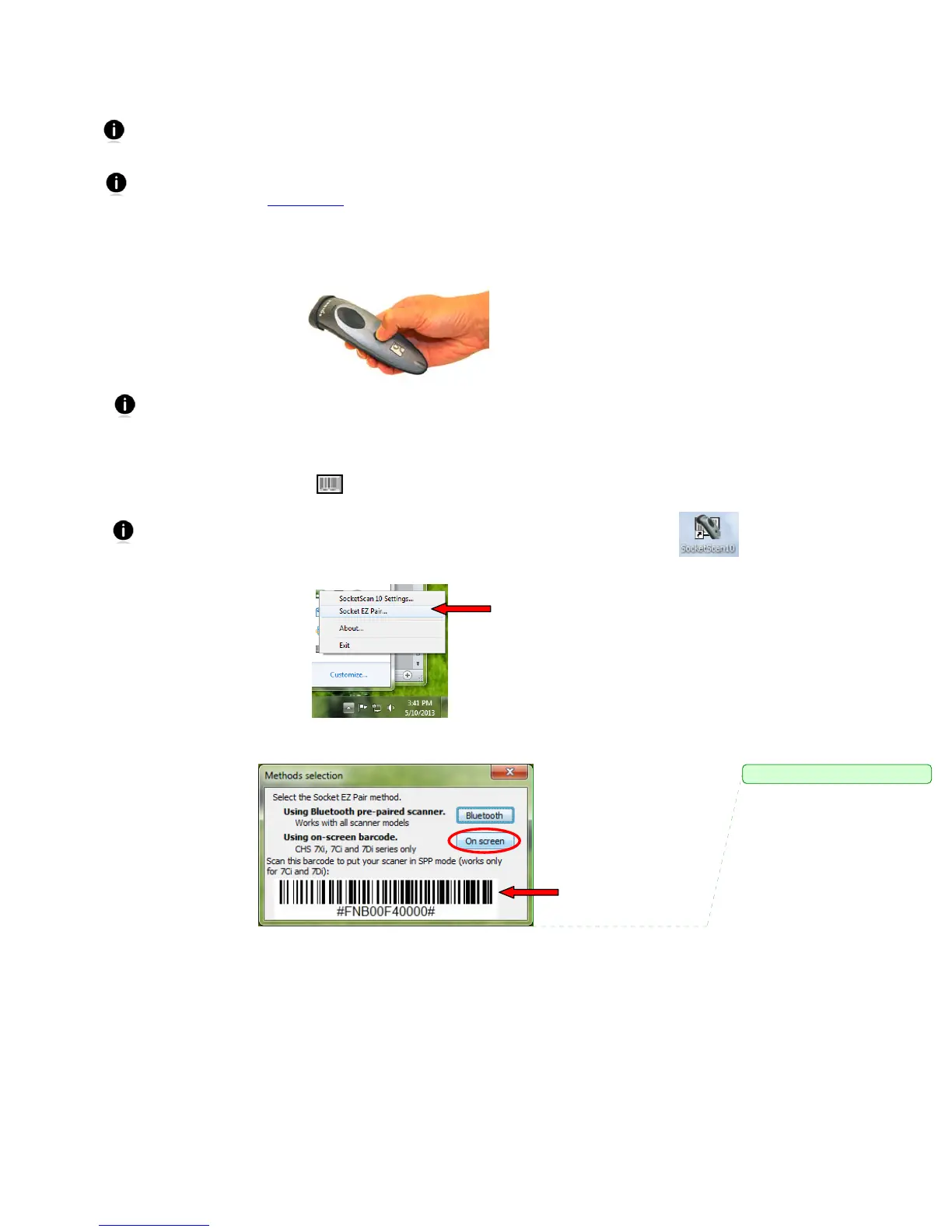
3. Click on the SocketScan 10 icon in the system tray.
If the icon does not appear, try clicking on the triangle to reveal more icons. If the
icon still does not appear, open SocketScan 10 by clicking on the desktop shortcut.
4. In the pop-up menu, click Socket EZ Pair.
5. Scan the barcode on your screen. The CHS will beep 3 times. Click On screen.
Comment [RC1]: Update this pic













 To Next Page