19 LCB FITNESS BIKE
PROGRAMMING PRESET BUTTONS
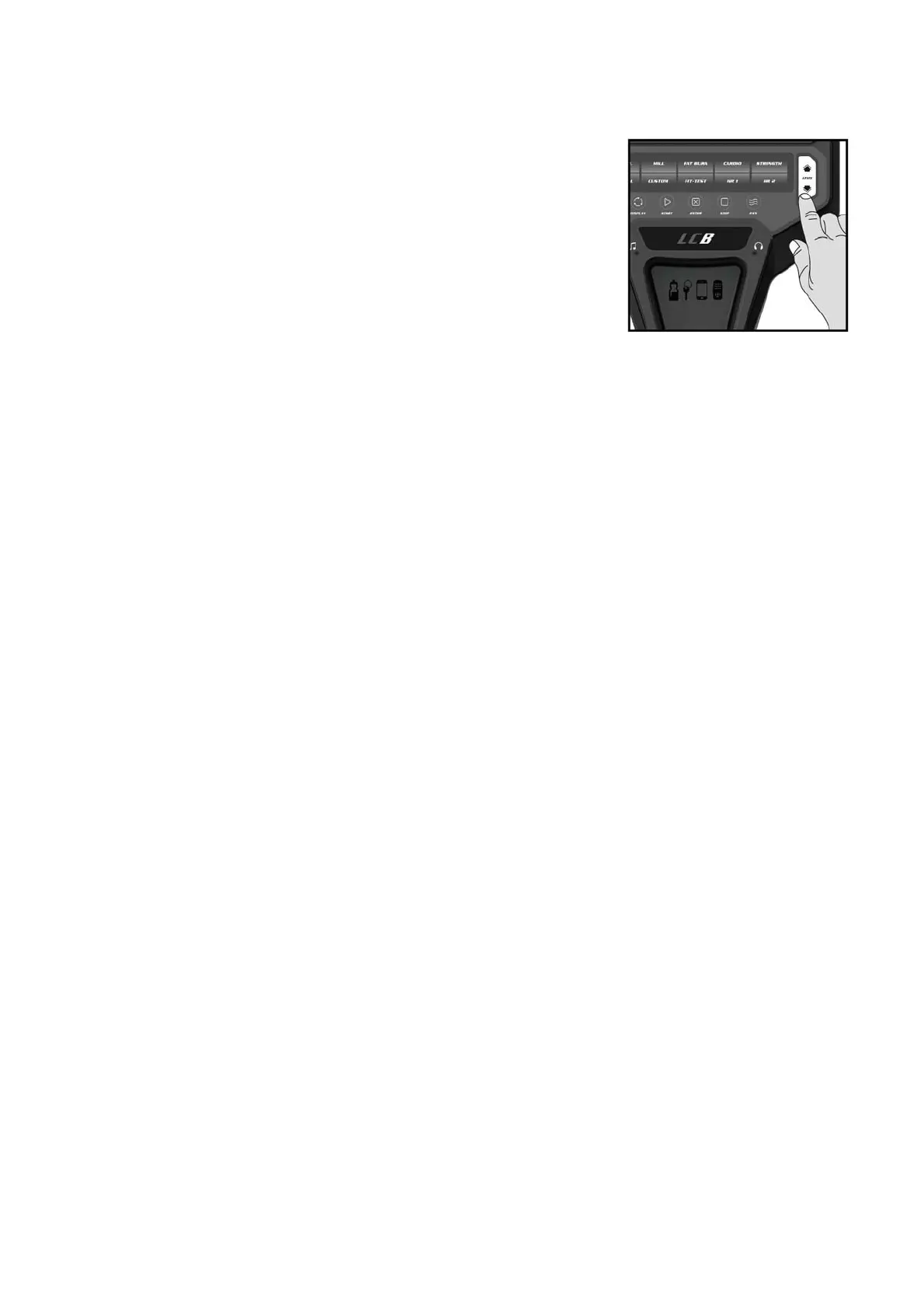
1. Press the desired program button.
2. During the programming stage, the menu will display Age.
You may adjust the age setting, using the Level
▲
/
▼
keys, then press the Enter key.
3. You are now asked to enter your Weight. You may adjust
the weight number using the Level
▲
/
▼
keys then press
Enter to continue.
4. Next is Time. You may adjust the Time and press Enter to
continue.
5. Now you are asked to adjust the Max Level. This is the peak exertion level you will
experience during the program (the highest colored segment/box of the program profile).
Adjust the level and then press Enter.
6. Now you are finished editing the settings and can begin your workout by pressing the
Start key. You can also go back and modify your settings by pressing the Stop key to go
back one level, or screen.
7. If you want to increase or decrease the resistance at any time during the program, press
▲▼
the Level / keys.
8. When you workout in Manual program mode, pressing the DISPLAY key will change the
display information.
9. When the program ends, the Window will show a summary of your workout. The summary
will be displayed for a short time, then the console will return to the start-up display.
CUSTOM USER DEFINED PROGRAMS
The customizable User programs allow you to build and save your own workout. You can build
your own custom program by following the instructions below.
1. Select the CUSTOM program then press Enter. If you have already saved a program to
CUSTOM, it will be displayed and you are ready to begin. If not, you will have the option of
inputing a username. In the Window, the letter “A” will be blinking. Use the ▲/▼ Level
buttons to select the appropriate first letter of your name (pressing the Level ▲/▼ button will
switch to the letter “B”; pressing the Down button will switch to letter “Z”). Press Enter when
the desired letter is displayed. Repeat this process until all of the characters of your name have
been programmed (maximum 7 characters). When finished press Stop.
2. If there is a program already stored in User when you press the key, you will have an option to
run the program as it is or delete the program and build a new one. At the welcome message
screen, when pressing Start or Enter you will be prompted: Run Program? Use the Level ▲/▼
to select Yes or No. If you select No, you will then be asked if you want to delete the currently
saved program. It is necessary to delete the current program if you want to build a new one.
3. The Window will ask you to enter your Age. You may enter your age using the Level ▲/▼
keys, then press the Enter key to accept the new number and proceed on to the next screen.
4. You are now asked to enter your Weight. You may adjust the weight number using the Level
▲/▼ keys, then press Enter to continue.
5. Next is Time. You may adjust the Time using the Level ▲/▼ keys and press Enter to continue.
6. Now the first column will be blinking and you are asked to adjust the level for the first
segment of the workout. When you finish adjusting the first segment, or if you don’t want to
change, then press Enter to continue to the next segment. The next segment will show the
same level as the previously adjusted segment. Repeat the same process as the last segment
then press Enter. Continue this process until all twenty segments have been set.



 To Next Page