pg 2 | Pod Demo Guide | www.mersive.com | © Copyright 2019 Mersive
Introduction to the Solstice Collaboration System
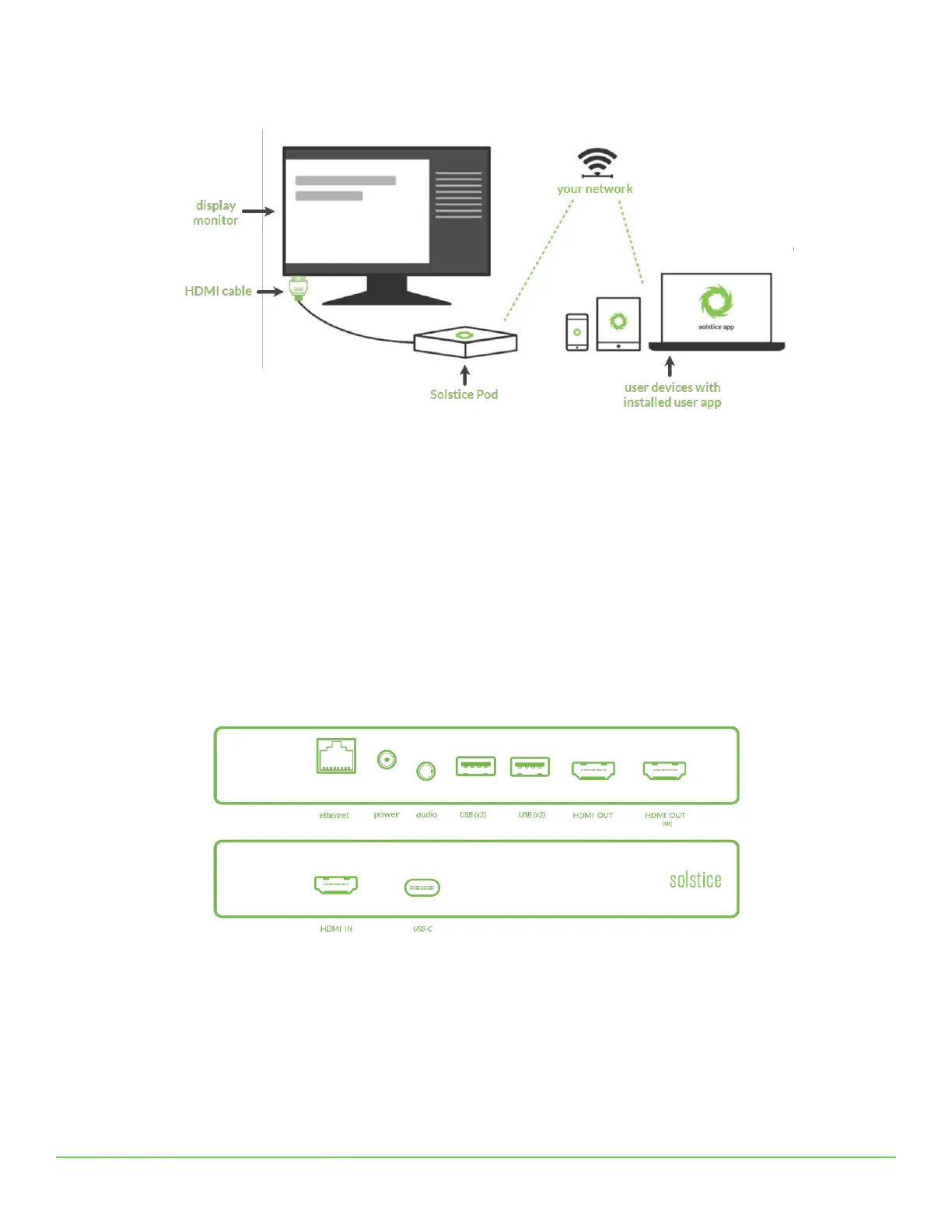
A diagram of a typical Solstice-enabled conference room setup is shown below.
The requirements for an operational Solstice system are straightforward. The Solstice Pod is directly connected to a display
monitor via HDMI cable. The Solstice Pod is then attached to the WiFi/Ethernet network that participants will use to
connect and share to the display. Then, users on the network can follow the on-screen instructions to get the Solstice app
and connect to the display.
The Solstice Pod
The Solstice Pod integrates Mersive’s award-winning Solstice collaboration software with a dedicated hardware platform
to deliver a turnkey wireless content sharing solution. The Solstice Pod connects to any room display via HDMI and
attaches to your WiFi/Ethernet network(s). The Solstice Gen3 Pod supports simultaneous HDMI-in and wireless content
sharing, dual displays to support a larger content workspace, PoE+, audio out, and USB-C input for future innovation. For
additional specs for the Solstice Gen3 Pod, see the Pod Hardware and Technical Specs.
Solstice Gen3 Pod Hardware Ports
The Solstice Display
The term Solstice display is used to refer to any flat panel or projector display connected to a Solstice Pod or Solstice
Display Software host PC, allowing users to connect and share content wirelessly to the display.
Welcome Screen
When viewing a Solstice display that does not have a current collaboration session, you will see the Welcome Screen
containing the Solstice display name, a screen key (if applicable), network information, user connection instructions, and the
Solstice display menu.


 To Next Page