pg 3 | Pod Demo Guide | www.mersive.com | © Copyright 2019 Mersive
Solstice Display Menu
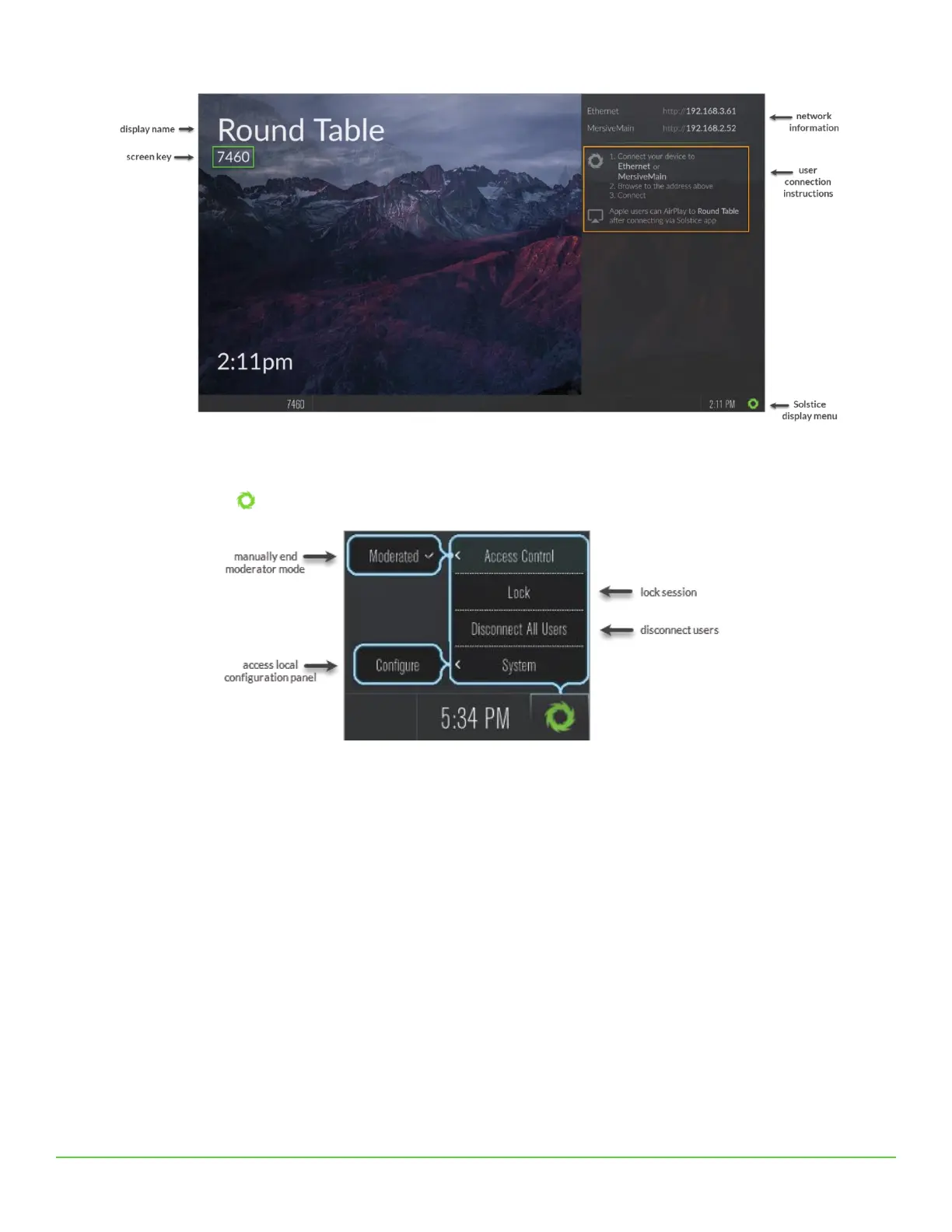
The Solstice Display Menu lets in-room users manually change various Solstice display settings, such as bringing the display
out of moderated mode, locking the display, or disconnecting all users. To access the Solstice Display Menu when Solstice is
running, click the Solstice icon in the bottom right corner of the display (using a USB mouse or via a supported touch
screen).
Display Menu Options
• Access Control: Allows a user to manually remove the display from moderator mode in the case that the user
moderating the meeting left the room without disconnecting from the display. Note: The display is put into
moderator mode through the Solstice user app’s Meeting controls. If moderator mode is disabled for the display,
the Moderate tab and option to moderate the meeting will not appear.
• Lock: Disables access to the display by any new users for the remainder of the session. Only users already
connected to the display can share media.
• Disconnect All Users: Disconnects all users from the session and removes all shared content.
• System > Configure: Provides access to the local Configuration Panel. This is used by admins to configure settings
such as the display’s appearance and network settings. For more detail on these settings, please see the Pod Admin
Guide.
Solstice User App
End users can connect to a Solstice display using the Solstice user app. The Solstice user app is installed on Windows,
MacOS, Android, and iOS devices (such as laptops, tablets, and phones) that you want to use to connect and share media to
the Solstice display. These user devices must be on the same network as the Solstice host in order to connect. First time
users that have not previously installed the Solstice user software app have two options: download the user app from the
Mersive downloads page, OR, download the app directly from the host. Note: Admin permissions are not required to install
the app.


 To Next Page