15
sub-menu.
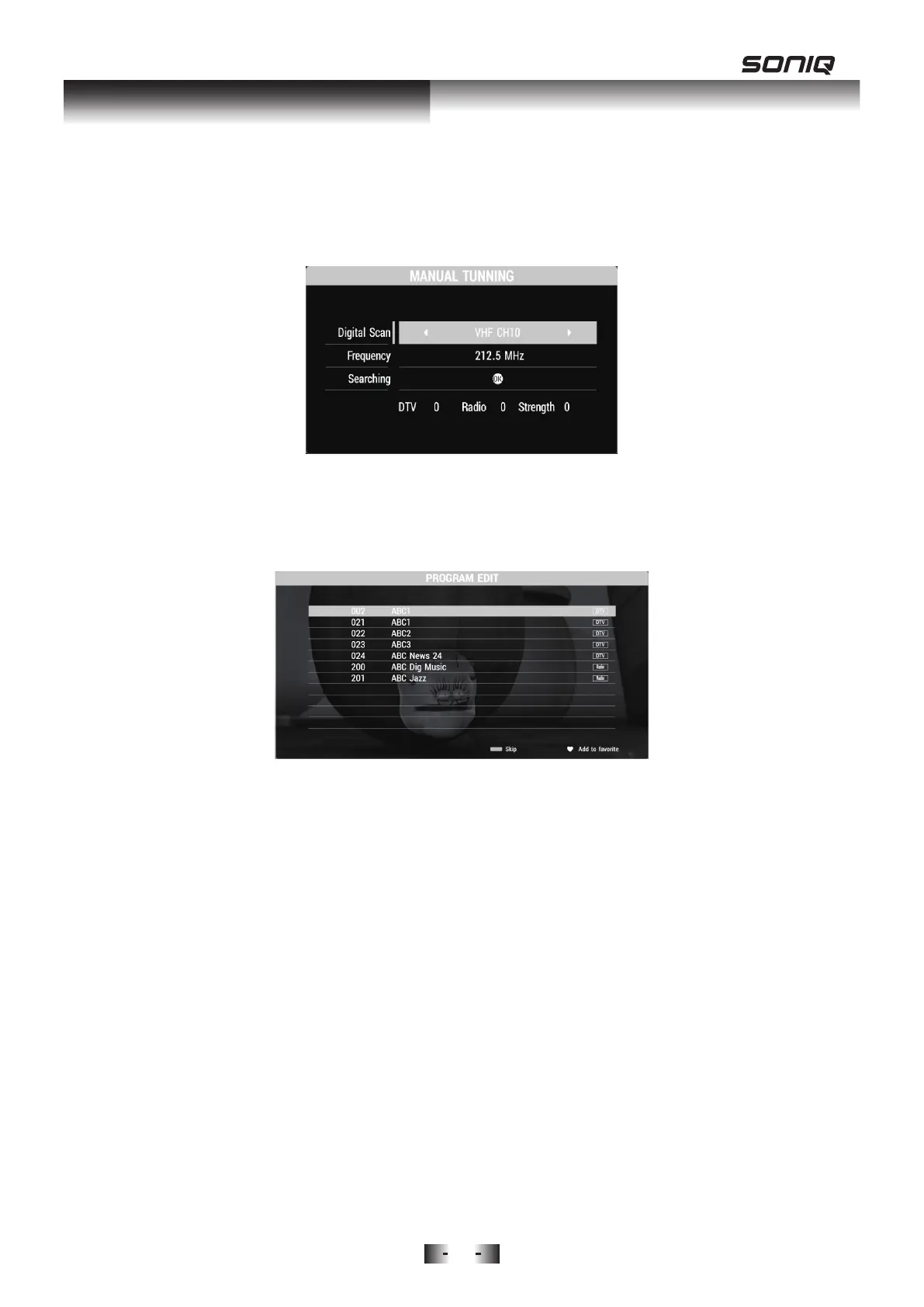
1. Digital Scan: Press Left/Right Button to select.
2. Frequency: Frequency will be changed as you switch the Digital Scan.
3. Searching: Press OK to search.
Program Edit
Press Up/Down to select Program Edit, then press OK Button to enter
sub-menu.
Color Function Buttons
1. Press Blue Button to skip the selected channel.
2. Press the Ɔ button to add a channel to your Favorite List; press the
Ɔ button again to remove the channel from the Favorite List.
OAD Update
Press Up and Down button to select OAD Update, press Left and Right
button to choose On/Off.
PICTURE MENU
Press MENU Button to bring up the main menu, then press Left/Right to
select PICTURE MENU.
1. Picture Mode:
Use Up / Down Button to highlight Picture Mode, and press Left / Right to
adjust the mode by Standard, Dynamic, Mild and User Mode.
Contrast, Brightness, Color, Sharpness can be adjusted only under User
OSD Menu Operation



 To Next Page