31
Smart TV Function
ATV Manual Tuning
Program Edit
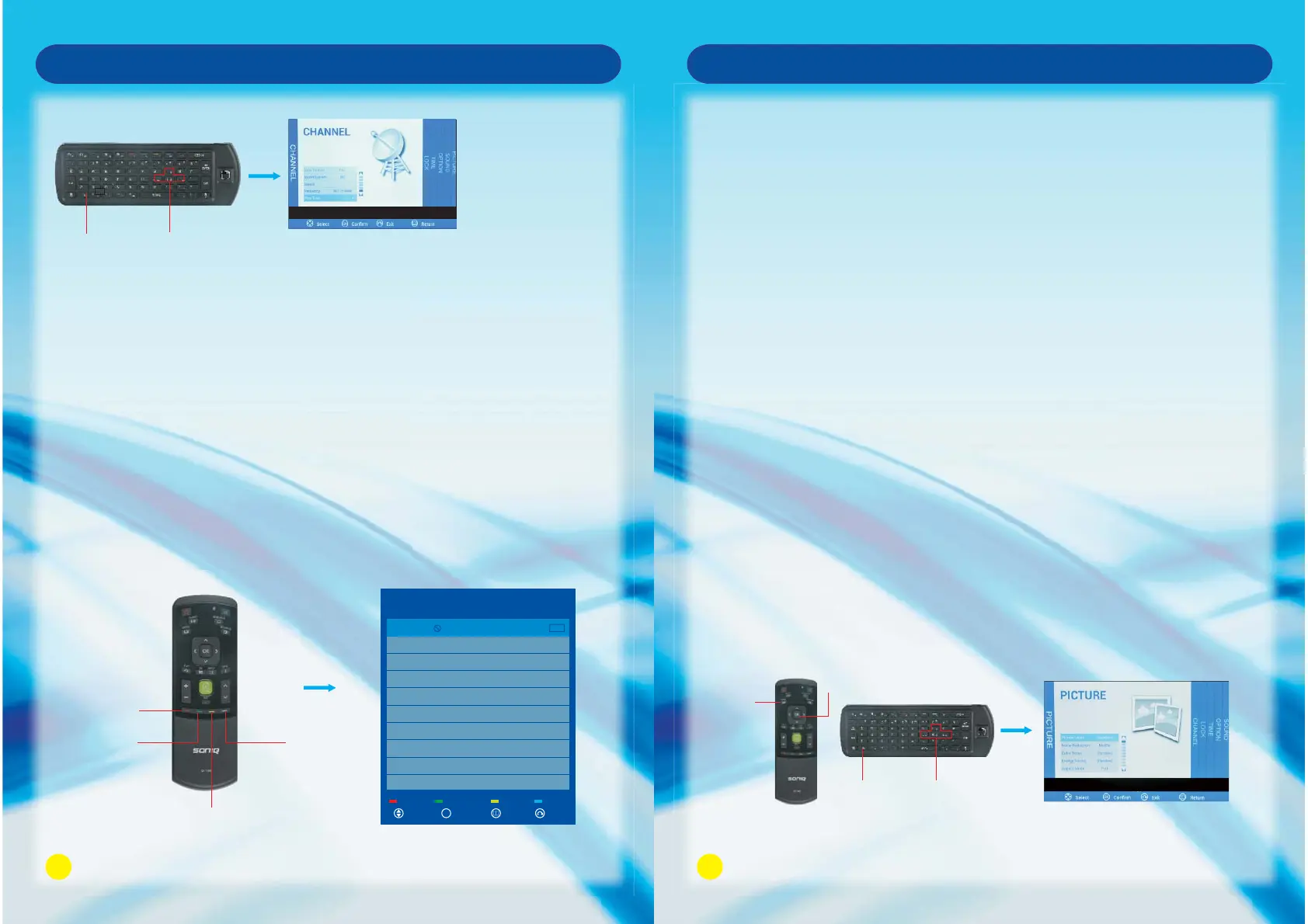
Press Up and Down to select Channel Edit, then press OK Button to enter sub-menu.
1. Press Green Button to rename the current channel. (only available in ATV)
2. Press Yellow Button to change the program order.
Selected channel can be moved by using Up and Down, then press OK for confirm.
3. Press Blue Button to skip the selected channel.
4. Press Red Button to delete the selected channel.
FN Button and Left, Right, Up or Down Buttons
as be at the same time.
Blue ButtonGreen Button
Red Button
Yellow Button
Program Edit
901
Delete Rename Move Skip
C-00
ATV
Select Confirm Return Exit
OK
Press Up and Down Button to highlight ATV Manual Tuning, then press OK to enter
sub-menu.
1. Analog Scan : Press “OK” and then adjust Analog Scan by pressing Left and Right
Button.
2. Sound System : Press Left and Right Button to change (left/right/up/down) it into DK
or BG mode.
3. Search : Press Left and Right Button to set the Frequency and stop it by pressing OK,
Left and Right Button.
4. Frequency : Display the adjusted frequency channel.
5. Fine Tune : Press Left or Right Button to make minor modulation and stop it by pr
essing OK, Left and Right Button.
32
Smart TV Function
Picture Menu
Press MENU Button to bring up the main menu, then press Left and Right to select the
PICTURE MENU.
1. Picture Mode:
Press Left and Right to adjust the mode colour by Standard. Dynamic, User, Mild
and 3D Mode. Contrast, Brightness, Color, Sharpness can be adjusted only
under User mode, press MENU to return to the main menu.
2. 3D Settings:
Once the TV receives 3D signal, the system will automatically turn this function On.
To watch in 3D, you are required to wear 3D glasses. Use Up and Down Button to
select On or Off, press OK to confirm, EXIT to quit.
3. Noise Reduction:
Press OK Button to adjust among Strong, Weak, Middle and Off.
4. Colour Temp:
Press Left and Right Button to select Cool, Standard, Warm and User. You can adjust
R Gain, G Gain, and B Gain in User mode.
5. Energy Saving
Press OK Button to adjust among Middle, High, Low, Standard in this section.
6. Aspect Ratio:
This function will be available under VGA or HDMI, and you can choose Full, 4:3 and
Auto by pressing Left and Right Button.
7. Screen Mode (available under VGA or HDMI)
Press Up and Down to choose Screen Mode, press OK to confirm. Press Left and
Right to select PC/Video.
8. PC Settings (available under VGA or HDMI)
Press Up and Down to select PC Settings, press OK to enter the sub-menu, you can
also choose auto adjust to adjust the picture to full screen, or you can select clock,
phase, horizontal position, vertical position for adjusting.
FN Button and Left, Right, Up or Down Buttons
at the same time.
MENU
Button
OK Button



 To Next Page