68
GB
Note
• Depending on the DVD, [4:3 LETTER BOX] may be
selected automatically instead of [4:3 PAN SCAN] or
vice versa.
x [SCREEN SAVER]
The screen saver image appears when you leave
the system in pause or stop mode for 15
minutes,
or when you play back a CD, DATA CD (MP3
audio), or DATA DVD for more than 15 minutes.
The screen saver will help prevent your display
device from becoming damaged (ghosting). Press
any button (e.g.,
H
button) to cancel the screen
saver.
x [BACKGROUND]
Selects the background color or picture on the
TV screen in stop mode or while playing a CD,
DATA CD (MP3 audio)
, or DATA DVD
.
x [LINE]
Selects the output method for video signals from
the EURO AV T OUTPUT (TO TV) jack on
the rear panel of the system.
Note
• If your TV does not accept RGB signals, no picture
appears on the TV screen even if you select [RGB].
Refer to the instructions supplied with your TV.
x [4:3 OUTPUT]
This setting is effective only when you set [TV
TYPE] in [SCREEN SETUP] to [16:9]
(page 67). Adjust this to watch 4:3 aspect ratio
progressive signals. If you can change the aspect
ratio on your progressive format (525p/625p)
compatible TV, change the setting on your TV,
not the system.
Note
• This setting is effective only when “P AUTO
(PROGRESSIVE AUTO)” or “P VIDEO
(PROGRESSIVE VIDEO)” is selected by using
PROGRESSIVE (page 22).
[ON]
Turns on the screen saver.
[OFF]
Turns off the screen saver.
[JACKET
PICTURE]
The jacket picture (still picture)
appears, but only when the jacket
picture is already recorded on the
disc (CD-EXTRA, etc.). If the
disc does not contain a jacket
picture, the [GRAPHICS] picture
appears.
[GRAPHICS]
A preset picture stored in the
system appears.
[BLUE]
The background color is blue.
[BLACK]
The background color is black.
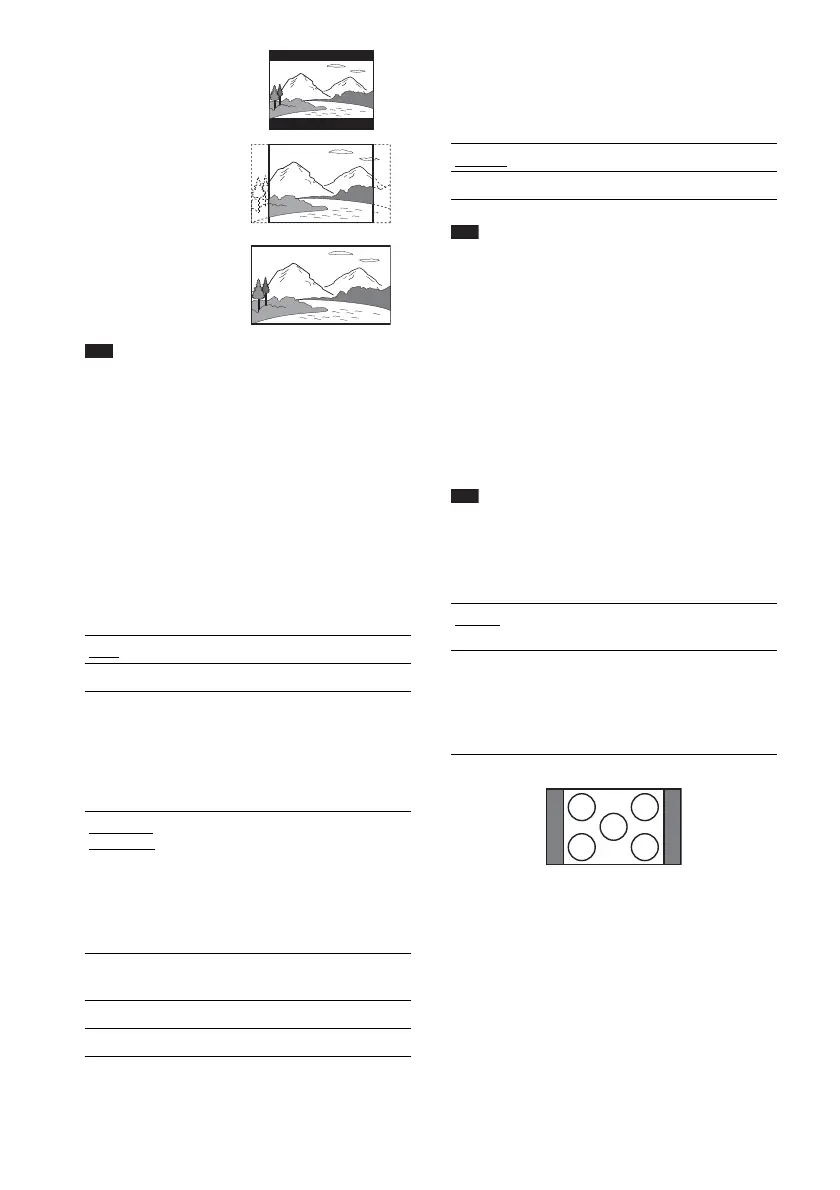
[4:3 PAN SCAN]
[4:3 LETTER BOX]
[16:9]
[VIDEO]
Outputs video signals.
[RGB]
Outputs RGB signals.
[FULL]
Select this when you can change
the aspect ratio on your TV.
[NORMAL]
Select this when you cannot
change the aspect ratio on your
TV. Shows a 16:9 aspect ratio
signal with black bands on left and
right sides of the image.
16:9 aspect ratio TV



 To Next Page