so
Printing
recorded
still
images
(PidBridge
compliant
printer)
You can print out still images using a
PictBridge compliant printer, without
connecting the camcorder to a computer.
!'(
PictBridge
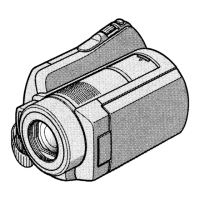
Connect your camcorder to the
AC
Adaptor to obtain power from the wall
outlet (wall socket) (p. 13). Turn
on
the
printer.
Select beforehand the media which
contains the still image you want to print
(p.20).
To print still images
on
a "Memory Stick
PRO Duo," insert the "Memory Stick
PRO Duo" containing them into your
camcorder.
1 Connect
the
Handycam Station
to
the
wall
outlet
(wall socket) using
the
supplied
AC
Adaptor.
2 Set
the
camcorder
onto
the
Handycam Station securely. Turn
the
POWER switch
to
turn
it
on.
3 Connect
the
'l'
(USB) jack
of
the
Handycam Station
to
the
printer
using
the
supplied
USB
cable
(p.102).
The
[USB
SELECT] screen appears
automatically.
4 Touch [PRINT].
When connection
is
complete,
(lJ
(PictBridge connecting) appears
on
the screen.
You can select a still image
on
the
screen.
5 Touch
the
still image
to
be printed.
The selected still image
is
marked with
./.
Press and hold the still image
on
the
LCD screen to confirm.
Touch
[E)
to return to the previous
screen.
6 Touch 0..: (OPTION), set
the
following options, then touch
lOKI.
[COPIES]: Set the number
of
copies
of
a
still image to be printed. You can set up
to
20
copies.
[DATE/TIME]: Select [DATE],
[DAY&TIME], or [OFF] (no date/time
printed).
[SIZE]: Select the paper size.
If
you do not change the setting, go to
step 7.


 To Next Page