17
Using a USB Keyboard
2 Press the + or – button repeatedly to
select PASSWORD, and then press the
SET button.
3 Enter a password of up to 8 characters
on the receiver.
+: The first press on the + button
displays the character set. You can
then use the + and – buttons to select
the desired character. And then,
pressing the SET button adds the
selected character to the end of the
current name.
– : Deletes the last character in the
current name.
SET: Enters the character or edited
name.
4 Set the encrypted transmission
function on the transmitter to
PASSWORD.
5 On the transmitter, set the same
password that was set on the receiver.
For details on transmitter operations, refer to
the operating instructions supplied with the
transmitter.
It is recommended that you change the
password periodically.
Using a USB
Keyboard
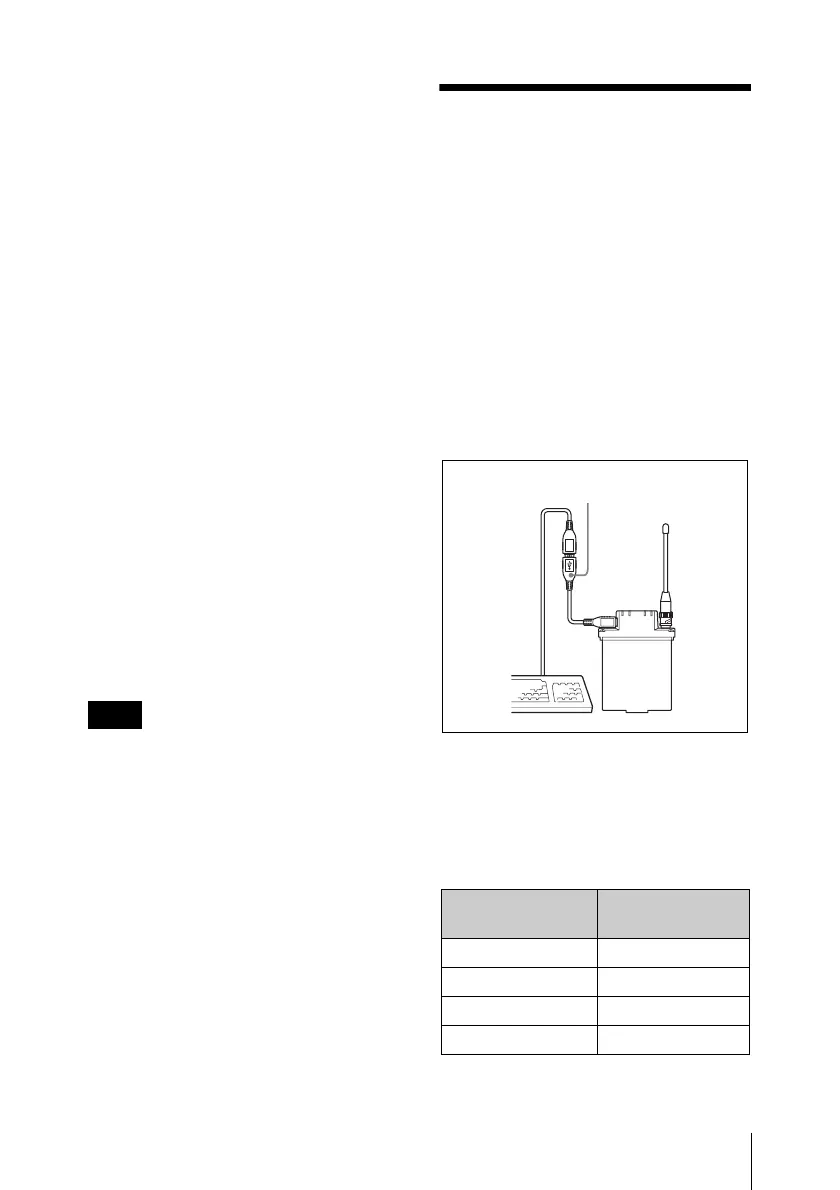
Connecting an optional USB keyboard to
the receiver allows you to perform menu
operations and enter your password for the
encrypted transmission function from the
keyboard.
A Micro USB connector is used on the
receiver. For this reason, use the supplied
USB adapter cable. (When the USB cable is
connected to the receiver, you must remove
the antenna on the USB connecter side.)
<
Performing menu operations
You can use a USB keyboard to perform the
same menu operations that you perform on
the receiver.
The receiver buttons correspond to the
following keys on a USB keyboard:
Note
Buttons on the
receiver
USB keyboard
MENU SELECT T t
SET ENTER
+ R
– r
USB adapter cable (supplied)



 To Next Page