To rename a SIM card
1
From the Home screen, tap .
2
Find and tap Settings > Dual SIM.
3
Select a SIM card and enter a new name for it.
4
Tap OK.
Switching between SIM cards
You can select which SIM card to use, and the selected SIM card will be used for all
outgoing calls and messages. Data traffic can be set to only run on one of the SIM
cards. You will receive calls and messages to both SIM cards, however, during a call,
only the active SIM card is available for communications.
To switch between SIM cards manually
1
Make sure that both SIM cards are enabled.
2
From the Home screen, tap
.
3
Find and tap Settings > Dual SIM > Calls, then select a SIM card.
The currently active SIM card is indicated by an icon displaying the SIM card number (1 or 2)
in the status bar.
Setting the phone to switch between SIM cards automatically
You can set the phone to switch SIM cards automatically at a set time. That way, all
communications are made from the SIM card you select during the hours you want.
To set the phone to switch SIM cards automatically
1
From the Home screen, tap .
2
Find and tap Settings > Dual SIM.
3
Mark the SMS messages and Data traffic checkboxes.
4
Tap a SIM card and set the time period.
Finding the identification number of your device
Your device has a unique identification number. This number is referred to as the IMEI
(International Mobile Equipment Identity). You should keep a copy of this number.
You may require it, for example, when you access the Xperia™ Care support service
to register your device. Also, if your device is stolen, some network providers can use
this number to stop the device from accessing the network in your country or region.
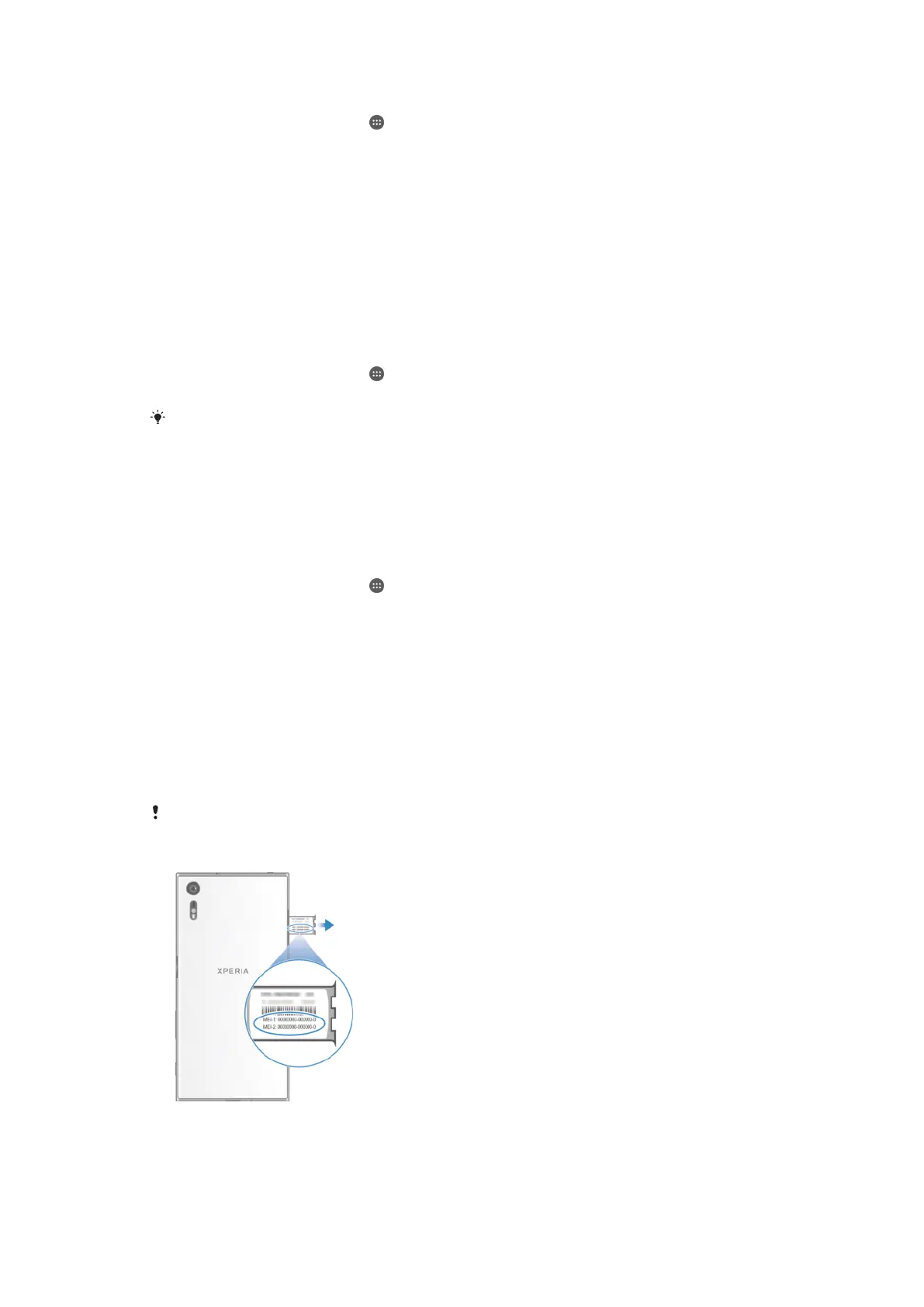
For devices with two SIM cards, there are two IMEI numbers, one for each SIM card slot.
To view your IMEI numbers on the label tray
20
This is an Internet version of this publication. © Print only for private use.














 To Next Page