Taking a screenshot
You can capture still images of any screen on your device as a screenshot.
Screenshots you take are automatically saved in Album.
To take a screenshot
1
Press and hold down the power key until a prompt window appears.
2
Tap .
You can also take a screenshot by pressing and holding the power key and volume down key
at the same time. Once the screenshot is captured, you can release the keys.
To view your screenshot
•
Double-tap the status bar to display the Notification panel, then tap the
screenshot you want to view.
You can also view your screenshots in the Album application.
Notifications
Notifications inform you of events such as new messages and calendar notifications
as well as activities in progress such as file downloads. Notifications appear in the
following places:
•
The status bar
•
The Notification panel
•
The lock screen
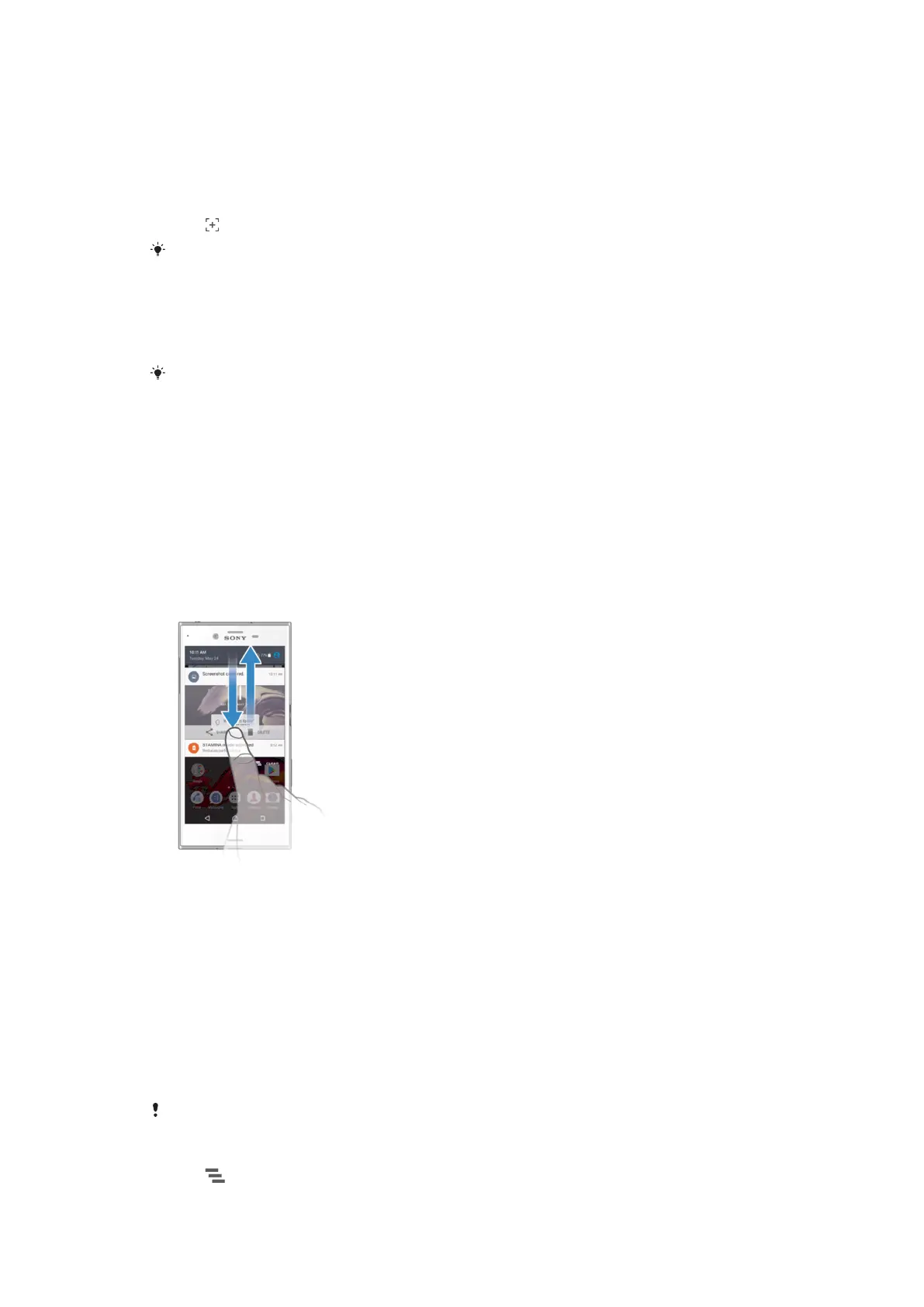
To open or close the Notification panel
1
To open the Notification panel, drag the status bar downwards, or simply
double-tap it.
2
To close the Notification panel, drag or flick the panel upwards.
To take action on a notification in the Notification panel
•
Tap the notification.
To dismiss a notification from the Notification panel
•
Place your finger on a notification and flick left or right.
To expand a notification on the Notification panel
•
Drag the notification downwards.
Not all
notifications are expandable.
To clear all notifications from the Notification panel
•
Tap .
32
This is an Internet version of this publication. © Print only for private use.














 To Next Page