1
Open the cover for the nano SIM and memory card slot.
2
Place a fingernail or other object with a long, fine tip under the edge of the
label tray, then drag the tray outwards. The IMEI numbers are displayed on the
label tray.
To view the IMEI numbers, you can also open the phone dialer and enter *#06#.
To view your IMEI numbers via the device settings
1
From your Home screen, tap .
2
Find and tap Settings > About phone > Status >IMEI information.
Finding a lost device
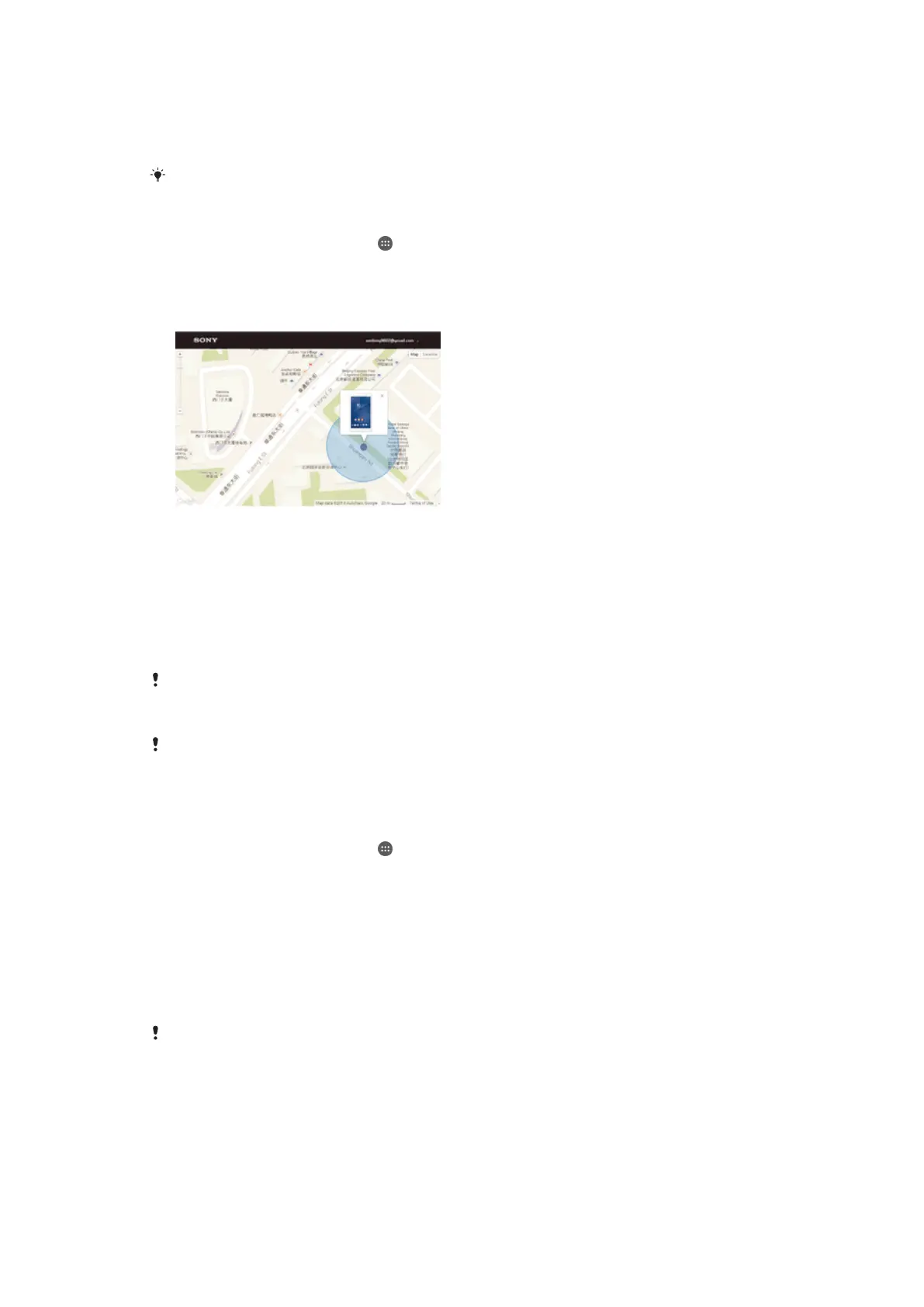
If you have a Google™ account, the “Protection by my Xperia” web service can help
you locate and secure your device if you ever lose it. If you have activated this service
on your device, you can:
•
Locate your device on a map.
•
Sound an alert even if the device is in Do not disturb mode.
•
Remotely lock the device and make the device display your contact details to anyone
who finds it.
•
Remotely clear the internal and external memory of the device as a last resort.
If you’ve cleared the internal memory of the device using the “Protection by my Xperia” web
service, you must sign in to a Google™ account that was previously synced on this device the
next time you turn on the device.
The “Protection by my Xperia” service may not be available in all countries or regions.
To activate Protection by my Xperia
1
Make sure you have an active data connection, and enable location services
on your device.
2
From your Home screen, tap .
3
Find and tap Settings > Lock screen & security > Protection by my Xperia >
Activate.
4
Mark the checkbox to agree to the terms and conditions of the service, then
tap Accept.
5
If prompted, sign in to your Google™ account, or create a new account if you
don’t already have one.
6
To verify that Protection by my Xperia can locate your device, go to
myxperia.sonymobile.com
and sign in using the Google™ account that you are
using on your device.
If you are sharing a device with multiple users, note that the Protection by my Xperia service is
only available to the user who is logged in as the owner.
Finding a lost device using Android™ Device Manager
Google™ offers a location and security web service called Android™ Device
Manager. You can use it in parallel with, or as an alternative to, the my Xperia service.
If you lose your device, you can use Android™ Device Manager to:
•
Find and show where your device is located.
21
This is an Internet version of this publication. © Print only for private use.














 To Next Page