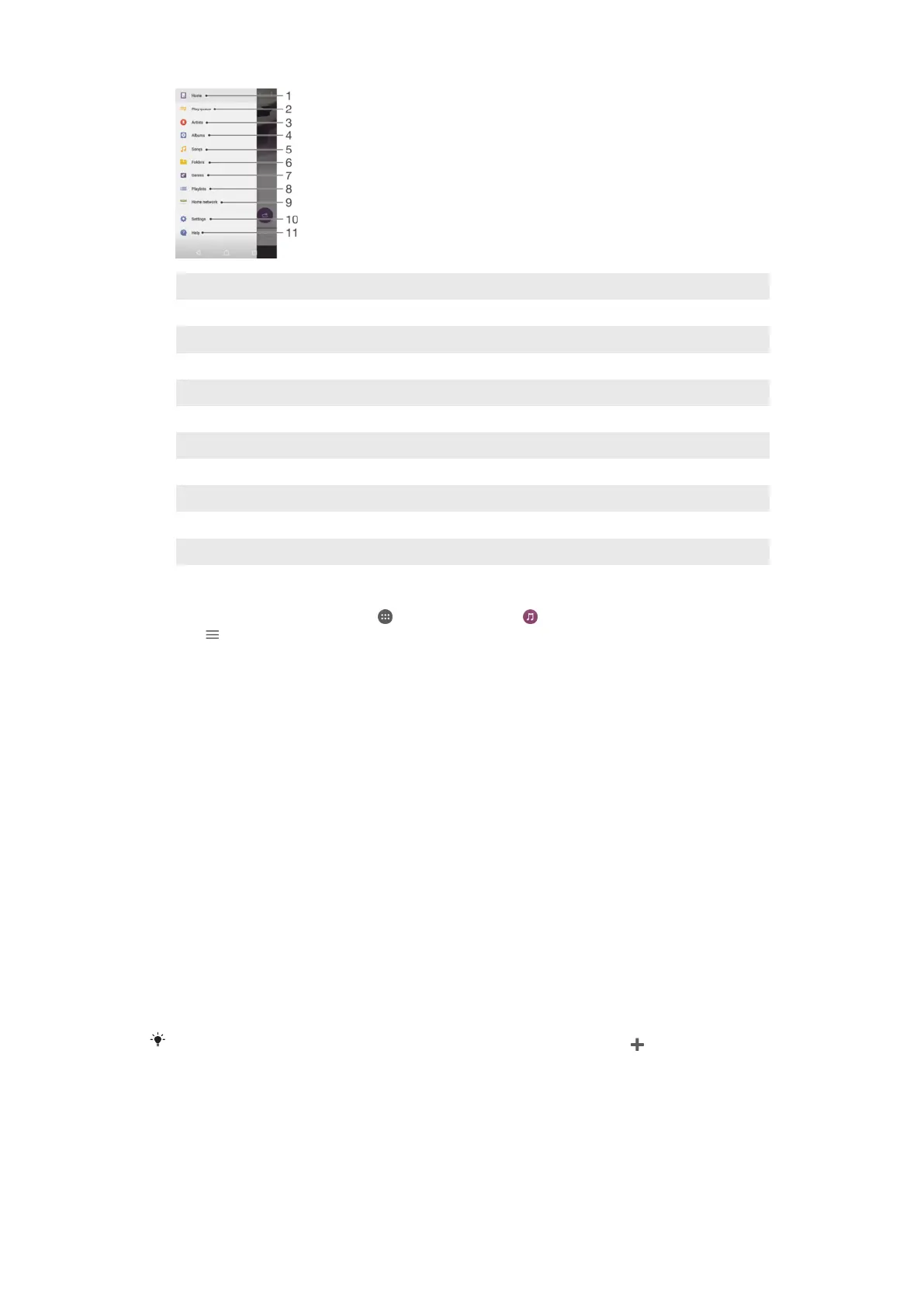
1 Return to the Music home screen
2 View the current play queue
3 Browse all artists
4 Browse all albums
5 Browse all songs
6 Browse all folders
7 Browse all genres
8 Browse all playlists
8 Play a shared music file on another device
10 Open the settings menu for the Music application
11 Open the support menu for the Music application
To open the Music menu
1
From your Home screen, tap , then find and tap .
2
Tap .
To return to the Music home screen
•
When the Music menu is open, tap Home or simply tap on the screen to the
right of the menu.
To delete a song
1
From the Music menu, browse to the song that you want to delete.
2
Touch and hold the song title, then tap Delete in the list that appears.
3
Tap Delete again to confirm.
Playlists
On the Music home screen, you can create your own playlists from the music that is
saved on your device.
To create your own playlists
1
From the Music home screen, touch and hold the name of the album or song
that you want to add to a playlist.
2
In the menu that opens, tap Add to playlist > Create new playlist.
3
Enter a name for the playlist and tap OK.
You can also open the Music home screen menu, tap
Playlists, then tap to create a new
playlist.
To play your own playlists
1
Open the Music menu, then tap Playlists.
2
Under Playlists, select the playlist that you want to open.
3
If you want to play all songs, tap any song or Shuffle all.
85
This is an Internet version of this publication. © Print only for private use.














 To Next Page