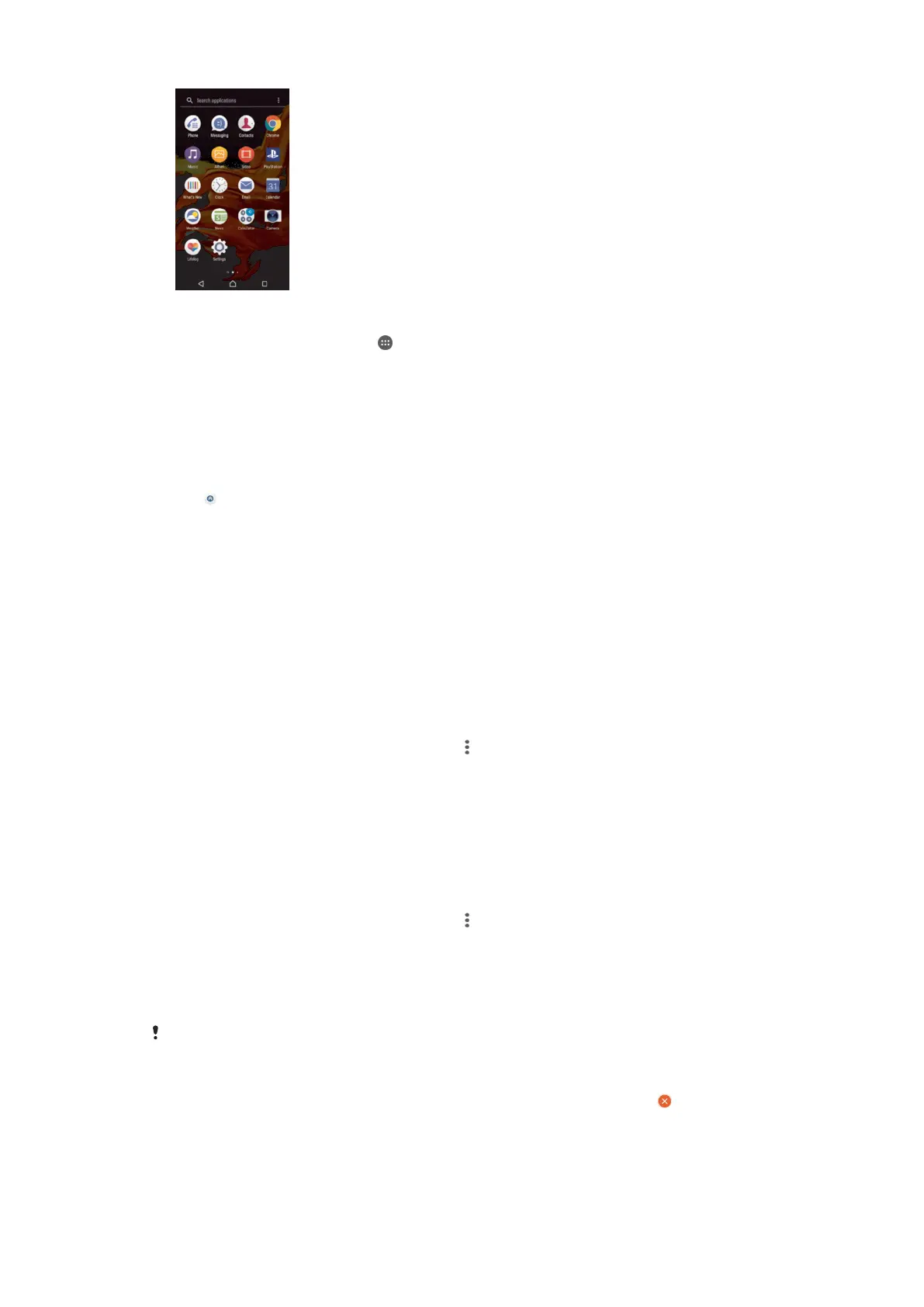
To view all applications on the Application screen
1
From your Home screen, tap
.
2
Flick left or right on the Application screen.
To enable or disable the recommended apps listings
The first time you access the application screen you get the option to enable or
disable recommended apps listings. You can also enable or disable this feature later
by following the steps below:
1
Touch and hold any area on your Home screen until the device vibrates, then
tap
.
2
Tap the App recommendations slider.
To open an application from the Application screen
•
When the Application screen is open, flick left or right to find the application,
and then tap the application.
To search for an application from the Application screen
1
When the Application screen is open, tap Search applications or simply swipe
down on the Application screen or Home screen.
2
Enter the name of the application that you want to search for.
To arrange applications on the Application screen
1
When the Application screen is open, tap
.
2
Tap Sort apps, then select an option.
To add an application shortcut to the Home screen
1
On the Application screen, touch and hold an application icon until the device
vibrates, then drag the icon to the top of the screen. The Home screen opens.
2
Drag the icon to the desired location on the Home screen, then release it.
To move an application on the Application screen
1
When the Application screen is open, tap .
2
Make sure that Own order is selected under Sort apps.
3
Touch and hold the application until the device vibrates, then drag it to the new
location.
To disable or uninstall an application from the Application screen
Disabling a pre-installed app deletes all data, but the app can be enabled again from
Settings
> Apps. Only downloaded apps can be fully uninstalled.
1
Touch and hold any area on the Application screen until the device vibrates. All
applications that can be disabled or uninstalled are then indicated by .
2
Tap the relevant application, then tap Disable if the app came pre-installed on
your device or UNINSTALL if the app was downloaded.
27
This is an Internet version of this publication. © Print only for private use.














 To Next Page