8
Customizing Your Monitor
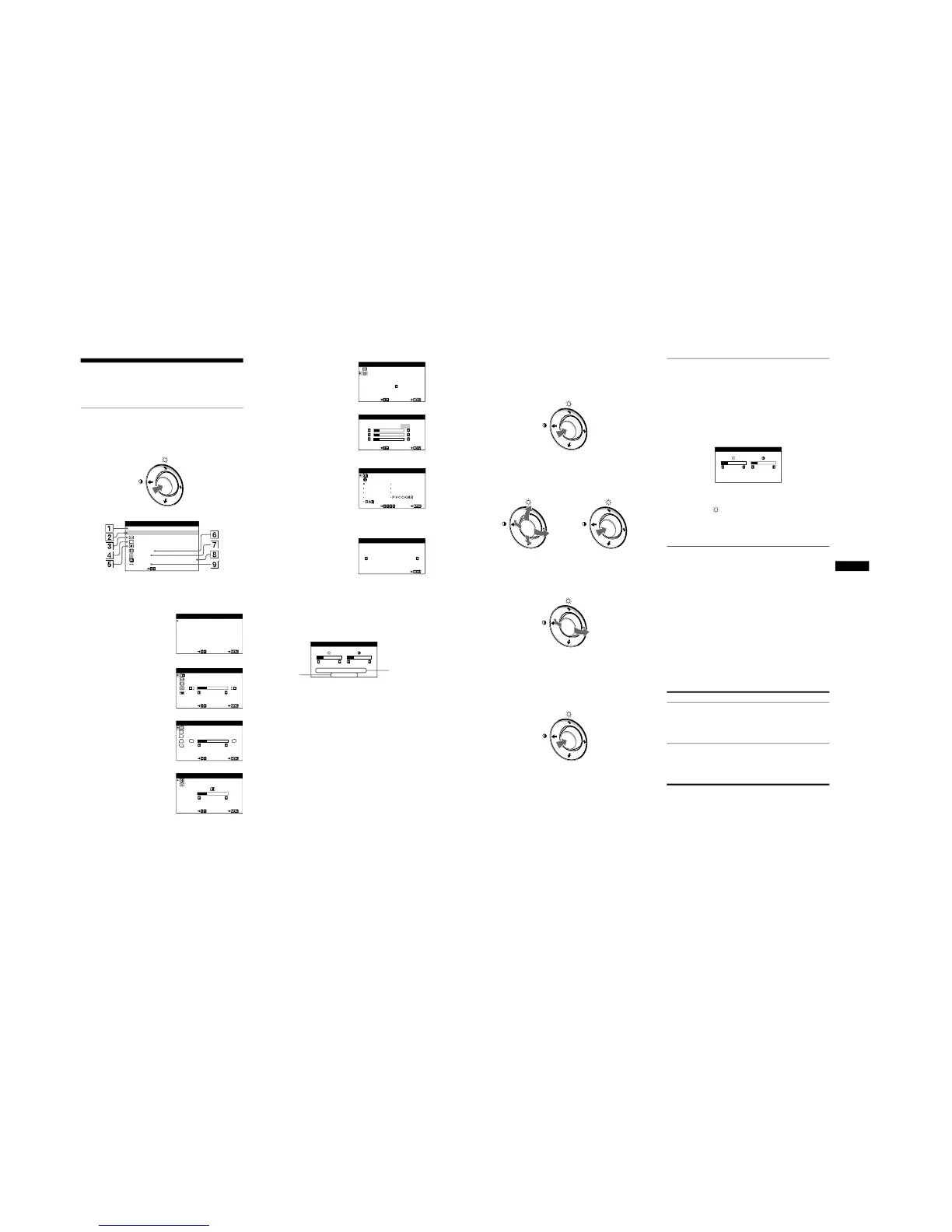
You can make numerous adjustments to your monitor using the
on-screen menu.
Navigating the menu
Press the center of the control button to display the main MENU
on your screen. See page 9 for more information on using the
control button.
Use the control button to select one of the following menus.
x
Displaying the current input signal
The horizontal and vertical frequencies of the current input signal
are displayed under the BRIGHTNESS/CONTRAST menu. If the
signal matches one of this monitor
’s factory preset modes, the
resolution is also displayed.
1
EXIT
Select EXIT to close the menu.
2
PICTURE EFFECT
(page 9)
Select the PICTURE
EFFECT menu to choose the
most appropriate preset
picture mode.
3
SIZE/CENTER (page 10)
Select the SIZE/CENTER
menu to adjust the picture
’s
centering, size or zoom.
4
GEOMETRY (page 10)
Select the GEOMETRY
menu to adjust the picture
’s
rotation and shape.
5
CONVERGENCE
(page 10)
Select the CONVERGENCE
menu to adjust the picture
’s
horizontal and vertical
convergence.
M
ENU
EX I T
P I CTURE EFFECT
SI ZE /CENTER
GEOMETRY
SCREEN
CONVERGENCE
COLOR
RESET
SELECT
LANGUAGE / I NFORMAT NOI
MENU
SELECT EX I T
DYNAMI C
STANDARD
PICTURE EFFECT
H- CENTER
26
SELECT EX I T
SI ZE/CENTER
SELECT EX I T
ROTATION
26
GE
OM
ET
R
Y
SELECT EX I T
26
CONVERGENCE
6
SCREEN (page 11)
Select the SCREEN menu to
degauss the screen and adjust
the moire cancellation level.
7
COLOR (page 11)
Select the COLOR menu to
adjust the picture
’s color
temperature. You can use this
to match the monitor
’s colors
to a printed picture
’s colors.
8
LANGUAGE/
INFORMATION
(page 7, 14)
Select the LANGUAGE/
INFORMATION menu to
choose the on-screen menu
’s
language and display this
monitor’s information box.
9
RESET (page 11)
Select the RESET menu to
reset the adjustments.
DEGAUSS
ON
SELECT EX I T
SCREEN
KKK
R50
G50
B50
SELECT EX I T
COLOR
5000 6500 9300
USER
SVENSKA
ESPAÑOL NEDERLAN SD
DEUTSCH I TAL I ANO
ENGL ISH FRANÇAIS
SELECT EXIT
LA ANG GEU/INFORMATION
RESET
MODE A L L
EX I T
RESET
26 26
H
:
6
8
. 7kHz V
:
85Hz
1024X768
BR I GHTNESS /CONTRAST
the horizontal
and vertical
frequencies of
the current
input signal
the resolution
of the current
input signal
x
Using the control button
1
Display the main MENU.
Press the center of the control button to display the main
MENU on your screen.
2
Select the menu you want to adjust.
Highlight the desired menu by moving the control button up
(
M
), down (
m
), and left (
<
) or right (
,
).
3
Adjust the menu.
Move the control button left (
<
) or right (
,
) to make the
adjustment.
4
Close the menu.
Press the center of the control button once to return to the
main MENU, and twice to return to normal viewing. If no
buttons are pressed, the menu closes automatically after about
30 seconds.
x
Resetting the adjustments
You can reset the adjustments using the RESET menu. See
page 11 for more information on resetting the adjustments.
Adjusting the brightness and
contrast
Brightness and contrast adjustments are made using a separate
BRIGHTNESS/CONTRAST menu.
These settings are stored in memory for all input signals.
1
Move the control button in any direction.
The BRIGHTNESS/CONTRAST menu appears on the
screen.
2
Move the control button
m
/
M
to adjust the
brightness ( ), and
<
/
,
to adjust the contrast
(
6
).
The menu automatically disappears after about 3 seconds.
Adjusting the picture quality
(PICTURE EFFECT)
The PICTURE EFFECT feature allows you to select the most
appropriate picture mode from among two preset modes
maximum performance.
1
Press the center of the control button.
The main MENU appears on the screen.
2
Move the control button to highlight PICTURE
EFFECT and press the center of the control button
again .
The PICTURE EFFECT menu appears on the screen.
3
Move the control button
m
/
M
to select the desired
picture mode.
Select For
STANDARD
images with high contrast and
brightness. Choose this mode for
commonly used applications, such as
spreadsheets, word processing,
E-mail, or WEB sur
fing.
DYNAMIC
extremely vivid and photo-realistic
images. Brighter than
“STANDARD”
mode, choose this for intense graphic
applications such as games, DVD
playback, or entertainment software.
26 26
H
:
68.7kHz V
:
85Hz
1024X768
BR I GHTNESS /CONTRAST





 To Next Page