Remote Button
[gQJ
BDIDVD
TOP
MENU
[gj]
BDIDVD MENU
Function
Displays the top menu/disc
menu.
j
Cfi.~~~.tJie
input.~~~~'r~
BSSlg'oments
01
theremote'i
.
....
.•
....
OJ
-
»
a.
<
I»
::::J
(')
&
en
CD
:::
S"
ea
en
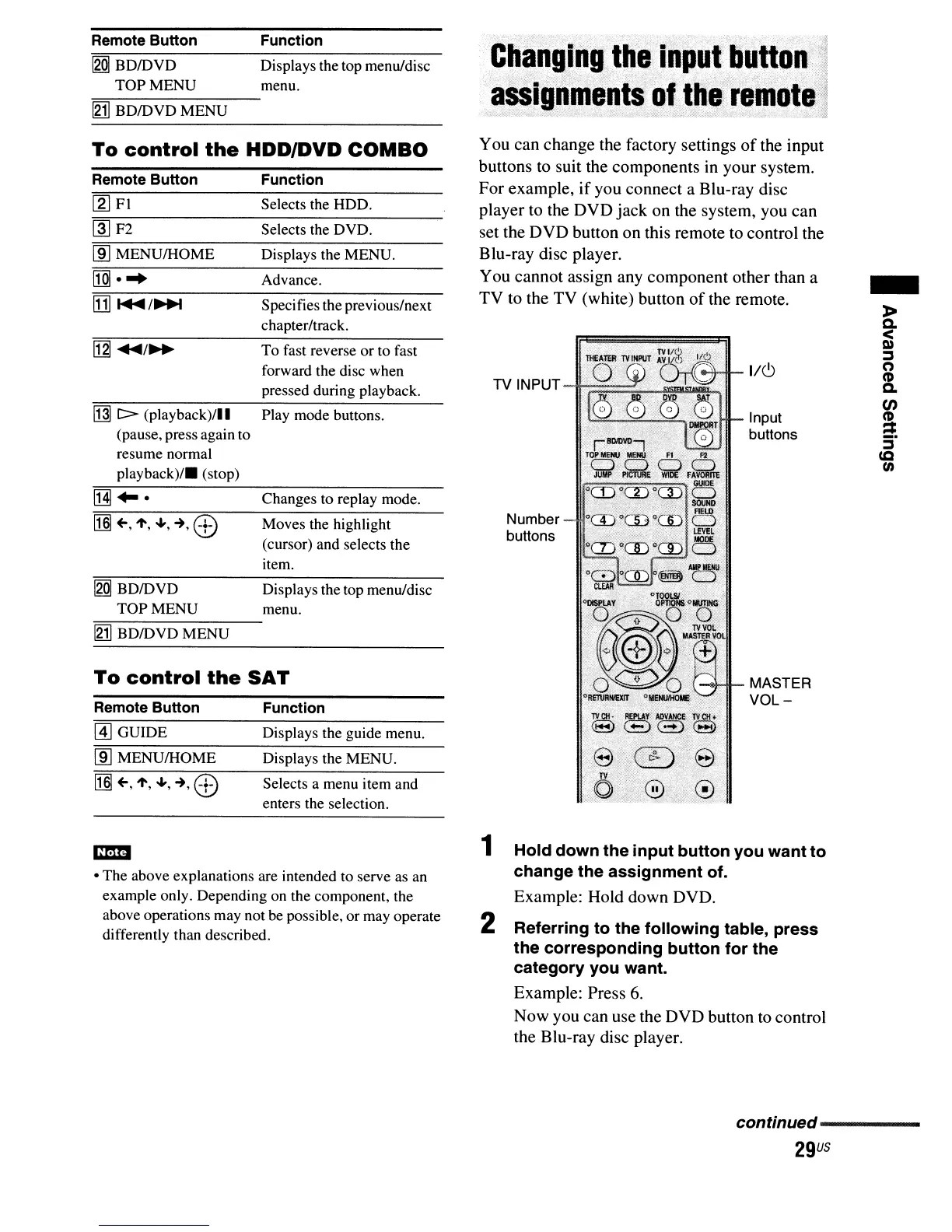
MASTER
VOL-
Input
buttons
TV
INPUT
Number
buttons
You can change the factory settings
of
the input
buttons to suit the components in your system.
For
example,
if
you connect a Blu-ray disc
player to the DVD jack on the system, you can
set the DVD button on this remote to control the
Blu-ray disc player.
You cannot assign any component other than a
TV
to the TV (white) button
of
the remote.
Displays the MENU.
Function
Selects a menu item and
enters the selection.
Displays the guide menu.
Moves the highlight
(cursor) and selects the
item.
Displays the top menu/disc
menu.
Play mode buttons.
Changes to replay mode.
Specifies the previous/next
chapter/track.
Displays the MENU.
Advance.
Selects the DVD.
To
fast reverse or to fast
forward the disc when
pressed during playback.
Function
Selects the HDD.
Remote Button
@]
GUIDE
lID
MENUIHOME
To
control
the
SAT
~
....
[gQJ
BDIDVD
TOP MENU
[gj]
BDIDVD MENU
ij]]
[>
(playback)/II
(pause, press again to
resume normal
playback)/.
(stop)
~F2
lID
MENUIHOME
Remote Button
To
control
the
HDD/DVD
COMBO
[g]
FI
• The above explanations are intended to serve
as
an
example only. Depending on the component, the
above operations may not be possible, or may operate
differently than described.
1 Hold down the input button you want to
change the assignment of.
Example: Hold down DVD.
2 Referring to the following table, press
the corresponding button for the
category you want.
Example: Press
6.
Now you can use the DVD button to control
the BIu-ray disc player.
continued-----
29
us



 To Next Page