Help Guide
Interchangeable Lens Digital Camera
ILCE-1 α1
Select on Cam & Send (transferring to a smartphone)
You can transfer images to a smartphone by selecting images on the camera.
The following is the procedure for transferring the image currently displayed on the camera.
Menu item details
Send:
Selects images and transfers them to a smartphone. ([This Image]/[All Images in This Group]/[All with this date]/[All with
this date(
)]/[All with this date ( )]/[Multiple Images])
The options displayed may differ depending on the View Mode selected on the camera.
If you select [Multiple Images], select the desired images using the center of the control wheel, then press MENU →
[Enter].
MENU →
(Network) → [Smartphone Connect] → [ Select on Cam & Send] → [Size of Sending Image],
[RAW+J/H Send Target], and [
Sending Target] → desired setting.
1
Display the image to be transferred on the playback screen.
2
MENU → (Network) → [Smartphone Connect] → [ Select on Cam & Send] → [ Send] → [This
Image].
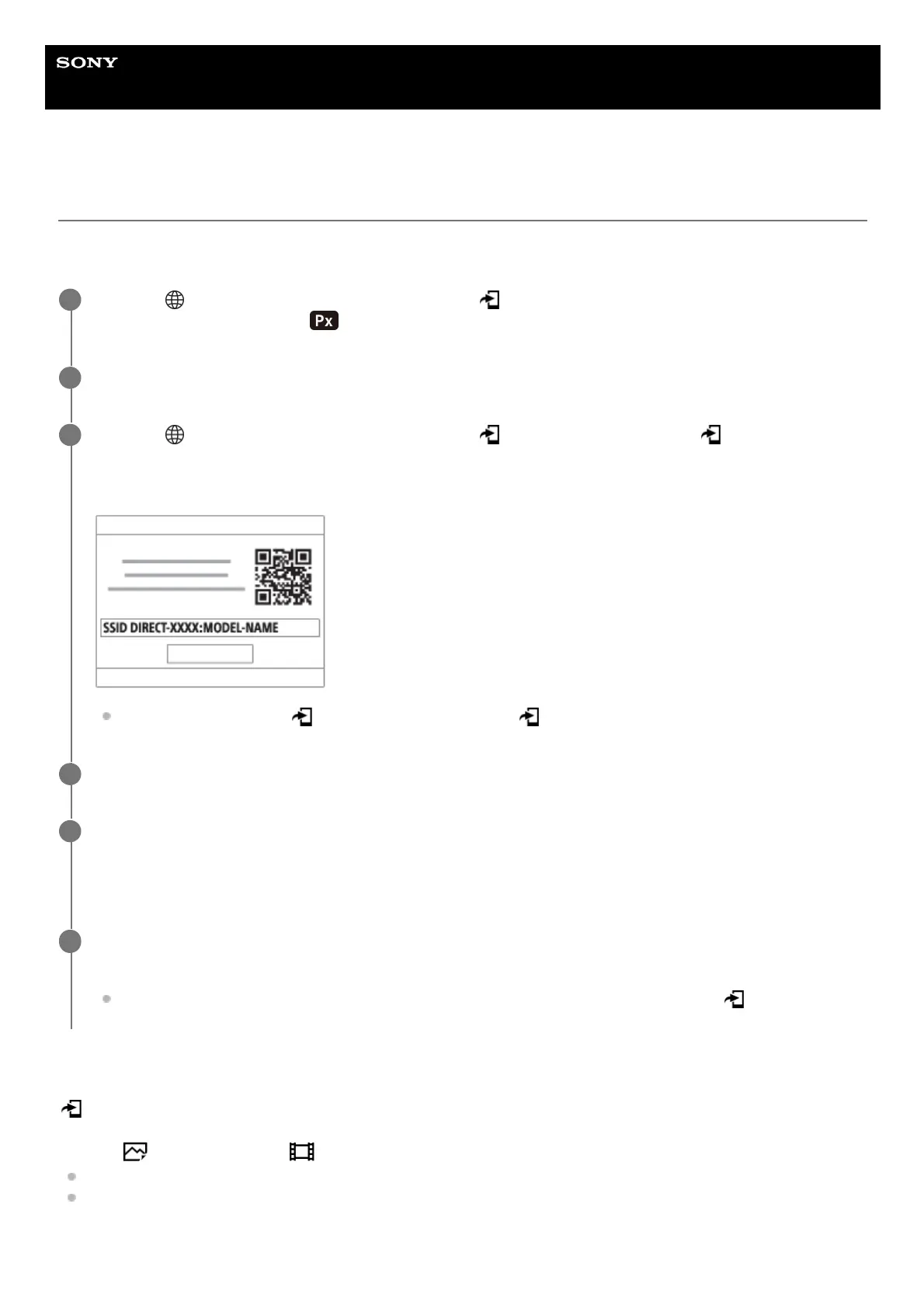
The QR code is displayed on the monitor of the camera.
You can also display the [ Send] screen by pressing the (Send to Smartphone) button.
3
Launch Imaging Edge Mobile on your smartphone, and select [Connect with a new camera].
4
Scan the camera’s QR code with your smartphone while displaying the [Connect using the camera QR
Code] screen on the smartphone.
Once the QR code is read, [Connect with the camera?] will appear on the smartphone.
5
Select [OK] on the smartphone.
The camera and your smartphone will be connected, and the image will be transferred.
You can transfer multiple images at once by selecting a setting other than [This Image] in [
Send].
6


 To Next Page