EasyManua.ls Logo

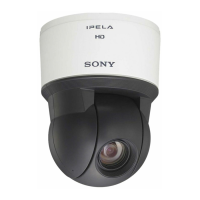
Sony Ipela SNC-EP520 - User Manual

Sony Ipela SNC-EP520
122 pages
Print Icon
To Next Page IconTo Next Page
Loading...
Network Camera
User’s Guide
Software Version 1.5
Before operating the unit, please read this manual thoroughly
and retain it for future reference.
SNC-EP520/EP521/EP550/EP580
SNC-ER520/ER521/ER550/ER580
4-282-056-12 (1)
© 2011 Sony Corporation

Table of Contents

Other manuals for Sony Ipela SNC-EP520

Question and Answer IconNeed help?

Do you have a question about the Sony Ipela SNC-EP520 and is the answer not in the manual?

Summary

Overview

Features

Lists key capabilities like high-quality images, video codecs, pan/tilt, zoom, and connectivity.

System Requirements

Details the necessary computer OS, web browser, CPU, memory, and display specs.

Preparation

Assigning the IP Address to the Camera

Explains how to assign an IP address to the camera using SNC toolbox and Windows.

Accessing the Camera Using the Web Browser

Basic Configuration by the Administrator

Logging in to System

Operating the Camera

Controlling via the control panel

Explains how to operate camera direction, zoom, and focus using the control panel.

Administrating the Camera

Basic Operations of the Administrator Menu

Explains how to access and use the administrator menu for camera settings.

Configuration of the Administrator menu

Configuring the System - System Menu

System Tab

Covers settings like title bar name, serial number, software version, and exclusive control mode.

Setting the Camera Image and Audio - Camera Menu

Common Tab

Contains basic image settings like color, zoom mode, and audio codec configuration.

Picture Tab

Allows adjustment of color, exposure, shutter speed, iris, and other visual parameters.

Configuring the Network - Network Menu

Network Tab

Configures IP address, subnet mask, DNS server, and other network connectivity settings.

Setting the SSL function - SSL Menu

SSL tab

Manages SSL/TLS encryption for secure camera communication.

Using the 802.1 X Authentication Function - 802.1 X Menu

Common Tab - Basic setting of 802.1 X authentication function

Enables and configures the 802.1X authentication for wired network ports.

Setting the User - User Menu

Administrator

Configures user name, password, and access rights for the administrator.

Setting the Security - Security Menu

Security function

Activates and configures security settings to control computer access to the camera.

Saving the Camera Position and Action - Preset position Menu

Sending an Image via E-mail - e-Mail (SMTP) Menu

Sending Images to FTP Server - FTP client Menu

Recording Images in Memory - Image memory Menu

Setting the Edge Storage - Edge Storage Menu

Edge Storage

Configures recording video/audio based on alarm detection and streaming with protocols.

Setting the Schedule - Schedule Menu

Setting the Sensor input;Camera tampering detection;Motion detection - Event detection menu

Sensor input tab - Set the sensor input

Configures how the camera detects signals from external sensors.

Camera tampering detection tab - Set the camera tampering detection

Enables and configures detection of camera tampering, like direction shift or spray.

Motion detection tab - Set the motion detection

Configures the motion detection function to identify moving objects in the image.

Configuring the Viewer - Viewer Menu

Using the SNC toolbox

How to use SNC toolbox

Explains the menu bar, file operations, editing, and viewing options within SNC toolbox.

Device tree view

Describes how to organize and view registered devices in a hierarchical tree format.

Registering a device

Details the process of adding new cameras to the SNC toolbox via manual entry or drag-and-drop.

Setting SNC toolbox options

Using Privacy Masking - Masking a Camera Image

Allows masking parts of the camera image to protect privacy during transmission.

Using the Firmware Upgrade

Starting the Firmware Upgrade

Details the process of selecting devices and initiating firmware updates.

Using the SNC audio upload tool - Transmitting Audio to Camera

Installing the SNC audio upload tool

Guides on installing the SNC audio upload tool from the CD-ROM.

Connecting the Camera to the Computer

Explains how to connect speakers and microphones for audio input/output.

Using the SNC video player - Playing a Video;Audio File Recorded with the Camera

Installing the SNC video player

Guides on installing the SNC video player software from the CD-ROM.

Using the SNC video player

Explains how to play recorded video/audio files, adjust sound, and save images.

Summary

Overview

Features

Lists key capabilities like high-quality images, video codecs, pan/tilt, zoom, and connectivity.

System Requirements

Details the necessary computer OS, web browser, CPU, memory, and display specs.

Preparation

Assigning the IP Address to the Camera

Explains how to assign an IP address to the camera using SNC toolbox and Windows.

Accessing the Camera Using the Web Browser

Basic Configuration by the Administrator

Logging in to System

Operating the Camera

Controlling via the control panel

Explains how to operate camera direction, zoom, and focus using the control panel.

Administrating the Camera

Basic Operations of the Administrator Menu

Explains how to access and use the administrator menu for camera settings.

Configuration of the Administrator menu

Configuring the System - System Menu

System Tab

Covers settings like title bar name, serial number, software version, and exclusive control mode.

Setting the Camera Image and Audio - Camera Menu

Common Tab

Contains basic image settings like color, zoom mode, and audio codec configuration.

Picture Tab

Allows adjustment of color, exposure, shutter speed, iris, and other visual parameters.

Configuring the Network - Network Menu

Network Tab

Configures IP address, subnet mask, DNS server, and other network connectivity settings.

Setting the SSL function - SSL Menu

SSL tab

Manages SSL/TLS encryption for secure camera communication.

Using the 802.1 X Authentication Function - 802.1 X Menu

Common Tab - Basic setting of 802.1 X authentication function

Enables and configures the 802.1X authentication for wired network ports.

Setting the User - User Menu

Administrator

Configures user name, password, and access rights for the administrator.

Setting the Security - Security Menu

Security function

Activates and configures security settings to control computer access to the camera.

Saving the Camera Position and Action - Preset position Menu

Sending an Image via E-mail - e-Mail (SMTP) Menu

Sending Images to FTP Server - FTP client Menu

Recording Images in Memory - Image memory Menu

Setting the Edge Storage - Edge Storage Menu

Edge Storage

Configures recording video/audio based on alarm detection and streaming with protocols.

Setting the Schedule - Schedule Menu

Setting the Sensor input;Camera tampering detection;Motion detection - Event detection menu

Sensor input tab - Set the sensor input

Configures how the camera detects signals from external sensors.

Camera tampering detection tab - Set the camera tampering detection

Enables and configures detection of camera tampering, like direction shift or spray.

Motion detection tab - Set the motion detection

Configures the motion detection function to identify moving objects in the image.

Configuring the Viewer - Viewer Menu

Using the SNC toolbox

How to use SNC toolbox

Explains the menu bar, file operations, editing, and viewing options within SNC toolbox.

Device tree view

Describes how to organize and view registered devices in a hierarchical tree format.

Registering a device

Details the process of adding new cameras to the SNC toolbox via manual entry or drag-and-drop.

Setting SNC toolbox options

Using Privacy Masking - Masking a Camera Image

Allows masking parts of the camera image to protect privacy during transmission.

Using the Firmware Upgrade

Starting the Firmware Upgrade

Details the process of selecting devices and initiating firmware updates.

Using the SNC audio upload tool - Transmitting Audio to Camera

Installing the SNC audio upload tool

Guides on installing the SNC audio upload tool from the CD-ROM.

Connecting the Camera to the Computer

Explains how to connect speakers and microphones for audio input/output.

Using the SNC video player - Playing a Video;Audio File Recorded with the Camera

Installing the SNC video player

Guides on installing the SNC video player software from the CD-ROM.

Using the SNC video player

Explains how to play recorded video/audio files, adjust sound, and save images.

Sony Ipela SNC-EP520 Specifications

General IconGeneral
Camera TypePTZ
Image Sensor1/3" Exwave HAD CCD
Digital Zoom12x
Pan Angle340°
Video CompressionH.264, MPEG-4, JPEG
Audio CompressionG.711, G.726
Network Interface10BASE-T/100BASE-TX (RJ-45)
Sensor TypeCCD
Signal SystemNTSC/PAL
Shutter Speed1/1 to 1/10, 000 sec
Day/Night FunctionYes
Pan Speed300°/sec
Tilt Speed300°/sec
Frame Rate30 fps
Audio InputMini-jack (monaural)
Audio OutputMini-jack (monaural)
ProtocolsHTTP, HTTPS, FTP, SMTP, DHCP, DNS, NTP, RTP/RTCP, RTSP, SNMP
Power SupplyPoE (IEEE802.3af), AC 24 V
Operating Temperature50°C
Power RequirementsAC 24 V, PoE (IEEE 802.3af)

Related product manuals