16
GB
~
You cannot select “Normal” for HD signal source pictures.
z
• When “Auto Wide” is set to “On”, the TV will
automatically select the best mode to suit the input from an
external equipment (page 27).
• You can adjust the position of the picture when selecting
“Zoom”. Press
F/f to move up or down (e.g. to read
subtitles).
For PC input
Using the Tools menu
Press TOOLS to display the following options when
viewing a TV programme.
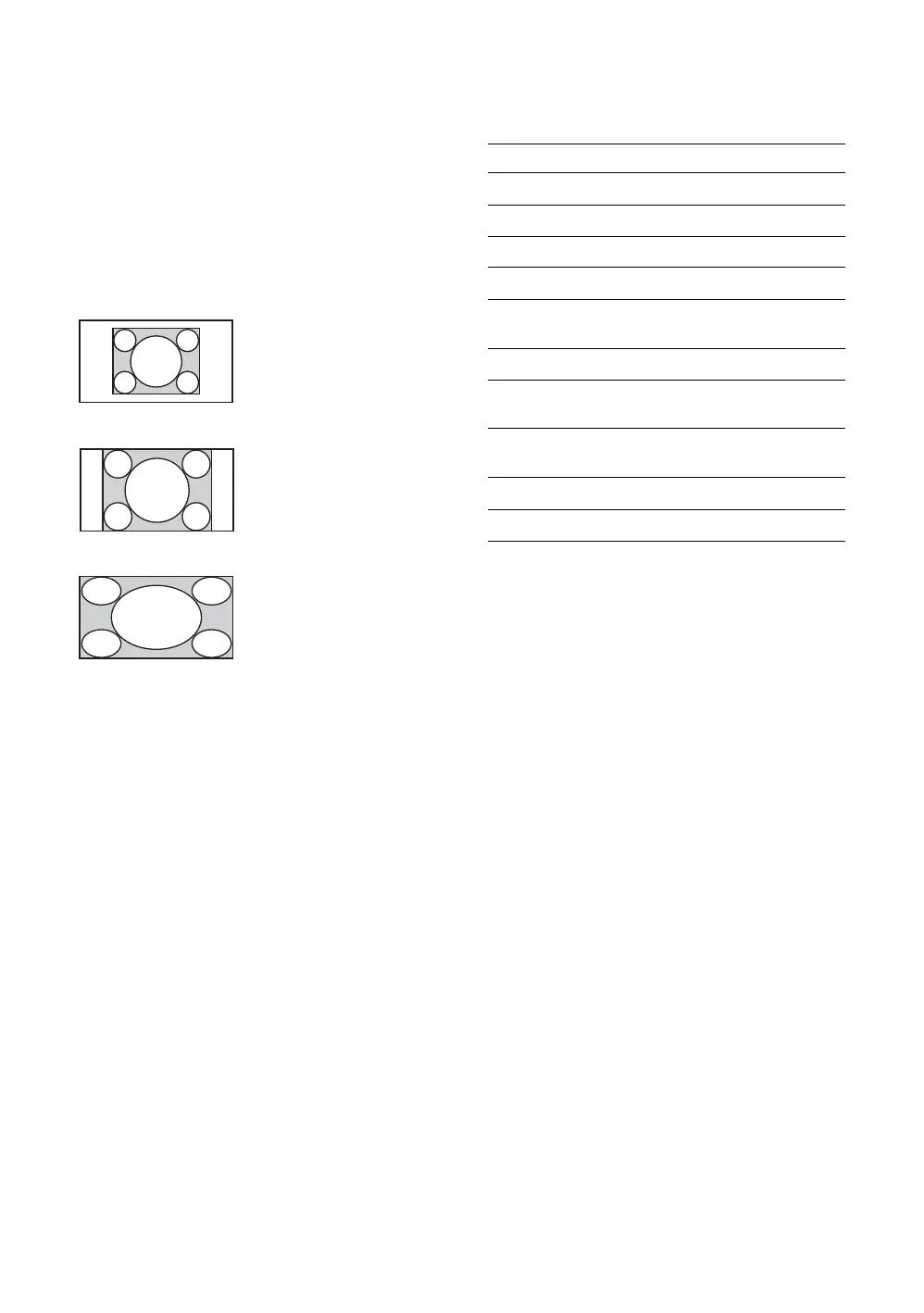
Normal
Displays the picture in its
original pixel size. Bars are
shown at the top, bottom,
and both sides for small
picture.
Full 1
Stretches the original
picture to fill the screen
vertically.
Full 2
Stretches the “Full 1”
picture horizontally to fill
the 16:9 screen.
Options Description
Close Closes the Tools menu.
Picture Mode See page 23.
Sound Mode See page 25.
Intelligent Picture See page 35.
MPEG Noise
Reduction
See page 24.
Speaker See page 30.
Add to Favourites You can add the current
channel to the favourite list.
i Volume You can adjust the volume of
the headphones.
Sleep Timer See page 31.
Power Saving See page 32.



 To Next Page