– 9 –
16
-EN
Getting Started
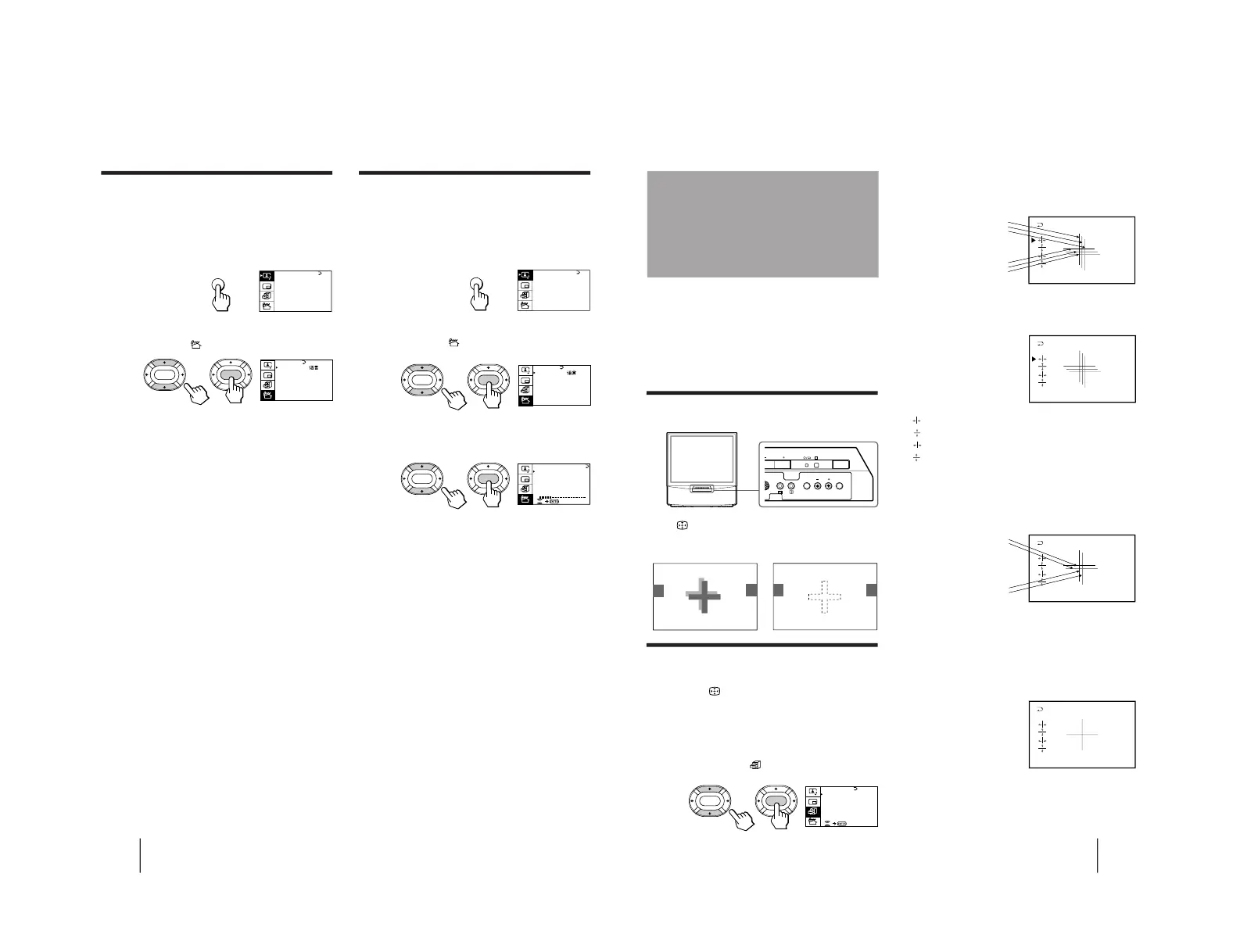
Disabling program positions
By disabling unused or unwanted program positions,
you can skip those positions when you press PROGR
+/–.
1
Press MENU.
2
Press V or v to move the cursor (z) to the
PRESET menu (
), and press ENTER.
3
Press V or v to move the cursor (z) to SKIP,
and press ENTER.
4
Press V or v until the unused or unwanted
program position appears on the menu,
and press ENTER.
5
Press V/b/v/B to select ON, and press ENTER.
6
To disable other program positions, repeat
steps 4 and 5.
7
Press MENU to return to the normal screen.
To cancel the skip setting
1 Display the PRESET menu.
2 Press V or v to move the cursor (z) to SKIP, and
press ENTER.
3 Press V or v until the program position you want to
cancel the skip setting appears, and press ENTER.
4 Press V/b/v/B to select OFF, and press ENTER.
Presetting the volume level for
individual programs
If the volume of the selected program is louder than
that of other programs, set the volume level.
1
Press MENU.
2
Press V or v to move the cursor (z) to the
PRESET menu (
), and press ENTER.
3
Press V or v to move the cursor (z) to
MANUAL PROGRAM, and press ENTER.
4
Press V or v to move the cursor (z) to
VOLUME, and press ENTER.
5
Press V/b/v/B to set the level, and press
ENTER.
The level can be set as 0, –1, –2, ....–6 (minimum).
A / V CONTROL
DYNAMIC
SOFT
STANDARD
PERSONAL
V I DEO AD JUST
AUD IO ADJUST
MENU
PRESET
SKIP: PR02 OFF
TV SYS: B /G
COL SYS : AUTO
ENGL I SH
AUTO PROGRAM
MANUAL PROGRAM
LANGUAGE/
:
ENTER ENTER
A / V CONTROL
DYNAMIC
SOFT
STANDARD
PERSONAL
V I DEO AD JUST
AUD IO ADJUST
MENU
PRESET
SKIP: PR02 OFF
TV SYS: B /G
COL SYS : AUTO
ENGL I SH
AUTO PROGRAM
MANUAL PROGRAM
LANGUAGE/
:
ENTER
ENTER
TV SYS:B/G
VHF
LO
W
PR: 01
AT T : OFF
MANUAL PROGRAM
ENTER ENTER
VOLUME: 0
17
-EN
Getting Started
3
Press V or v to move the cursor (z) to
CONVERGENCE and press ENTER.
The CONVERGENCE adjustment screen appears.
4
Press V or v to move the cursor (z) to the
symbol showing the line you want to
adjust, and press ENTER.
: Red vertical line (left/right adjustment)
: Red horizontal line (up/down adjustment)
: Blue vertical line (left/right adjustment)
: Blue horizontal line (up/down adjustment)
5
Press V or v to move the line until it
converges with the center green line, and
press ENTER.
To move up/right, press V.
To move down/left, press v.
6
Repeat steps 4 and 5 to adjust the other
lines until all three lines converge and are
seen as a white cross.
7
Press MENU to return to the normal screen.
Adjusting the
convergence
(CONVERGENCE)
Before you use the projection TV, adjust convergence.
The projection tube image appears on the screen in
three layers (red, green and blue). If they do not
converge, the color is poor and the picture blurs. To
correct this, adjust convergence.
After 20-30 minutes of turning on the power, adjust
convergence.
Adjusting the convergence
automatically
Press on the TV.
The auto convergence function works for about 30
seconds.
Adjusting the convergence manually
When the auto convergence function does not work
correctly with
, adjust convergence by selecting
CONVERGENCE of the FEATURES menu.
1
Press MENU.
2
Press V or v to move the cursor (z) to the
FEATURES menu (
), and press ENTER.
R=Red
G=Green
B=Blue
R
G
B
R
G
B
GAME MODE
HYPER SURROUND :
OF F
MONITOR
AV OUT :
FE ATURES
ENTER
ENTER
CONVERGENCE
R
G+B
(Light blue)
R
G+B
(Light blue)
L( MONO)
R
3
PROGR
R
U
ENTER MENU
www.freeservicemanuals.info
Published in Heiloo, Holland.



 To Next Page