38
GB
1
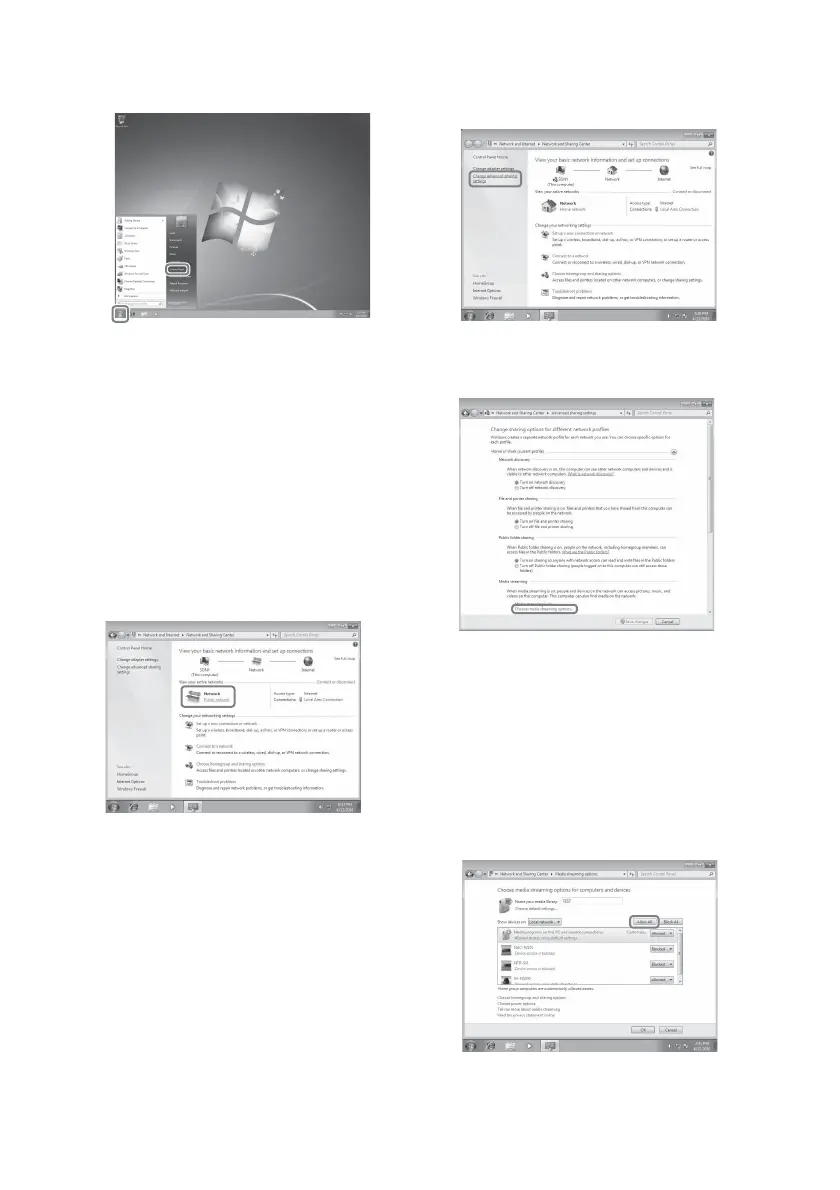
Go to [Start] – [Control Panel].
2
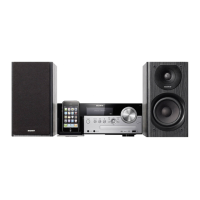
Select [View network status and
tasks] under [Network and Internet].
The [Network and Sharing Center] window
appears.
Tip
If the desired item does not appear on the display,
try to change the display type of the Control Panel.
3
Select [Public network] under [View
your active networks].
If the display shows other than
[Public Network], go to step 6.
The [Set Network Location] window appears.
4
Select [Home network] or [Work
network] according to the
environment in which the system is
used.
5
Follow the instructions that appear
on the display according to the
environment in which the system is
used.
When the settings are completed, confirm
that the item under [View your active
networks] is changed to [Home network] or
[Work network] in the [Network and Sharing
Center] window.
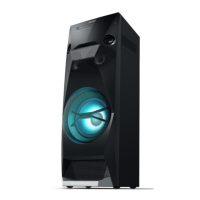
6
Select [Change advanced sharing
settings].
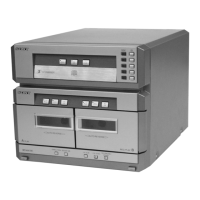
7
Select [Choose media streaming
options…] from [Media streaming].
8
If [Media streaming is not turned on]
appears in the [Media streaming
options] window, select [Turn on
media streaming].
9
Select [Allow all].
The [Allow All Media Devices] window
opens. If all the devices in the local network
are set to [Allowed], select [OK] and close
the window.
10
Select [Allow all computers and
media devices].



 To Next Page