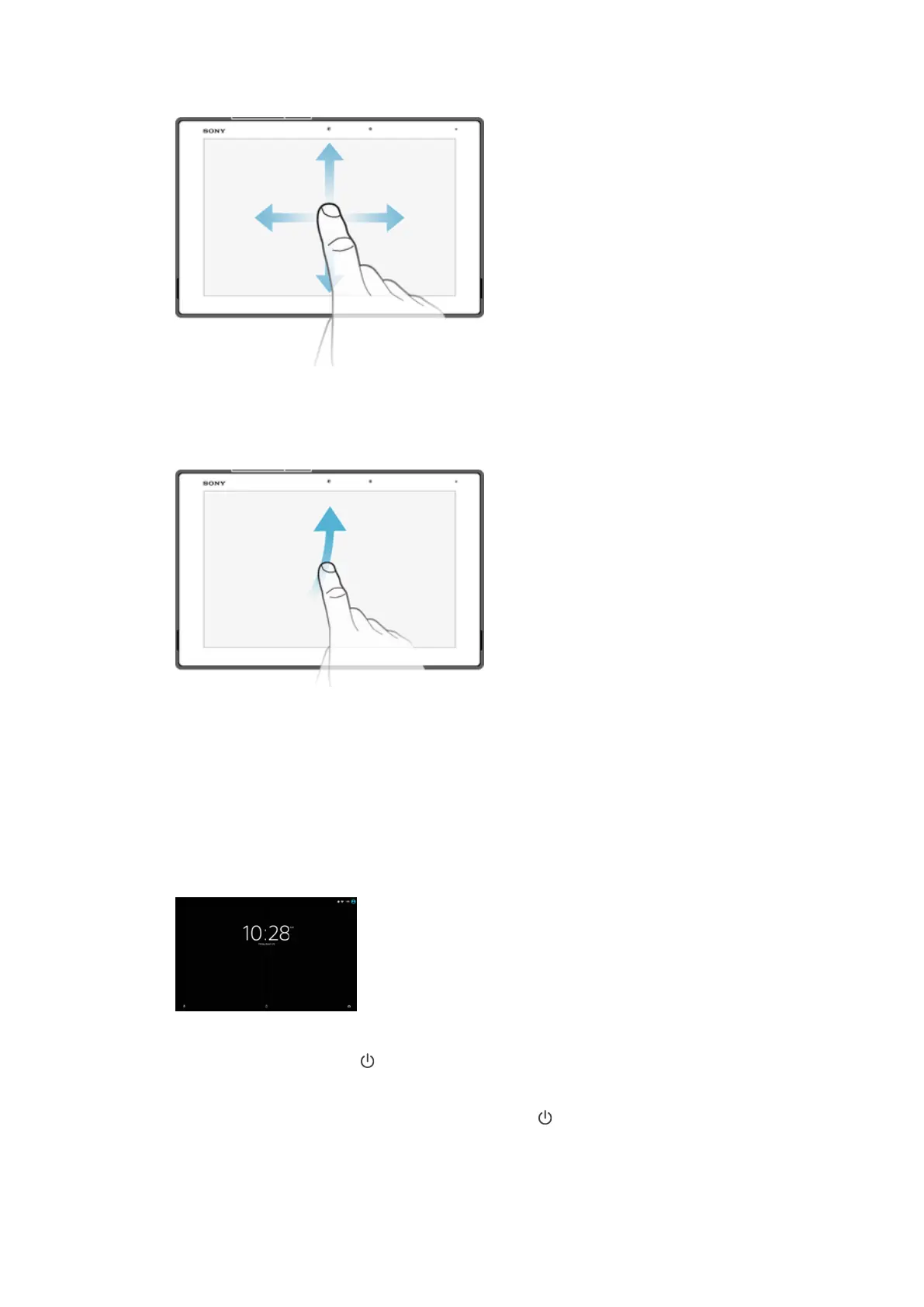
Swiping
•
Scroll up or down a list.
•
Scroll left or right, for example, between Homescreen panes.
•
Swipe left or right to reveal more options.
Flicking
•
Scroll quickly, for example, in a list or on a web page. You can stop the scrolling
movement by tapping the screen.
Locking and Unlocking the Screen
When your device is on and left idle for a set period of time, the screen darkens to save
battery power and locks automatically. This lock prevents unwanted actions on the
touchscreen when you are not using it. When you buy your device, a basic screen swipe
lock is already set. This means you have to swipe upward on the screen to unlock it. You
can change the security settings later and add other kinds of locks. See
Screen lock
on
the 12 page.
To activate the screen
•
Briefly press the power key .
To lock the screen
•
When the screen is active, briefly press the power key .
22
This is an internet version of this publication. © Print only for private use.













 To Next Page