136
GB
2 Select “Quick Click,” then press
.
3 Select “Macro,” then press .
4 Select the macro number for
which you want to program the
sequence of operation(s), then
press .
5 Select the step number you
want to set, then press .
6 Select the component type you
want, or “- Wait -,” then press b.
If you select “- Wait -,” go to step 8.
7 Select the key, then press b.
8 Select the duration of time you
want, then press .
9 Repeat steps 6 to 8 when you
want to program operations for
other components.
To input a macro name
1
Select “ Settings” from the menu,
then press or b.
2 Select “Quick Click,” then press .
3 Select “Macro,” then press .
4 Press OPTIONS.
The option menu appears.
5 Select “Name Input,” then press .
6 Press V/v to select a character, then
press b.
You can shift input position backward and
forward by pressing B/b.
7 Repeat steps 6 to input a character one
by one.
The name you entered is registered.
To erase a programmed macro
1
Select “ Settings” from the menu,
then press or b.
2 Select “Quick Click,” then press .
3 Select “Macro,” then press .
4 Select the macro number you want,
then press .
5 Select the step number you want, then
press .
6 Select “–” as a component name, then
press .
7 Repeat steps 5 and 6 to clear the
stored macro.
Setting remote control
codes that are not stored
in Quick Click
1
Select “ Settings” from the
menu, then press or b.
2 Select “Quick Click,” then press
.
3 Select “Source Component,” or
“Common Component,” then
press .
4 Select the component you
want, then press .
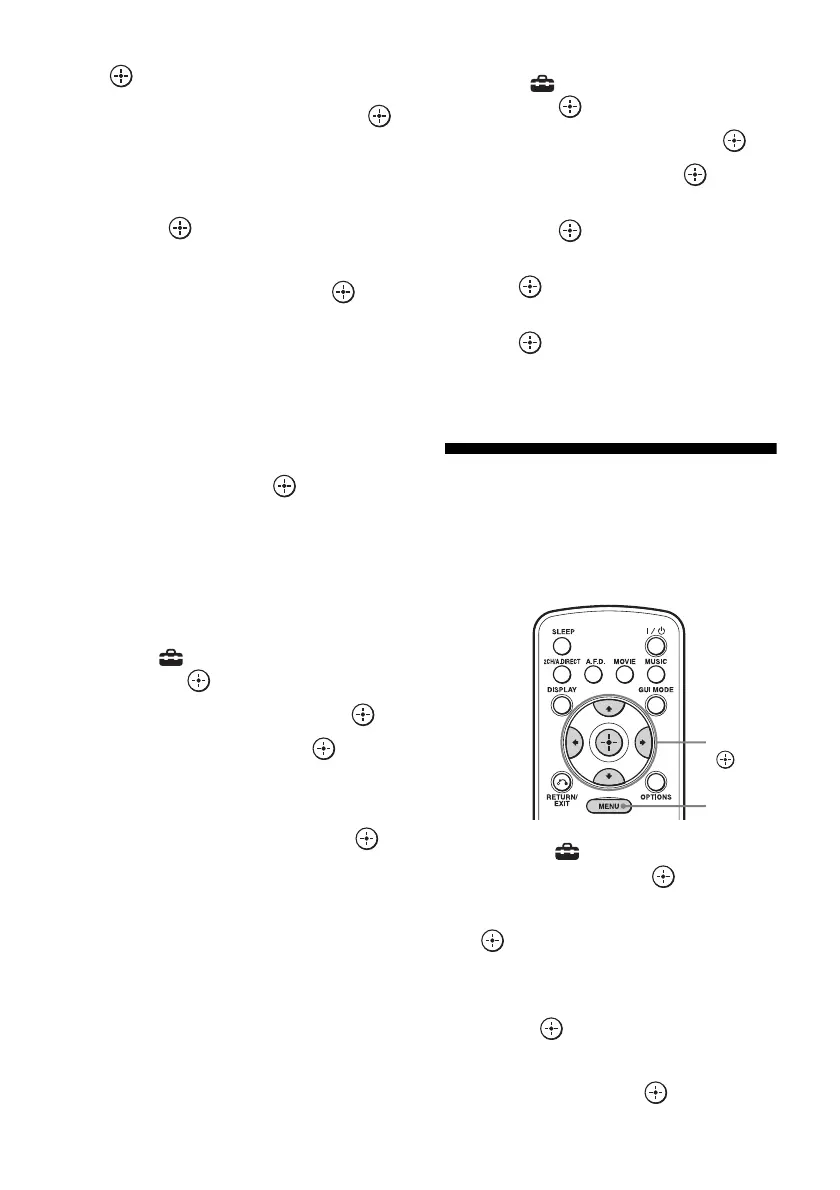
V/v/B/b,
MENU


 To Next Page