EQUINOX INTEGRATION GUIDE
Connect to the InFusion Controller. Configure the devices. After the devices are configured, do an Update or Full Program. The
devices should now be operational.
NOTE: On larger systems, it is recommended to let the entire system wait a few minutes when first programmed or reprogrammed.
VIII. Equinox Widget Navigation
Once the Sony STR is added to the project, the audio widget will normally appear on the EQ73, EQ41, and Equinox Apps. If the
widget is not visible, go to Profile Settings and select the widget to make it visible. Note that if the audio widget is already on the
Equinox device, but the Sony STR is not visible, go to the widget’s Edit Mode (see below) to toggle the Sony to make it visible.
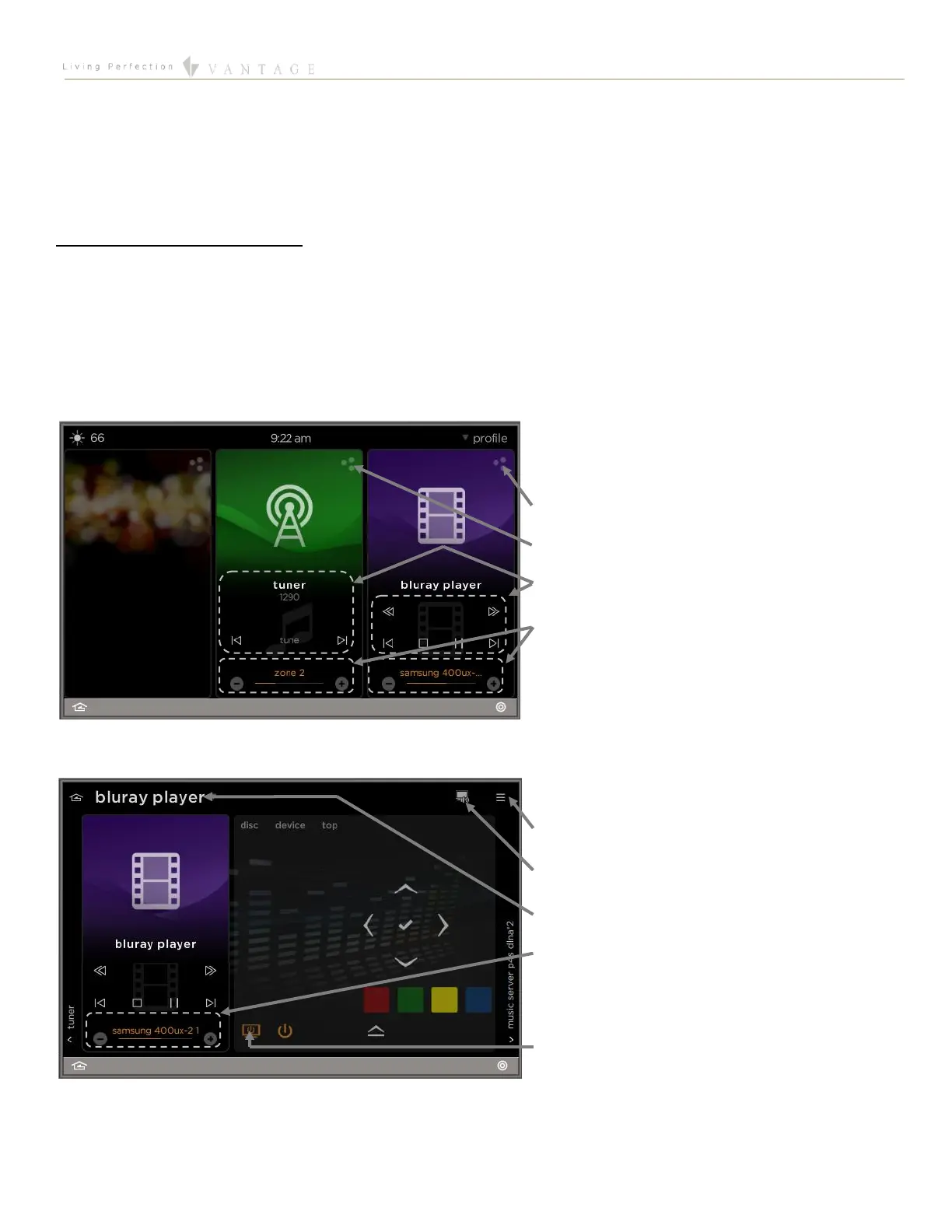
The following screen shots, taken from a typical EQ73 device, show the basic navigation for full Equinox widgets on the EQ41, EQ73,
and Equinox App, among the three widget views: Dashboard, Full Screen, and Edit Mode. Refer to the “Equinox Apps Widget Install”
document on Vantage’s website for more detailed information.
Dashboard View of the Sony in the
Audio Widget and Video Widget
Press to enter Full Screen view of the video widget
Press to enter Full Screen view of the audio widget
Source controls
Zone power toggle (press the name of the zone – video
zone power also controls the TV/display power) and
volume controls
Full Screen View of the Sony in the
Video Widget
Enter Edit Mode view
Select a zone/TV/display
Select a source (or swipe screen left/right)
Zone power and volume controls (press the name of the
zone to toggle the power of both the zone and the
TV/display)
TV/display power (toggles the power of both the zone
and TV/display)




 To Next Page