14
Receiver Operations
TV programs Turn on both the TV and the receiver
and rotate FUNCTION repeatedly
until the TV/DBS indicator lights up
Videos, laser discs or
DVD
1 Rotate FUNCTION to select the
component (for example, VIDEO 1).
2 Turn on the TV and set the TV’s
video input to match your video
component.
3 Turn on the component (VCR, LD/
DVD player), and start playback.
* Sony VCRs are operated with a VTR 1, 2, or 3 setting
that corresponds to Beta, 8mm, and VHS,
respectively.
Note
Pressing a SYSTEM CONTROL/FUNCTION button
will activate the component indicated for that button
(i.e., the component connected to the respective
connector). If, however, the connected component is
different from the one indicated for the button, the
component will not be activated when the button is
pressed only once.
For example, to watch Sony LD player connected to the
VIDEO 2 jacks (as shown on page 10):
Press VIDEO 2 to switch the function, then press LD to
set the remote control to operate the LD player.
If you want to change the factory setting of a
button
See page 28.
To watch or listen to Press
Records PHONO
Radio programs TUNER
Compact Discs (CD) CD
Digital Audio Tapes
(DAT) or MiniDiscs (MD)
DAT/MD
Audio tapes TAPE
TV programs TV
VIDEO 1 (VTR 3*),
VIDEO 2 (VTR 1*) or
VIDEO 3 (VTR 2*)
Laser discs or Digital
Video Discs (DVD)
LD
Video tapes
z When you listen with headphones
Connect the headphones to the PHONES jack and set
SPEAKERS to OFF.
z When you want to enjoy high quality sound
Press DIRECT PASS to bypass the tone controls, bass
reinforcement, and surrround effects.
The DIRECT PASS button lights up.
z You can adjust the brightness of the display
1 Press SET UP repeatedly to select OTHER SETUP.
2 Use the digital processing control buttons ( V / v ) to
select DIMMER.
3 Use the digital processing control buttons ( B / b ) to
adjust the brightness.
Watching TV/video programs
To watch Do this
z When you watch TV or video programs
We recommend you play audio portion through the
receiver instead of your TV’s speakers. This lets you
take advantage of the receiver’s surround sound effects,
like Dolby Surround, and lets you use the receiver’s
remote to control the audio.
Turn off the speakers on your TV before you start so
you can enjoy the surround sound from your receiver.
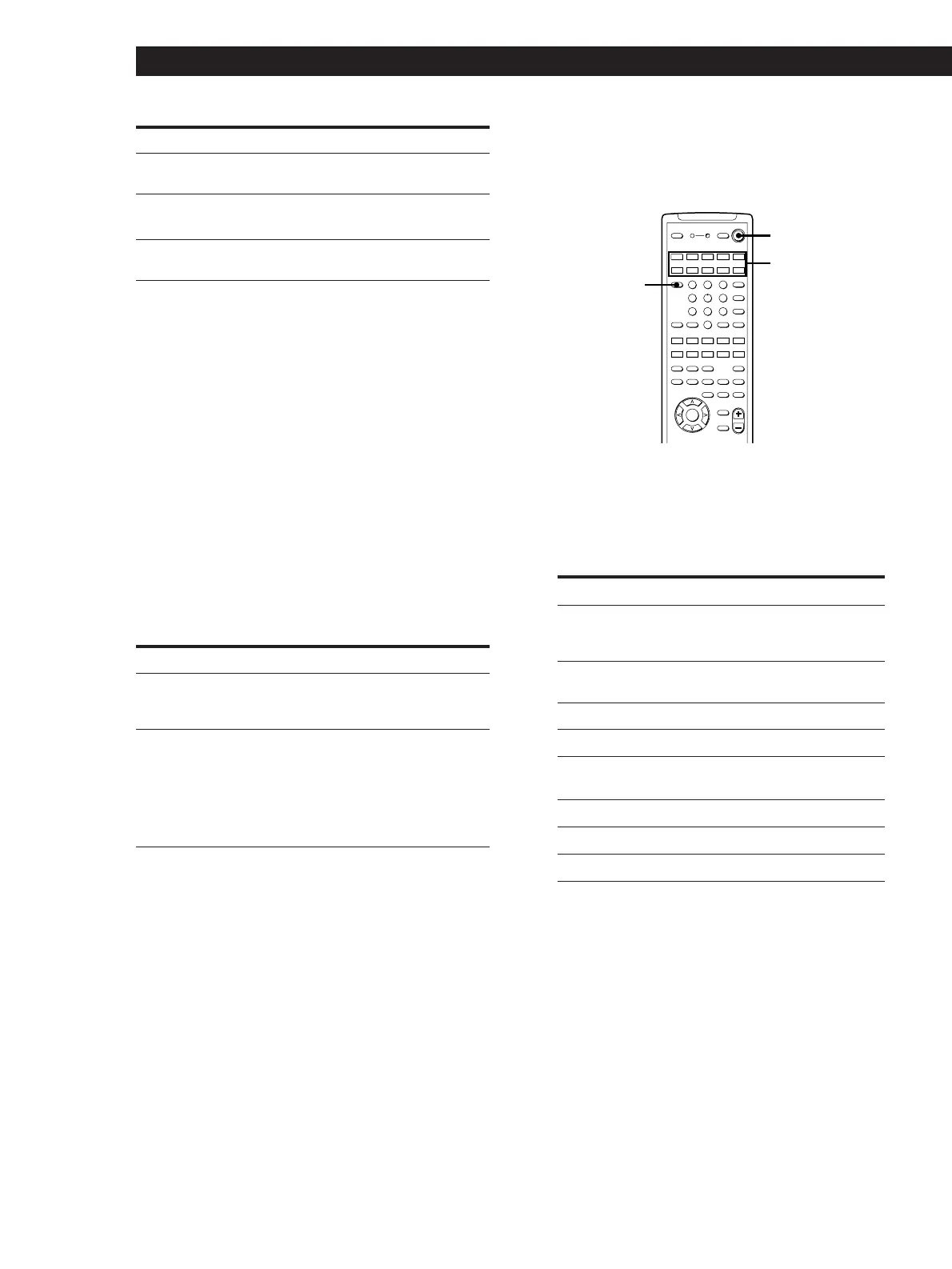
Using the remote Z
The remote lets you operate the receiver and the Sony
components that are connected to it.
SYSTEM OFF
SYSTEM
CONTROL/
FUNCTION
TV CONTROL
ON
21 3
LEARN
SLEEP
VISUAL
POWER
SYSTEM OFF
SLOPEBAND
EQ/
TONE
DIGTAL
PROCESSING
CONTROL
PROGRAMMABLE
—
LEVEL
—
DIRECT
REAR
BASS
BOOST
MUTING
CENTER
MASTER
VOL
MODEGENRE
—
SOUND FIELD
—
ON/OFF
TEST
TONE
TV
CONTROL
5.1
INPUT
54 6
TV/VIDEO
87 9
D.TUNING
DISC
0
BACK
GROUND
SHIFT ENTER
RMS/START
CH/
PRESET
SYSTEM CONTROL / FUNCTION
VIDEO 3VIDEO 2VIDEO 1
LD TV
(AUTO CATEGORIZE SYSTEM)
CD
DAT/MD
>
10
TAPE
ON
TUNER PHONO
++
––
+
–
POSITION
–
SUB CH
+
—
RMS
—
SWAP
ANT
TV/VTR
=)0+
D. SKIP
CLEARDIRECTION P IN P JUMP
p(
DPC
MODE
9Pr
1 Press one of the SYSTEM CONTROL/
FUNCTION buttons to select the component you
want to use.
The receiver and the selected component turn on.
The SYSTEM CONTROL/FUNCTION buttons on
the remote are factory-set as follows:
To Do this
Mute the sound Z Press MUTING on the remote. Press
again to restore the sound.
Reinforce the bass Press BASS BOOST to light up the
button
Adjust the balance of
front speakers
Turn BALANCE left or right



 To Next Page