EasyManua.ls Logo

Sony Trinitron KV-27V20 - Setting Your Favorite Channels (Favorite Channel)

Sony Trinitron KV-27V20
32 pages
Print Icon
To Next Page IconTo Next Page
To Previous Page IconTo Previous Page
Loading...
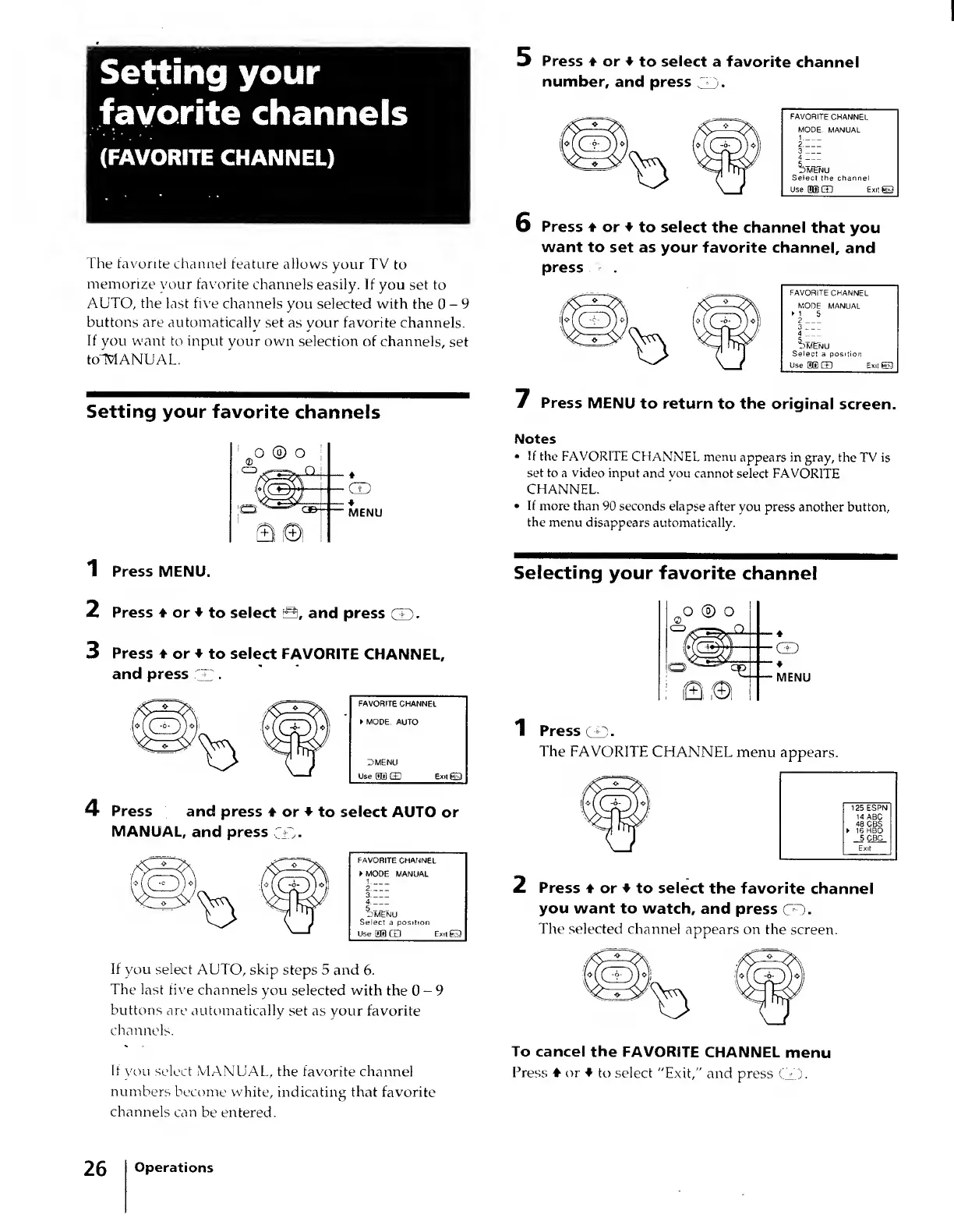
Setting
your
favorite
channels
(FAVORITE
CHANNEL)
The
favorite
channel
feature
allows
your
TV
to
memorize
your
favorite
channels
easily-
If
you
set
to
AUTO,
the
last
five
channels
you
selected
with
the
0-9
buttons
are
automatically
set
as
your
favorite
channels.
If
you
want
to
input
your
own
selection
of
channels,
set
toTVlANUAL.
5
Press
4
or
4
to
select
a
favorite
channel
number,
and
press
TD.
FAVORITE
CHANNEL
MODE:
MANUAL
2.ZZZ
3
_
4
_
iwEMu
Selecl
the
channel
Use
5KB
CD
Exit
GE3
Press
4
or
♦
to
select
the
channel
that
you
want
to
set
as
your
favorite
channel,
and
press
Setting
your
favorite
channels
7
Press
MENU
to
return
to
the
original
screen.
■
♦
■
CD
■
♦
MENU
1
Press
MENU.
2
Press
4
or
4
to
select
3,
and
press
CD-
3
Press
4
or
♦
to
select
FAVORITE
CHANNEL,
and
press
GET
■
4
P
ress
and
press
4
or
♦
to
select
AUTO
or
MANUAL,
and
press
CD-
FAVORITE
CHANNEL
►
MODE:
MANUAL
1
_
2
_
3
_
4
_
5
_
DMENU
Select
a
position
Use
S®
CD
Exit
If
you
select
AUTO,
skip
steps
5
and
6.
The
last
five
channels
you
selected
with
the
0-9
buttons
are
automatically
set
as
your
favorite
channels.
If
you
select
MANUAL,
the
favorite
channel
numbers
become
white,
indicating
that
favorite
channels
can
be
entered.
Notes
•
If
the
FAVORITE
CHANNEL
menu
appears
in
gray,
the
TV
is
set
to
a
video
input
and
you
cannot
select
FAVORITE
CHANNEL.
•
If
more
than
90
seconds
elapse
after
you
press
another
button,
the
menu
disappears
automatically.
Selecting
your
favorite
channel
GD
♦
MENU
1
Press
CD.
The
FAVORITE
CHANNEL
menu
appears.
125
ESPN
14
ABC
4fl
CBS
►
1b
HBO
5
CBC
Exil
2
Press
4
or
♦
to
select
the
favorite
channel
you
want
to
watch,
and
press
CO.
The
selected
channel
appears
on
the
screen.
To
cancel
the
FAVORITE
CHANNEL
menu
Press
4
or
4
to
select
"Exit,"
and
press
CD.
26
Operations