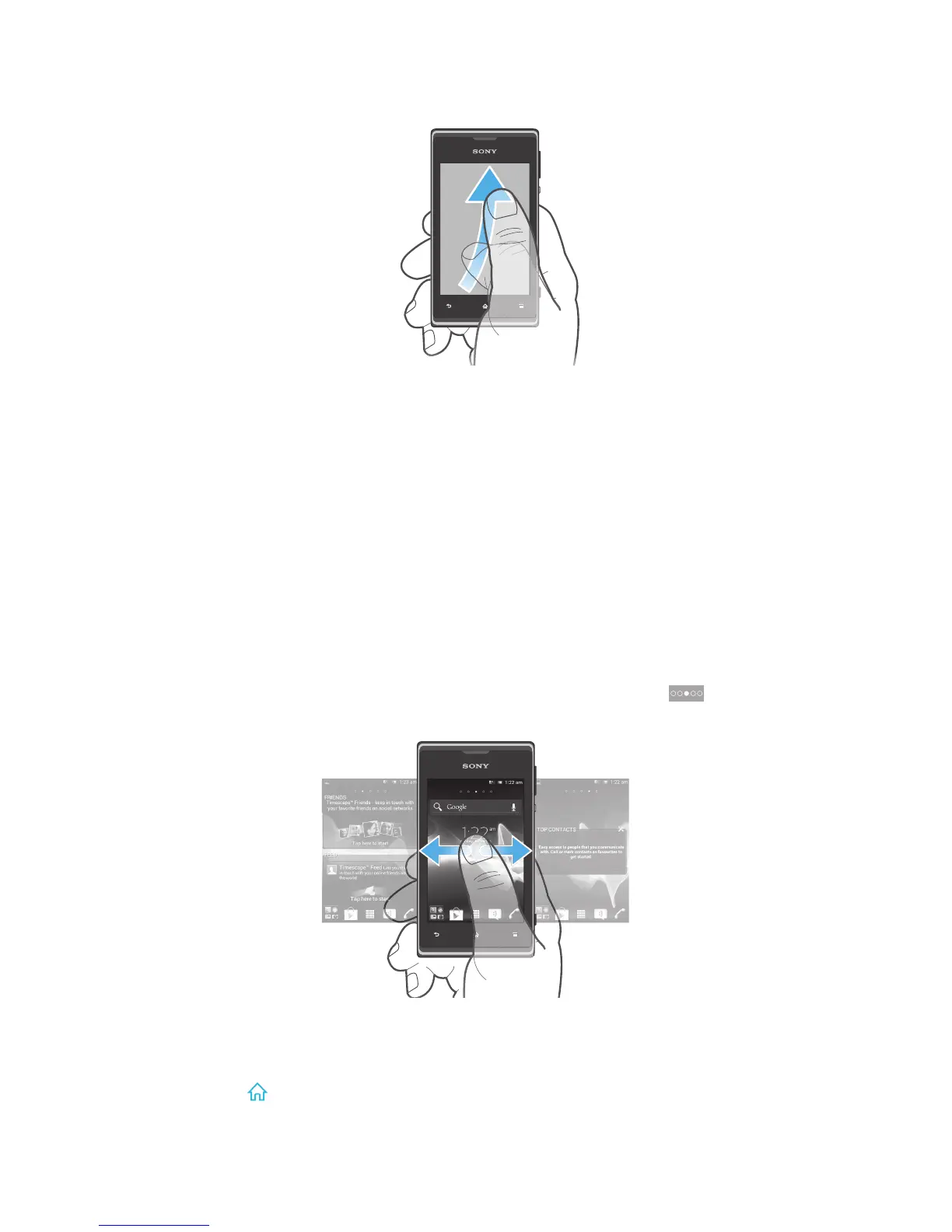
To flick
•
To scroll more quickly, flick your finger in the direction you want to go on the
screen. You can wait for the scrolling movement to stop by itself, or you can
stop it immediately by tapping the screen.
Sensors
Your phone has sensors that detect both light and proximity. The light sensor detects
the ambient light level and adjusts the brightness of the screen accordingly. The
proximity sensor turns the touch screen off when your face touches the screen. This
prevents you from unintentionally activating phone functions when you are engaged
in a call.
Home screen
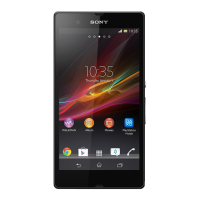
Your phone Home screen is the equivalent of the desktop on a computer. It's your
gateway to the main features in your phone. You can customise your Home screen
with widgets, shortcuts, folders, themes, wallpaper and other items.
The Home screen extends beyond the regular screen display width, so you need to
flick left or right to view content in one of the screen's four extensions.
shows
which part of the Home screen you are in.
The items in the bar at the bottom of the screen are always available for quick
access.
To go to the Home screen
•
Press .
18
This is an Internet version of this publication. © Print only for private use.



 To Next Page