Taking photos and recording videos
Take a photo or record a video with the camera in your phone. You can hold the
camera horizontally or vertically. All photos and videos are saved automatically on the
memory card. Share a photo or a video with friends, or upload your photos and
videos to a web service.
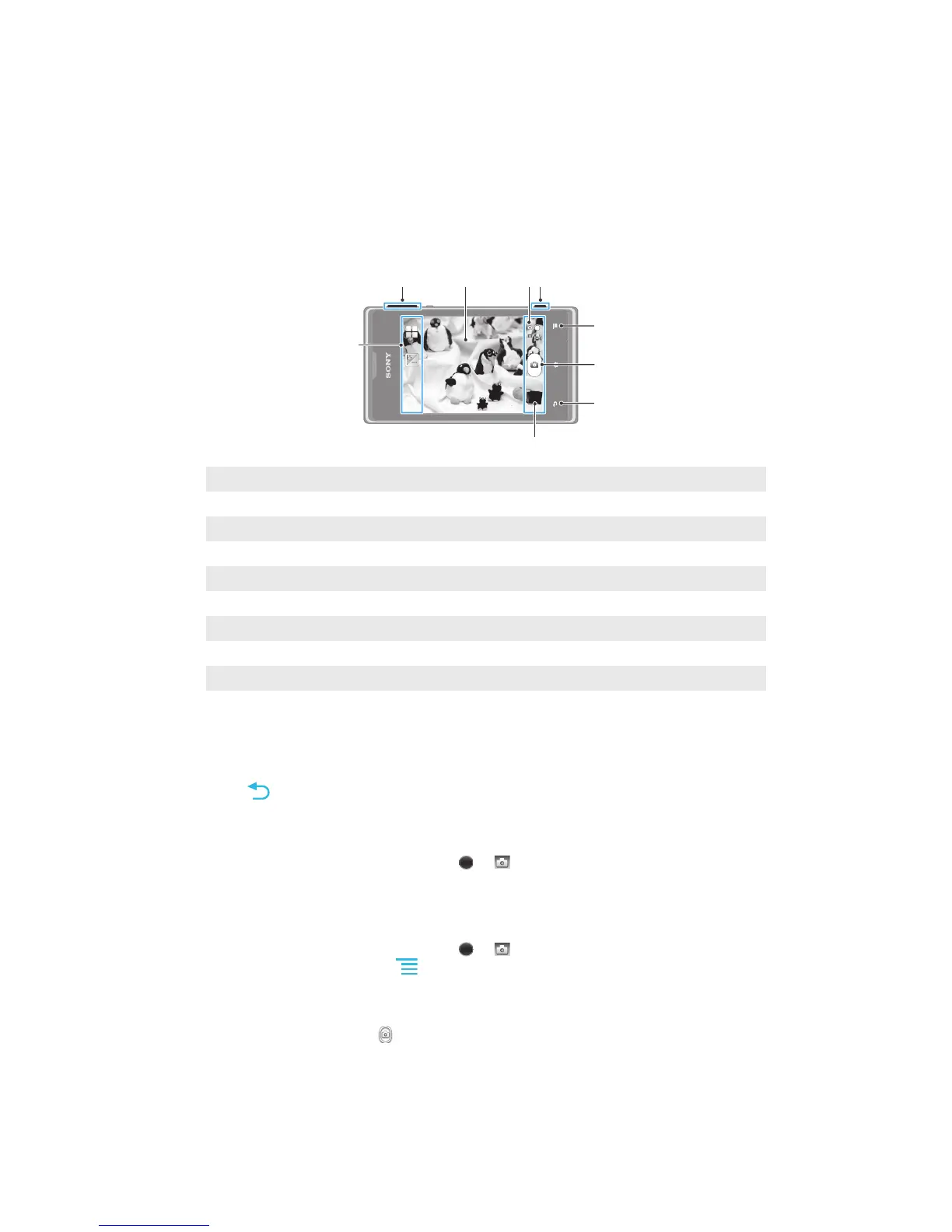
Camera controls overview
1 Zoom in or out
2 Main camera screen
3 Switch between still and video camera
4 Camera key – Activate the camera/Take photos/Record videos
5 Display all settings
6 Take photos or record video clips
7 Go back a step or exit the camera
8 View photos and videos
9 Camera setting icons
To open the camera
•
When the screen is active, press and hold down the camera key.
To close the camera
•
Press
from the main camera screen.
To take a photo using the camera key
1
Activate the camera.
2
If the still camera is not selected, drag to .
3
Press the camera key fully down.
To take a photo by tapping the on-screen button
1
Activate the camera.
2
If the still camera is not selected, drag
to .
3
To display all settings, press
.
4
Tap Capturing method and select On-screen button if it is not already
selected.
5
Point the camera towards the subject.
6
Tap the on-screen button . The photo is taken as soon as you release your
finger.
To use the zoom function
•
When the camera is open, press the volume key up or down to zoom in or out.
85
This is an Internet version of this publication. © Print only for private use.



 To Next Page