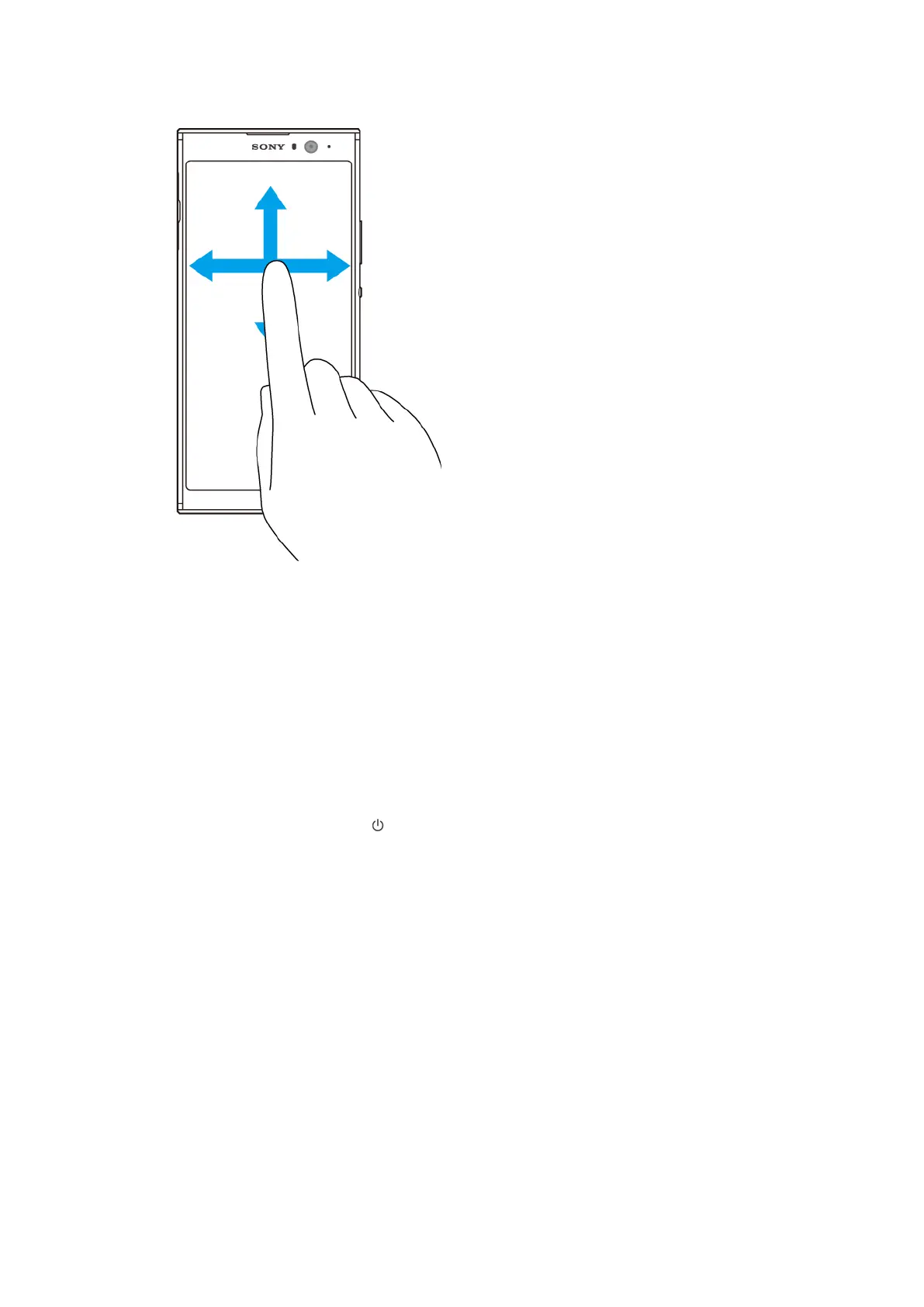
Swiping and scrolling
• Scroll up and down, or left and right.
• Swipe left or right, for example, between Home screen panes.
Turning the screen on or o
When your device is on and left idle for a set period of time, the screen dims and
turns o to save battery power. You can change how long your screen stays active
before it turns o.
When your screen is turned o, your device can be locked or unlocked, depending
on your screen lock setting. See
Screen lock
on page 13.
To turn the screen on or o
• Briey press the power key .
To adjust the idle time before the screen turns o
1 Find and tap Settings > Display > Sleep.
2 Select an option.
Smart backlight control
The smart backlight control keeps the screen on as long as the device is held in
your hand. Once you put down the device, the screen turns o according to your
sleep setting.
To enable or disable the Smart backlight control function
1 Find and tap Settings > Display > Smart backlight control.
2 Tap the switch to enable or disable the function.
20
Internet version. For personal use only.









 To Next Page