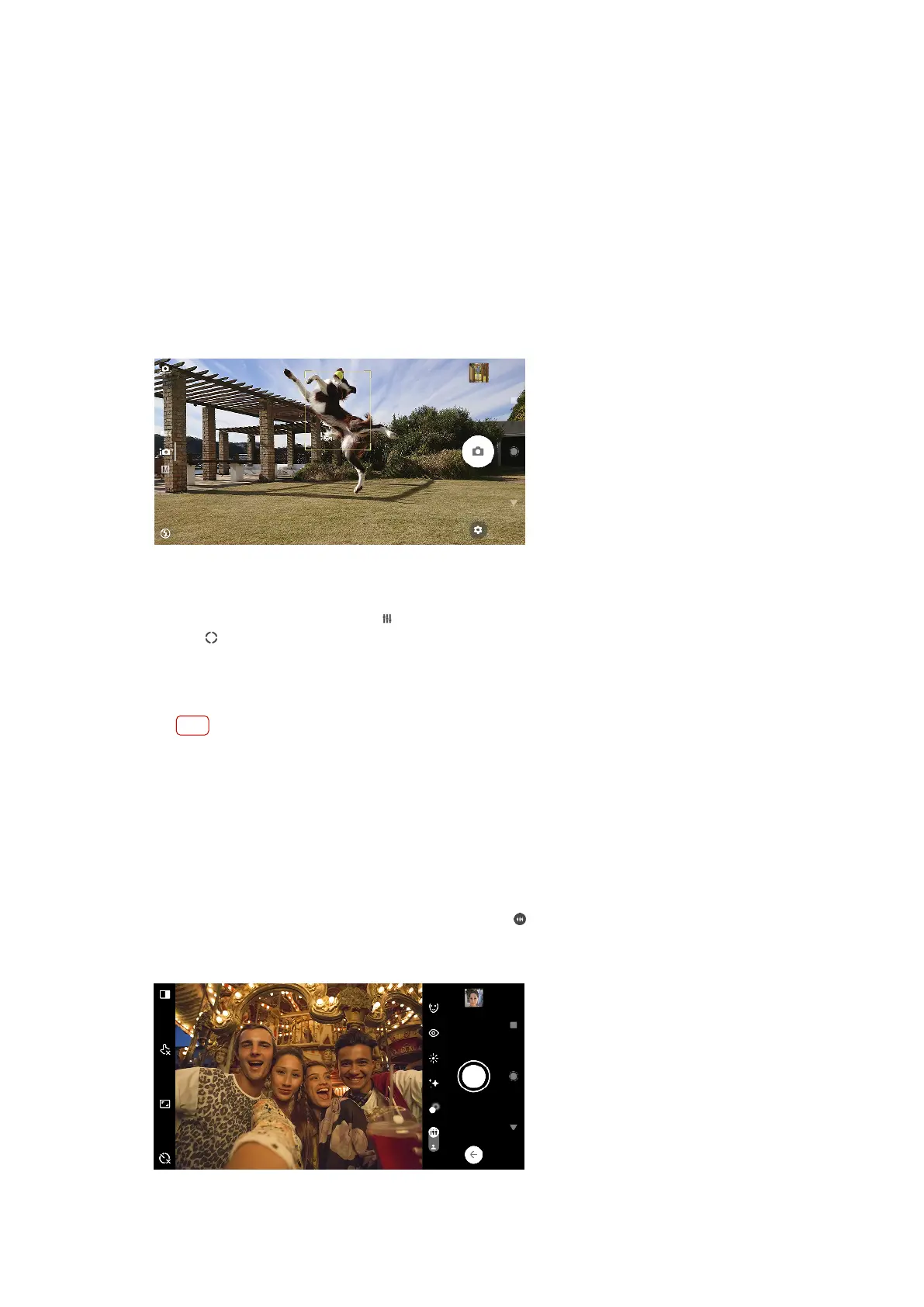
Setting the right focus
The camera automatically sets the focus and detects faces in all capturing modes.
It can also detect and track a moving object. A yellow frame indicates the face or
moving object that is in focus.
One way to change the focus area is to move your camera around with the camera
key half pressed. Once the focus is set, the circular frame turns blue. This technique
can be used, for example, to change the focus to a person who is at the side of a
group photo.
You can also tap the screen to focus on a specic area, or set a specic focus
distance. These options are only available for the main camera and depend on the
capturing mode selected.
To set the focus distance
1 When using the camera, tap (Manual mode icon).
2 Tap (Set focus icon).
3 Drag the slider to adjust the focus distance.
4 Close the settings menu. The setting is saved.
5 Press the camera key or tap the shutter button to take a photo.
Note
This setting is only available in Manual mode for the main camera.
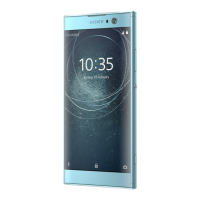
People, seles and smiling faces
Faces in focus are indicated with a coloured frame. Tap any frame to select a face
to focus on.
Use Smile Shutter to automatically take a photo when a person smiles. If you are
recording a video, a photo is taken each time a smile is detected.
Use the super wide-angle front camera feature (Super wide sele icon) to t
more into your shot.
90
Internet version. For personal use only.






 To Next Page