4 Tap (Stop button) to stop recording.
5 Drag the blue circles to where you want the slow motion eect to appear.
6 Tap (Save slow motion video icon) to save the video(s).
7 Tap (Exit slow motion icon) to exit.
Using camera apps
Use camera apps to boost creativity and modify your photos and videos, and share
with friends. You can create virtual scenes, panoramic photos and more. You can
also use camera apps supported by Google.
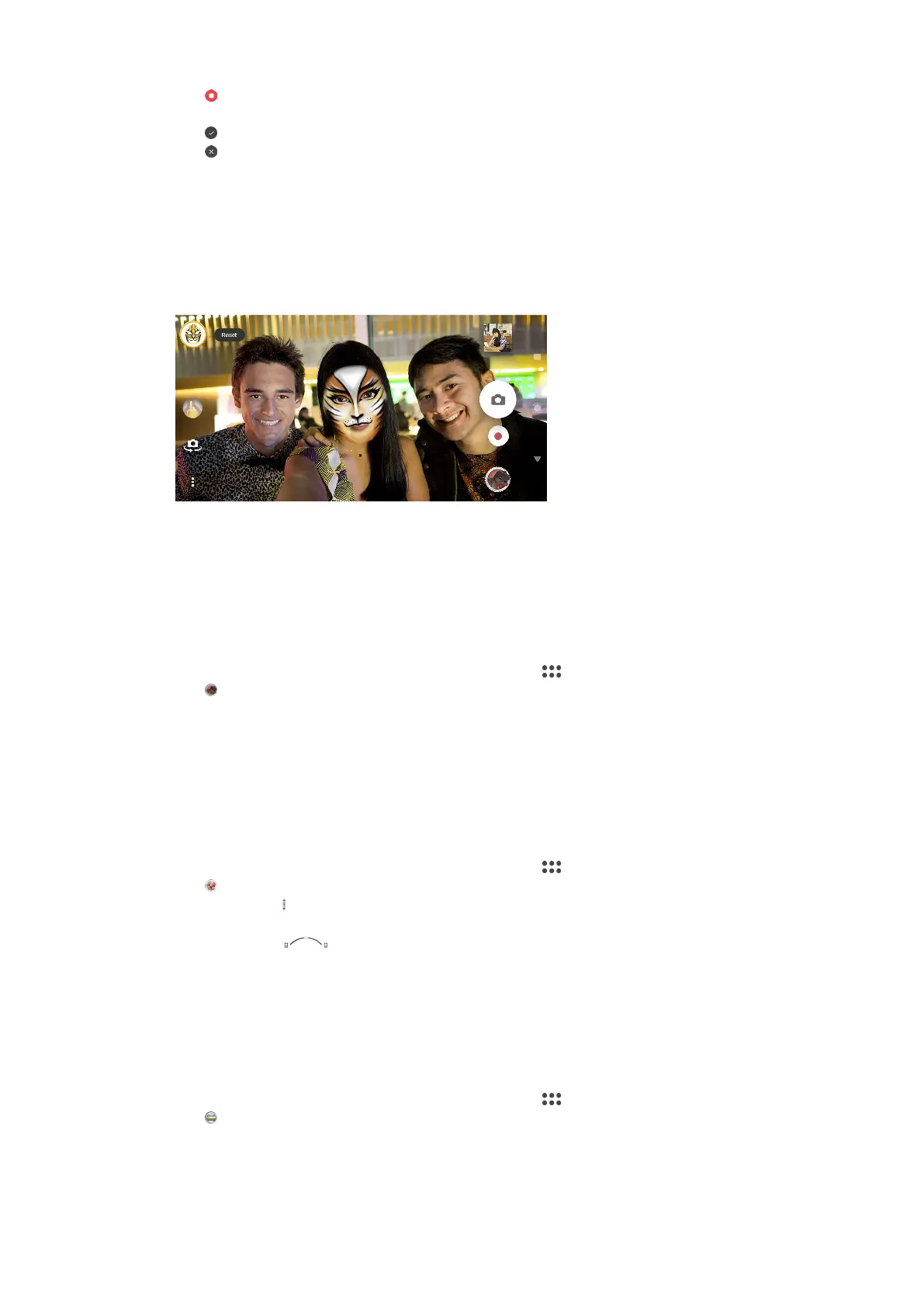
AR eect
AR eect is the augmented reality app that lets you apply fantastical worlds to
your photos or videos. You can add smileys, paper puppets, dinosaurs and more.
To take a photo or record a video with an AR eect
1 When using the camera, swipe the screen to select
(Camera apps menu icon).
2 Tap (AR eect icon) and select a scene.
3 Press the camera key or tap the shutter button to take a photo or record a video.
Bokeh eect
The Bokeh eect decreases focus in the background of a photo to emphasise
objects in the foreground for an artistic eect. You can adjust the Bokeh strength.
To take a photo with Bokeh eect
1 When using the camera, swipe the screen to select (Camera apps menu icon).
2 Tap (Bokeh icon), then tap ACCEPT > OK if prompted.
3 Tap one of the (Bokeh focus photo icon) switches to select the background
defocus eect.
4 Drag the slider (Bokeh blur-degree icon) to adjust the background focus
strength.
Panorama
Use the Panorama app to take wide-angle and panoramic photos.
To take a panoramic photo
1 When using the camera, swipe the screen to select
(Camera apps menu icon).
2 Tap (Panorama icon).
3 Press the camera key or tap the shutter button.
4 Move the camera slowly and steadily in the direction of movement indicated on
the screen.
93
Internet version. For personal use only.










 To Next Page