12 Tap to go to the next song, touch and hold to fast-forward the current song
13 Play or pause a song
14 Tap to go to the previous song, touch and hold to rewind the current song
15 Shue songs in the play queue
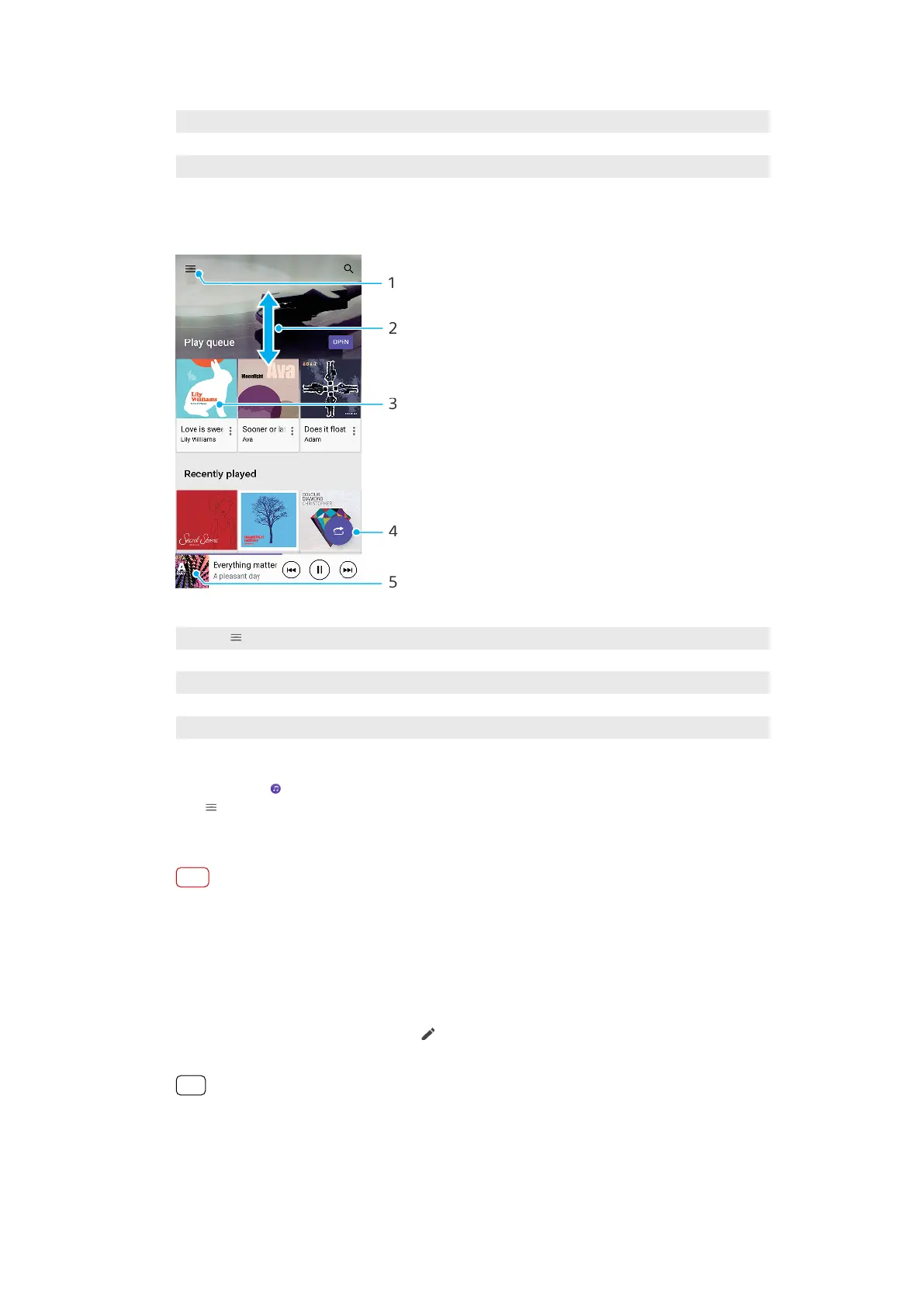
Music home screen
1 Tap (Options icon) to open the Music menu
2 Scroll up or down to view content
3 Tap to start playing a song in the play queue
4 Play all songs in shue mode
5 Go to the music player screen
To play a song using the Music application
1 Find and tap (Music icon).
2 Tap (Options icon).
3 Select a music category.
4 Tap a song to play it.
Note
You might not be able to play copyright-protected items. Make sure that you have the
necessary rights for the content you wish to use.
To edit music information and download album art
1 While a song is playing in the Music application, tap the album art in the music
player screen and then tap Edit music info.
2 Edit the information as desired.
3 To set or download album art, tap (Edit icon), then select an option.
4 When you are nished, tap SAVE.
Hint
You can also set album art to download automatically in the Music menu, under Settings.
To adjust the audio volume
• Press the volume key up or down.
80
Internet version. For personal use only.











 To Next Page