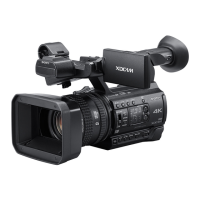
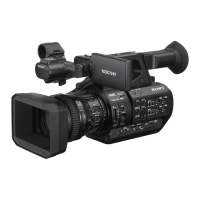
Need help?
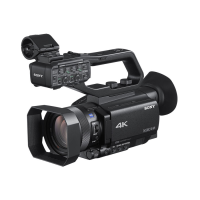
Do you have a question about the Sony Z90 and is the answer not in the manual?
The battery goes into the back of the camera under the eye cup. Ensure the arrow points towards the eye cup; place it in the slot and push up to click it.
The battery release is located on the bottom of the camera. Slide the release and pull the battery down to remove it.
The battery charges while attached to the camera. Connect the power adapter to the DC IN port near the bottom of the camera.
Open the LCD display, locate the SD card door, open it, and insert the SD card. Cards push in and click into place.
By default, the camera is set to relay record. An icon on the LCD screen indicates this setting.
Always format a new SD card in the camera before using it to ensure proper file management.
Open the mic latch, place the microphone in the holder, and ensure the rubber holder is correctly positioned.
When using only the shotgun microphone, the audio panel should be set to specific automatic settings.
To use multiple audio sources, change the REC CH SELECT to CH1 to split inputs onto separate channels.
Displays battery life, SD card status, capacity, and current time on the LCD screen.
Shows recording settings, SD card status (relay/simul), and indicates if no card is present.
Displays audio levels, exposure settings (iris, gain, shutter), ND filter, and manual focus.
For basic shooting, ensure the Auto/Manual switch is set to Auto for automatic camera functions.
Check the screen to ensure your camera is set to Auto Focus; manual focus is indicated by a specific icon.
The camera indicates when ND filters need to be turned on or off, often by flashing a number or saying 'off'.
Video resolution settings are located on the top left of the LCD screen and can be adjusted in the menu.
Two record buttons exist on the Z90 Camera: one on the back and another on top of the handle.
Two zoom handles are available: one on the camera body (variable speed) and one on the handle (variable/fixed options).
Use the touchscreen or menu toggle to navigate and select video clips for playback.
Access playback volume settings via the MENU button, then navigate to Audio Set > Volume.
To delete a file during playback, press MENU and navigate to the 'edit' icon at the bottom.
Default camera settings include ISO/Gain, WB, AE Shift, Zoom, SteadyShot, Focus Area, AF Drive Speed, Subject Track, Lock-on AF, Face Detection.
Default audio settings cover Volume, AVCHD Audio Format, Audio Rec Level, Mic Select, and Audio Output Timing.
Default display settings include Histogram, Zebra, Peaking, AF Frames, Marker, Focus Mag Ratio, Data Code, LCD Brightness.
Default record/output settings are File Format: XAVC HD, Record Format: 1080/60p, Simul/Relay: RELAY, Video Out: HDMI.
Navigate through Camera settings, including ISO, WB, Zoom, Focus, and Picture Profile adjustments.
Navigate Audio settings like Volume, AVCHD format, Mic Select, and Output Timing.
Navigate Display settings including Histogram, Zebra, Peaking, and LCD Brightness adjustments.
Manage Time Code (TC) and User Bit (UB) settings for display, preset, format, run, and make.
Configure network settings for smartphone control, streaming, client mode, and wireless TC link.
Access general settings like Status Check, Camera Profile, Clock, Language, Date Rec, and Media Format.
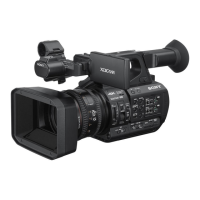
Identifies key buttons and controls on the camera body: Zoom lever, Focus magnifier, Microphone holder, Iris, Zebra, Recording lamp, NightShot light.
Details rear and bottom connections: SDI OUT, HDMI OUT, DC IN, U/D/L/R SET buttons, Handle zoom lever, Input jacks, Remote jack.
Highlights LCD screen controls: Slot Select, Thumbnail button, LCD Screen, Power, White Balance, S&Q button, Status Check, Picture Profile, Display.
Covers Record Channel Select, ATT switches, Line/Mic/+48v switches, Low Cut, Auto/Manual, and Audio Level for inputs.
Details controls on the camera body: Manual lens ring, Internal Mic, Zoom/Focus switch, AF/MF button, MENU button, MANUAL adjustment dial.
Identifies controls on the handle: IRIS button, ISO/GAIN button, SHUTTER SPEED button, Headphone Jack, Battery slot, ND filter switch, AUTO/MANUAL switch.
 General
| Lens | Zeiss Vario-Sonnar T* |
|---|---|
| Optical Zoom | 12x |
| Recording Format | XAVC S, AVCHD |
| 4K Recording | Yes |
| Wi-Fi | Yes |
| Lens Type | Zeiss Vario-Sonnar T* |
| Image Stabilization | Optical SteadyShot |
| Autofocus | Fast Hybrid AF |
| Viewfinder | 0.39" OLED |
| Built-in ND Filters | Yes (1/4, 1/16, 1/64) |
| Effective Pixels | Approx. 14.2 megapixels |
| Focal Length | f=9.3-111.6mm |
| Recording Resolution | 4K (3840x2160) |
| Audio Recording | Dolby Digital (2ch) |
| Media Storage | SD/SDHC/SDXC, Memory Stick PRO Duo |
| Connectivity | HDMI, USB |
| Sensor Type | Exmor RS CMOS |

 To Next Page