10
DisplayPort (video input) connectors 1 and
2
Connect these to the video processor.
HDMI (video input) connectors 1 and 2
Connect these to the video processor.
When inputting 4K-equivalent HDMI signals,
use a cable that is marked with the Premium
High Speed HDMI logo and is within 3 m in
length.
We recommend using Premium High Speed
HDMI cables that are within 3 m in length
even when you are not inputting 4K-
equivalent HDMI signals.
Turning the Power On/
Off
Turning the Power On
You can turn on the system’s power using one of
three methods. Consult your system
administrator regarding which method to use.
• Turning the power on via the Display Controller
• Turning the power on via Display Control
Software
• Turning the power on by connecting the power
cord to the Display Controller
Always connect the Display Cabinet's power cord
to the circuit breaker.
If pictures are not displayed within 5 minutes of
turning on the system’s power, try turning the
system’s power off and then on again.
If a startup delay is configured in the [Function] -
[System Settings] - [Cabinet Power On Delay]
setting of Display Control Software, the Display
Cabinets will turn on according to the configured
delay.
Turning the power on via the Display
Controller
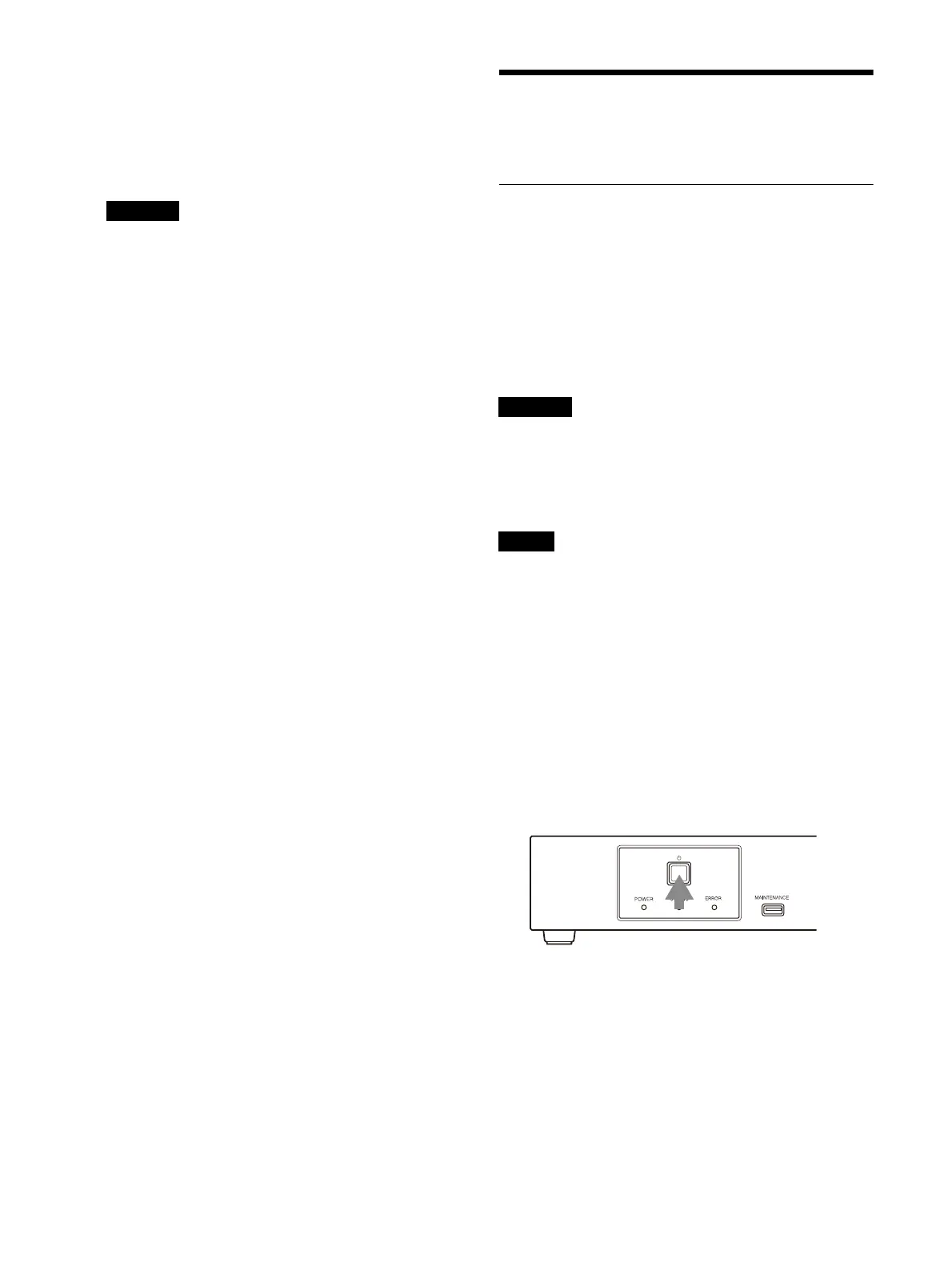
1 Press and hold the power switch on the
Display Controller for about 2 seconds.
Turn on all the Display Controllers by pressing
each of their power switches.
When a Display Controller turns on, its
POWER indicator lights green.
When a Display Cabinet turns on, its STATUS
indicator lights green.
To enter standby mode
Press the power switch on a Display
Controller twice to set the Display Controller
and Display Cabinets to standby mode.
To return to the power ON state, press the
power switch again.
Caution
Caution
Note



 To Next Page