Help Guide
Interchangeable Lens Digital Camera
ZV-E1
Shoot Mode: Intelligent Auto
The camera shoots images with automatically adjusted settings.
About Scene Recognition
The Scene Recognition function allows the camera to automatically recognize shooting conditions.
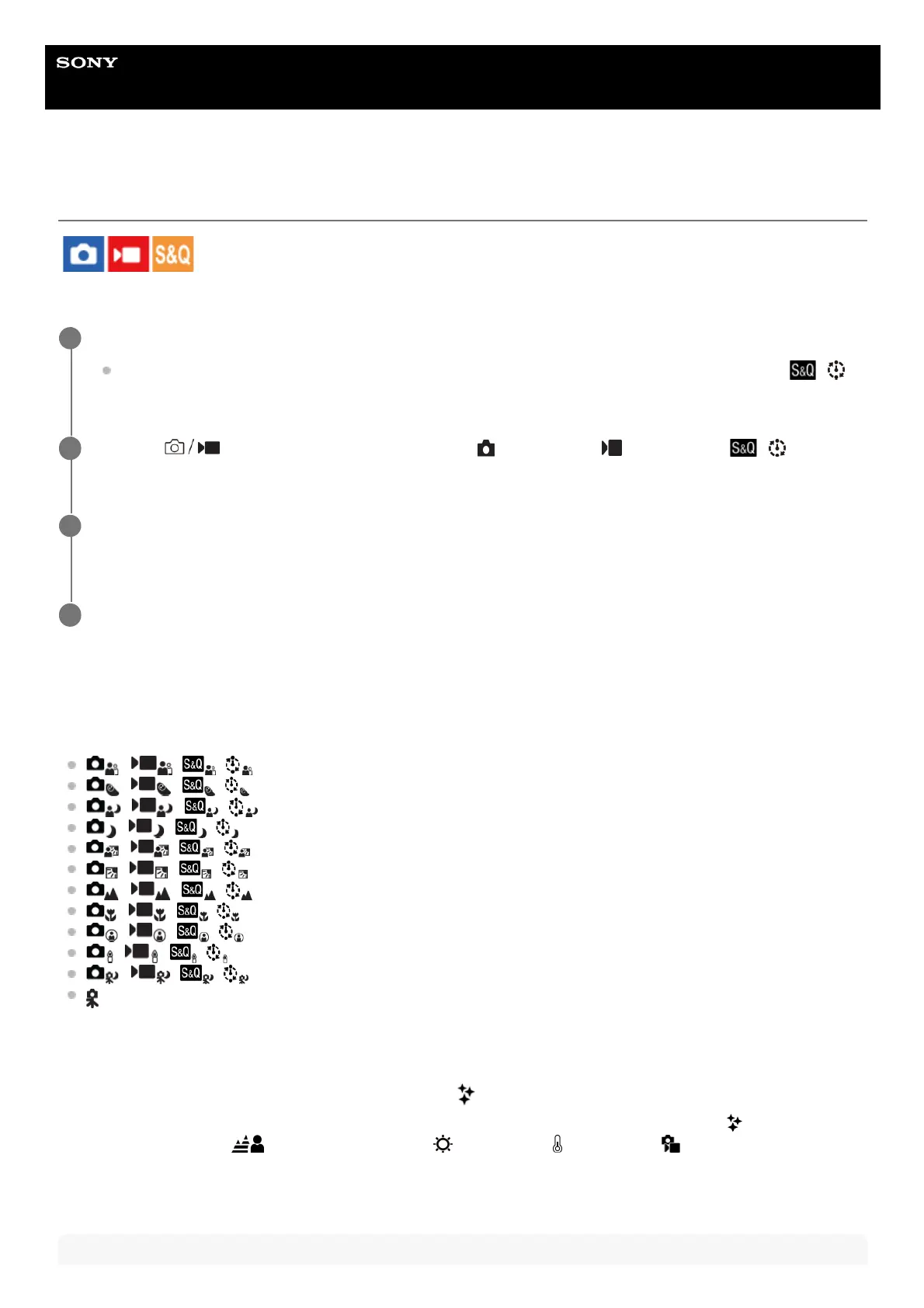
When the camera recognizes certain scenes, the following icons and guides are displayed at the top of the screen:
(Portrait)
(Infant)
(Night Portrait)
(Night Scene)
(Backlight Portrait)
(Backlight)
(Landscape)
(Macro)
(Spotlight)
(Low Light)
(Night Scene using a tripod)
(Tripod)
*
To adjust the image brightness, color tone, etc. (
My Image Style)
Swipe the monitor left or right to display the touch function icons on the shooting screen, and touch
(image
adjustment). You can set
(Background Defocus), (Brightness), (Color), and [ Creative Look] to your
preferences. Touch each icon at the bottom of the screen to set each item.
For details, refer to “ Adjusting images in the auto mode (My Image Style) .”
Note
Set the Still/Movie/S&Q switch to the desired shooting mode.
If S&Q (slow-motion/quick-motion) is selected and [Shoot Mode Sel. Screen] is set to [Display], the [
Shoot Mode] screen in Step 2 will be displayed at this point.
1
MENU →
(Shooting) → [Shooting Mode] → [ Shoot Mode]/[ Shoot Mode]/[ Shoot
Mode] → [Intelligent Auto].
2
Point the camera at the subject.
When the camera recognized the scene, the icon for the recognized scene appears on the screen.
3
Adjust the focus and shoot the image.
4
Only an icon is displayed.
*


 To Next Page