Help Guide
Interchangeable Lens Digital Camera
ZV-E1
Touch function icons
Some functions have icons for touch operations (touch function icons). You can execute or change the settings of the
functions by touching the icons.
Settings for using the touch function icons
[Touch Operation]: [On]
[Shooting Screen]:
Set [Shooting Screen] to [On].
[Swipe Right] or [Swipe Left] → desired setting.
To show/hide the touch function icons
Swipe right or left on the shooting standby screen. The touch function icons will appear on the left and right sides of the
screen according to the settings for [Swipe Right] and [Swipe Left] under [Shooting Screen].
To hide the touch function icons, swipe the screen in the opposite direction from when you made the icons appear.
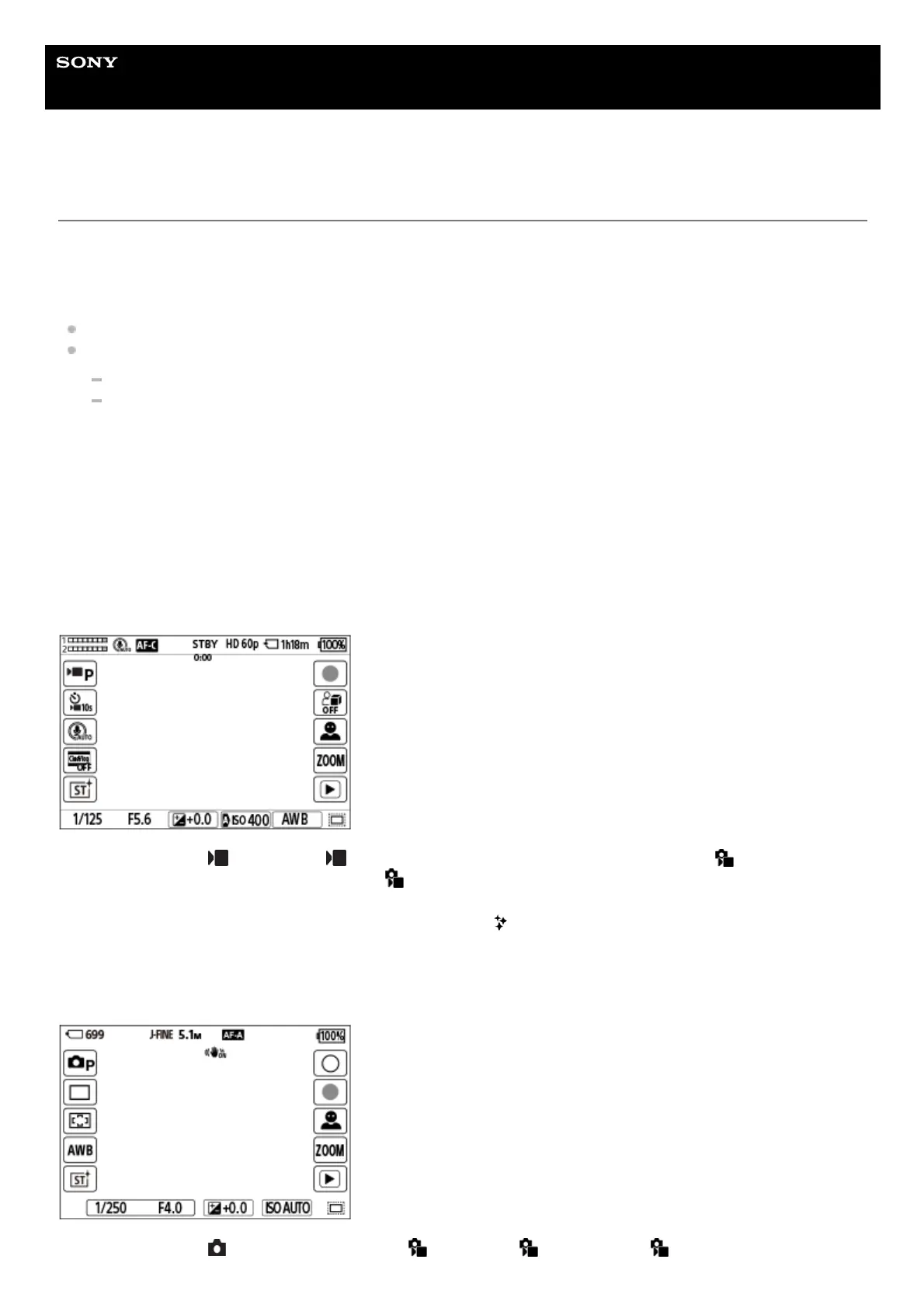
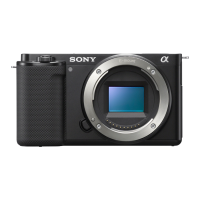
Examples of the touch function icon display and functions of each icon
The examples show the display when you set the icons to appear on both the left and right sides.
During movie recording
Icons on the left side: Shoot Mode, Self-timer, Mic Directivity Select, Cinematic Vlog Set., Creative Look*
Icons on the right side: Starts recording movies,
Product SC Set, Recog. Target Select, Step Zoom, switches to the
playback screen**
During still image shooting
Icons on the left side: Shoot Mode, Drive Mode, Focus Area, White Balance, Creative Look*
When the shooting mode is set to [Intelligent Auto], the icon changes to the
(image adjustment) setting icon.
*
The shot mark button is displayed during movie recording so that shot marks can be set for the movie being recorded.
**


 To Next Page