-28-
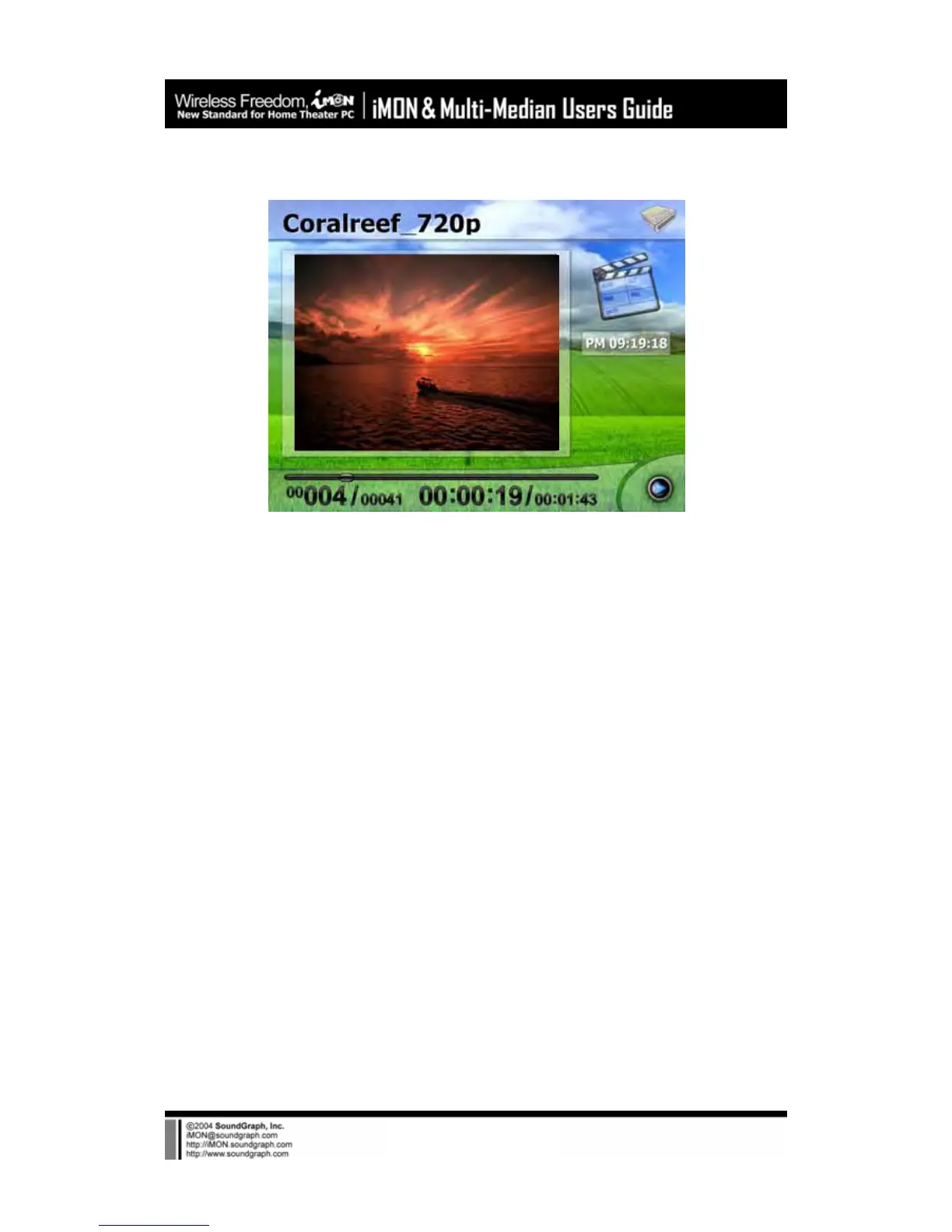
displays the sequence number in the playlist with current playing time.
6) Full Screen View
Full Screen View shows the current playing media file on the full screen. If you want to see the
detail information about the current playing media file, you may go back to the media preview
or call the control panel using the ‘(Windows)-Menu’ button on the remote controller.
7) DVD View
DVD View is similar to the Movie View. You can configure DVD setting in the DVD menu screen,
then see the DVD movie on the full screen, just push the ‘Enter’ button on the remote controller.
8) TV View
In order to see the TV channel using Multi-Median, you need to select the TV card you have in
the setup menu. Please see details about the setting of TV card on the ‘Setting Environment’.
TV View is also similar to the Movie View. TV Channels are shown as like the media files in the
Media File View. You can watch the TV channel that you want using the ‘Enter’ button on the
remote controller. You can input the channel number using the numeric buttons of the remote
controller. You can record the TV show as ‘WMV’ file format to your Hard Disk Drive. The TV
Channel recording files will be stored on the ‘My document₩My Videos₩Multi-
Median₩Recorded TV’ folder.
9) Digital Camcorder View
Digital Camcorder View supports all the digital Camcorder devices which could be connected to



 To Next Page