Operation
1. Touch to shift to BT DEVICE MENU to show the
current status on connection.
2. Touch to shift to PHONE (KEYPAD) MENU for dial
out.
3. Touch to shift to PHONE (PHONEBOOK) MENU to
show the phone book of the connected mobile
phone.
4. Touch to shift to PHONE (RECENT) MENU to show
the record on incoming / outgoing / missing calls.
5. Touch to shift to BT MUSIC for transmission of
music playback from the connected phone.
6.Touch to select the linked uo device.
7. Touch to delete the linked up device.
8. Touch to input the phone number for dial out.
9. Touch to erase the digit input by error.
10. Touch to dial out after input the phone number
or redial the last call number when no phone
number input.
11.Touch to hang up or refuse an incoming call.
12.Touch to shift conversation from Bluetooth of
the unit to the mobile phone.
13.Touch to turn on or off of sound muting of the
microphone of the unit.
14. Touch to input the data.
15. Touch to hang up or refuse an incoming call.
16. Touch to pick-up an incoming call.
17. Touch to start downloading / updating the call
history of the linked-up phone to the unit.
18. Touch to show the missing call history.
19. Touch to show the incoming call history.
20. Touch to show the outgoing call history.
21. Touch to shift page up or down.
22. Touch to start downloading / updating the call
history of the linked-up phone to the unit.
23. Touch to start / pause / resume playback
transmitted from the mobile phone.
24.Touch to shift to previous or next track for
playback.
25. Touch to turn off the screen. When the screen is
off, touch any portion of screen to turn on the
screen.
26. Touch to activate AUDIO & VISUAL MENU for
various audio & visual settings.
27. Touch to shifr screen to MAIN MENU.
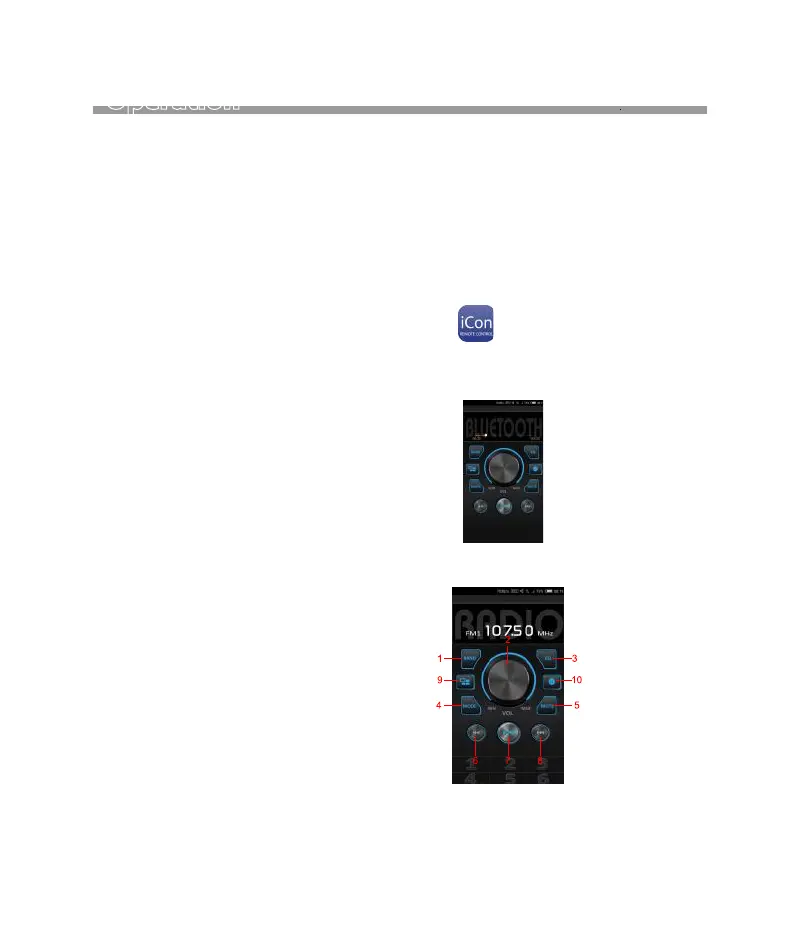
1. Radio band selection
2. Adjust the volume up or down
3. Adjust the EQ selection
4. Select the desired mode
5. Mute or Unmute
6.Upward operation
7. Play/Pause control
8. Downward operation
9. Back to homepage
10. Settings
Remarks: The operation under this application is
limited to some modes and controls only>
User can download the following APP to the
mobile phone in order to have control of the
headunit by mobile phone via Bluetooth.
Take you phone and follow the steps:
- for Android device, search “iCon” from
Google Store and download & install,
-After installaion, open the application:
- The following menu appeared in the mobile
phone and you can start control the headunit
with this menu ( Bluetooth must be connected):
- The following shows the control option:
APPLICATION TO CONTROL THE UNIT
VIA BLUETOOTH OF MOBILE PHONE
(Android support only)
APPLICATION TO CONTROL THE UNIT
VIA BLUETOOTH OF MOBILE PHONE
(Android support only)
18


 To Next Page